Intake review
An intake coordinator, MA, or nurse screens what patients completed before the visit — marks it reviewed, flags it for the provider, or sends it back — and the provider sees the result in the pre-visit preview.
Intake review
An intake coordinator, MA, or nurse screens what patients completed before the visit — marks it reviewed, flags it for the provider, or sends it back — and the provider sees the result in the pre-visit preview.
Screen pre-visit questionnaires and paperwork before the provider sees the patient
Intake review gives your intake coordinator, medical assistants, or nurses a worklist of what patients completed before upcoming visits — the questionnaires your questionnaire rules sent and, if you choose, the paperwork they signed. For each visit they can mark items reviewed, flag something for the provider, or send a questionnaire back to the patient to fix. Providers see the outcome in the pre-visit preview. Intake review is off until an administrator turns it on; until then nothing changes for staff or patients.
What needs a human
- Safety flags always do — for example PHQ-9 item 9 or a C-SSRS ideation answer.
- Beyond that, your settings decide: everything, or only new patients, elevated scores (PHQ-9 ≥ 10, GAD-7 ≥ 10, positive screens), and chosen visit types.
- Everything else is marked
No review neededautomatically, so staff only look at what matters.
What “Reviewed” means
- A staff member has pre-screened the item: it is complete, and anything concerning was flagged.
- It is not the provider’s clinical interpretation — the provider still reads the results.
- Reviewed questionnaires carry a
Reviewedchip with the reviewer’s name and date.
Look ahead days (7 by default) appear. Once an item’s decision is made, later settings changes do not re-sort it.
Admin > Intake Review
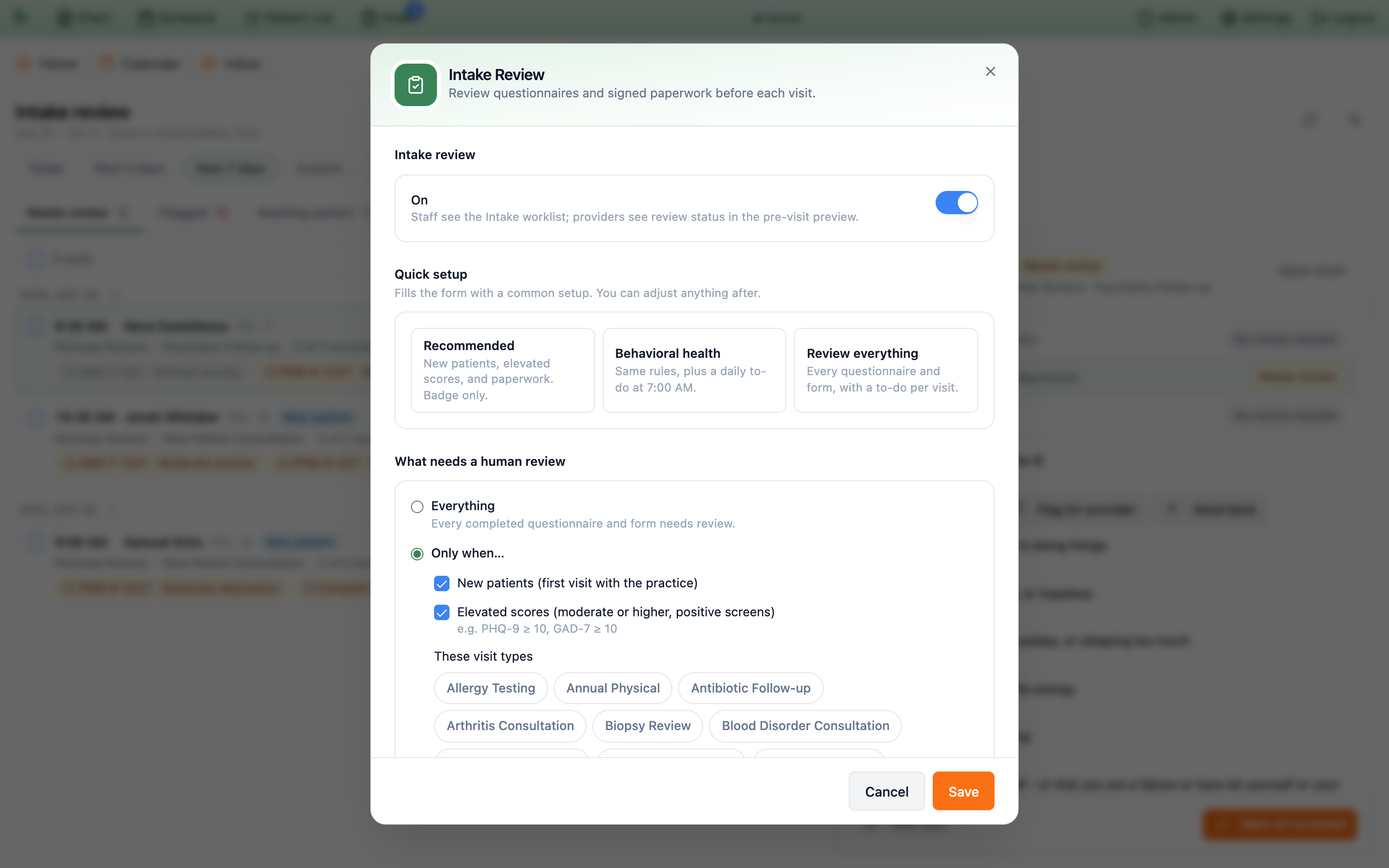
Open Admin > Intake Review (or the gear on the worklist). Organization administrators — practice admins, office managers, and owners — and staff with Manage SOAP templates, letter templates, and questionnaires can change it. The dialog is titled Intake Review: “Review questionnaires and signed paperwork before each visit.”
-
Switch it on.
Under
Intake review, turn the switch toOn(“Staff see the Intake worklist; providers see review status in the pre-visit preview.”). -
Start from Quick setup.
Recommended— new patients, elevated scores, and paperwork, badge only.Behavioral health— the same rules plus a daily to-do at 7:00 AM.Review everything— every questionnaire and form, with a to-do per visit. A preset only fills the form; nothing is saved until you clickSave. -
Decide what needs a human review.
Everything, orOnly when…with any ofNew patients (first visit with the practice),Elevated scores (moderate or higher, positive screens), andThese visit types. With nothing ticked, only safety flags need review. -
Set scope and timing.
Include signed paperwork(on) puts consents and forms beside questionnaires.Look aheadsets how many days of appointments appear (1–30, default 7). -
Choose how reviewers are told.
Under
Who reviews:Badge only(the default — theIntakebutton shows a count),A daily to-do(one to-do each morning at theSend athour, practice time), orA to-do for each visit as forms come in(completed automatically once the visit is reviewed). The to-do options needRecipients.Also send safety-flag to-dos to these recipientsadds your reviewers to the safety to-do providers always get. -
Flags and send-backs, then save.
When a reviewer flags something, create a to-do for the visit’s provider(on) andWhen sending a questionnaire back, keep the patient’s previous answers(on) set the defaults for those dialogs. ClickSave; it confirms “Intake review settings saved”.
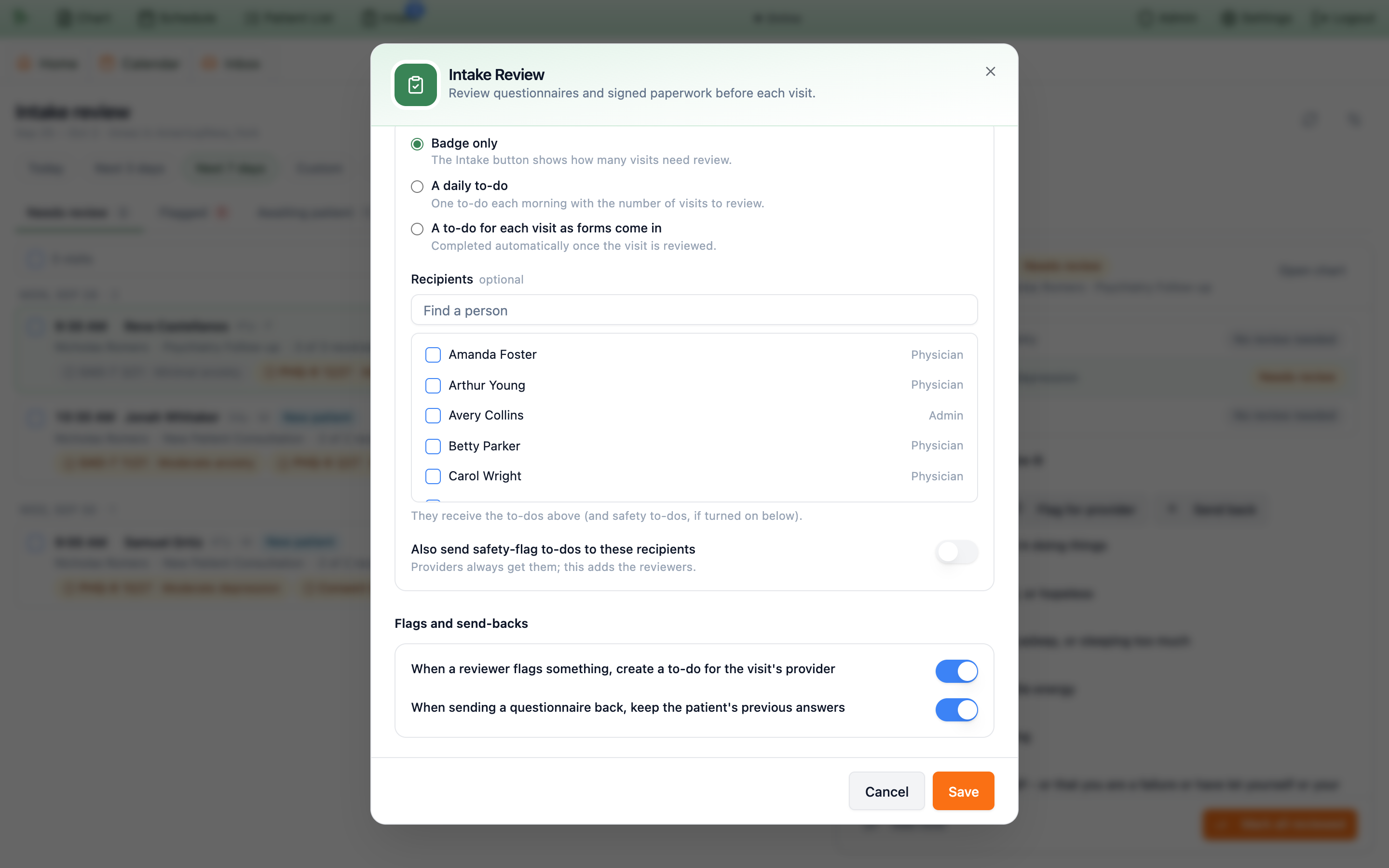
Save until you pick at least one when a to-do option or safety to-dos for reviewers is chosen.
Give staff intake review access
Reviewing needs the Intake Review permission — “Review pre-visit questionnaires and signed paperwork, flag intake for providers, and send questionnaires back to patients.” (the settings call it the Review intake permission). Providers and practice administrators, office managers, and owners can always review.
-
Use a role profile.
The
Medical AssistantandNurserole profiles include it, and the newIntake Coordinatorrole profile is built around it: “Reviews pre-visit questionnaires and paperwork, contacts patients, and schedules.” It grants scheduling, patient records (view and edit), documents, messaging, chat, to-dos, the softphone, kiosk operation, and intake review — deliberately no payments, billing, or chart documentation. -
Or add it to anyone.
In
Admin>Staff / Assistants, open the staff member, and on theAccessstep either pick role profiles or useCustomize granular permissionsand tick the permission under Intake Review.
Work the Intake worklist
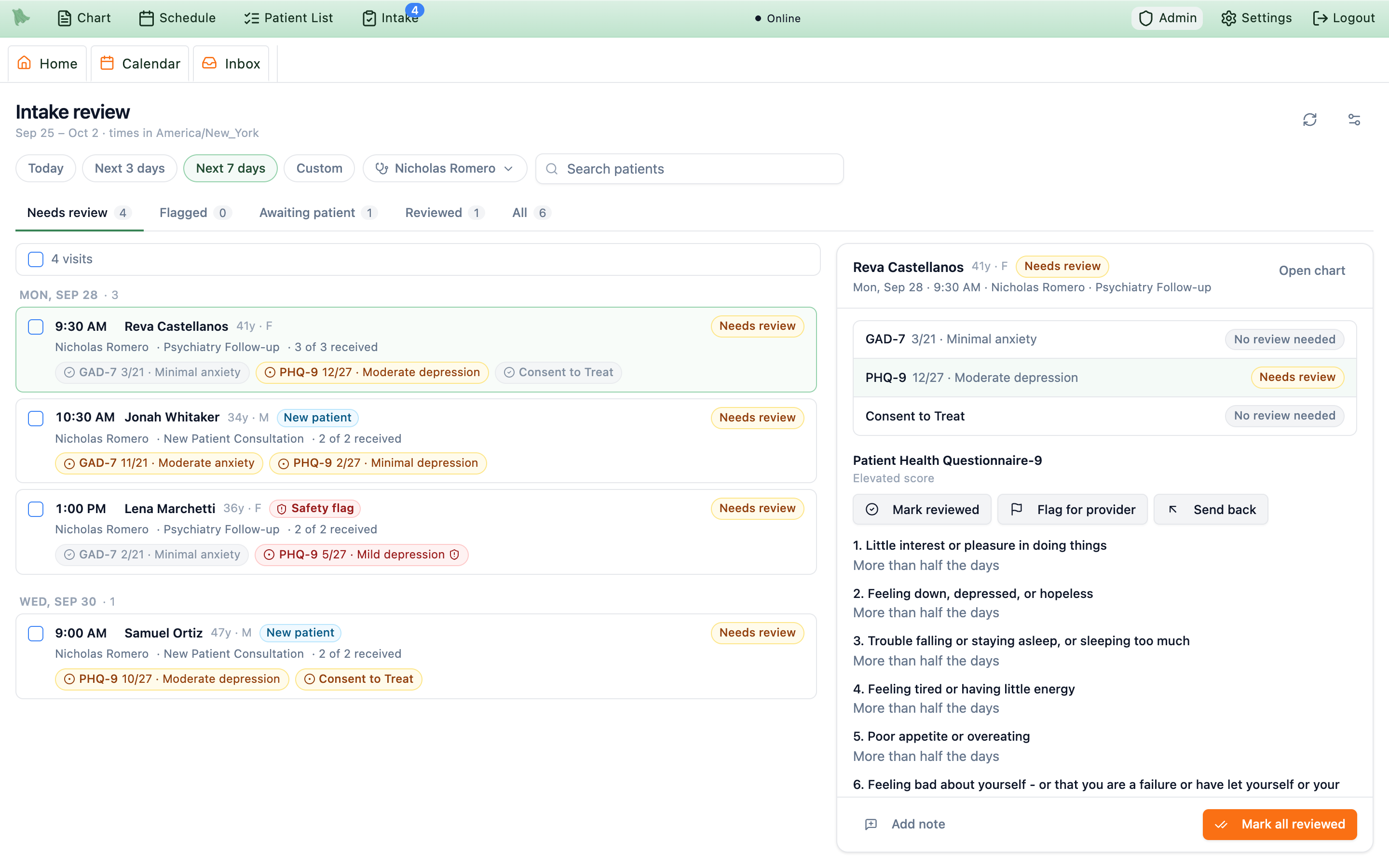
Reviewers get an Intake button in the toolbar. Its badge counts visits that need review (for providers, their own) plus flags waiting for you, within the look-ahead window. It opens the Intake review page, which shows the date range and “times in” your practice time zone.
-
Pick the days and people.
Today,Next 3 days,Next 7 days(the default, matching the look-ahead), orCustom(up to 31 days). The provider filter starts onAll providers— providers start on their own visits — andSearch patientsfinds a name. -
Choose a tab.
Needs review,Flagged,Awaiting patient,Reviewed, andAll, each with a count. Visits are grouped by day; each row shows the time, patient, age and sex,New patientandSafety flagchips, the provider and visit type, “3 of 3 received”, and a chip per item with its score (for examplePHQ-9 12/27 · Moderate depression). -
Review a visit in the side panel.
Click a row. The panel lists the visit’s items with their status; click one to read its answers (safety answers are highlighted in a red
Safety flagbox) or, for paperwork,View signed PDF. The reason it needs review shows under its name, for example Elevated score or New patient. -
Decide.
Per item:
Mark reviewed,Flag for provider,Send back(questionnaires only), orUndoon a reviewed item. For the whole visit:Mark all reviewed, which moves you to the next visit automatically.Add noteleaves an internal note (“Internal note (staff only)”);Historyshows who did what. -
Clear routine visits in bulk.
Tick visits (or the select-all box) and click
Mark reviewed (n visits), up to 100 at a time. The toast offersUndofor 8 seconds. Bulk review across several visits skips safety-flag items — those are reviewed one visit at a time.
| Visit status | Meaning |
|---|---|
Flagged | A reviewer flagged an item for the provider and it is not acknowledged yet. |
Needs review | At least one item needs a human look. |
Awaiting patient | Items are still with the patient (the item chip reads Waiting on patient). |
Reviewed | Everything received has been reviewed or sent back. |
No review needed | Everything received was cleared automatically by your rules. |
Flag something for the provider, or send a questionnaire back
Flag for provider
-
Open the dialog.
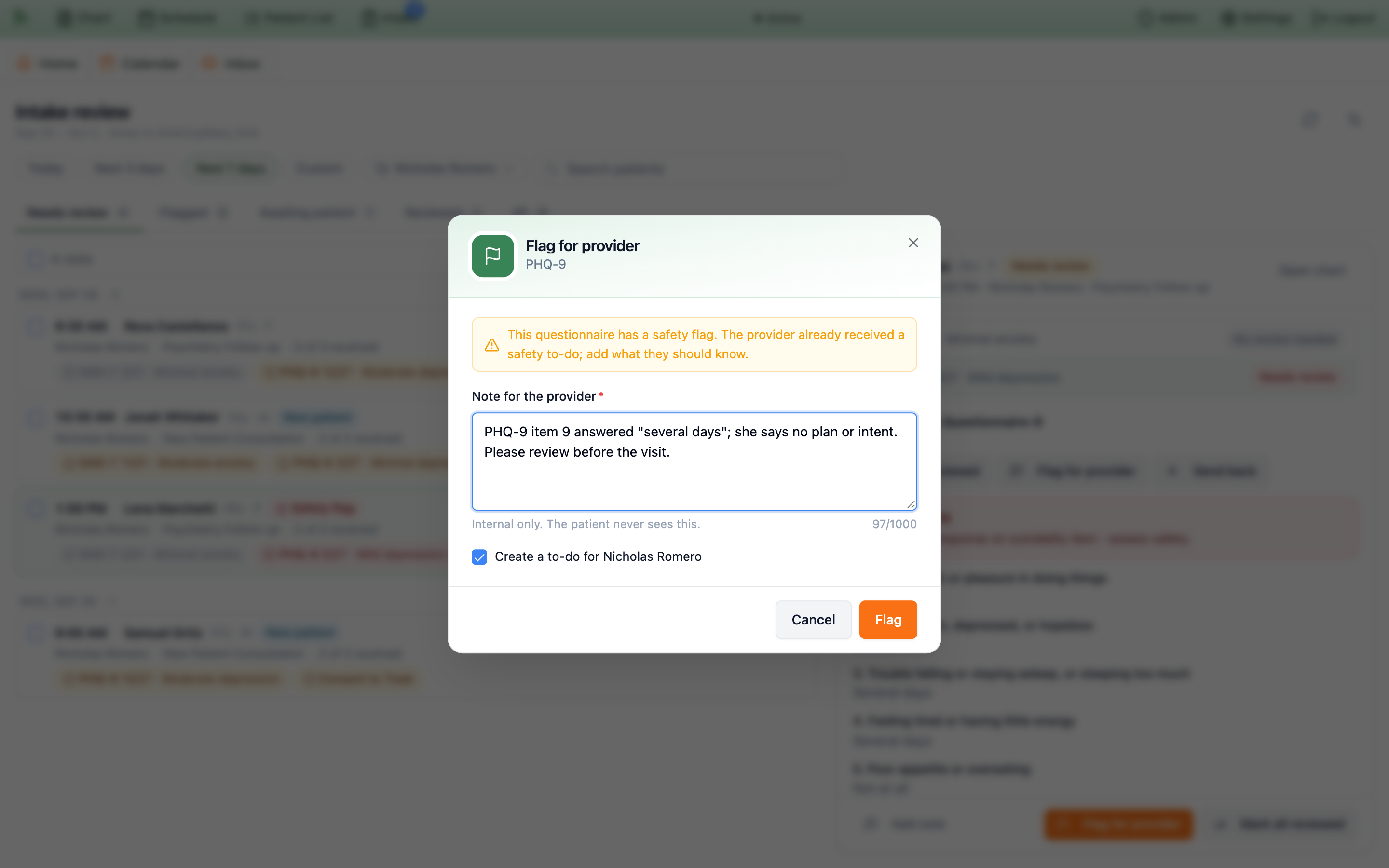
Flag for provideron an item opens Flag for provider. On a safety-flag questionnaire it warns: “This questionnaire has a safety flag. The provider already received a safety to-do; add what they should know.” -
Write the note.
Note for the provideris required (up to 1,000 characters) — “Internal only. The patient never sees this.” -
Send it.
Leave
Create a to-do for <provider>ticked to give the provider a to-do (“Intake flag for Mon, Sep 28 at 1:00 PM visit: PHQ-9”), and clickFlag. The item counts as reviewed and the visit moves toFlaggeduntil the provider acknowledges it.
Send back to the patient
-
Open the dialog.
Send back(questionnaires only) opens Send back to the patient. For a visit within 24 hours it warns that the patient must finish before they can check in online. -
Tell the patient what to fix.
Type a
Message(required, up to 500 characters) or tap a quick message such as “Some answers were left blank. Please finish the questionnaire.” — “The patient will see this message in the portal. It is not sent by text or email.” -
Keep their answers.
Keep their previous answers(on by default) re-opens the questionnaire pre-filled, so the patient only changes what is needed; photos are not carried over. ClickSend.
Sent back, and the patient gets a text, email, or app notice (following their preferences) that says only “Your care team asked you to update a health questionnaire for Tessa. Sign in to the patient portal…” — never your message. When they resubmit, the new answers return to Needs review as Updated after send-back. A questionnaire can be sent back up to 3 times per visit.
What providers and patients see
Providers
- The calendar’s
Previsitcolumn adds an icon — a flag, an amber dot (needs review), or a green check (reviewed) — with details on hover, such as “Intake reviewed by Marisol V. · Sep 25, 3:05 PM”. - The
Visit Readinesspanel of the pre-visit preview leads with the intake status: red flag cards with the reviewer’s note and anAcknowledgebutton, then a line such as “2 intake items need review” or “Intake: no review needed”. Acknowledge(any provider or administrator) turns the flag grey and completes the provider’s flag to-do.- Reviewed questionnaires carry a
Reviewedchip inVisit questionnairesandIntake & screening questionnaires.
Patients
- A sent-back questionnaire opens with a banner, A note from your care team, showing your message, and “Your earlier answers are filled in. Update what’s needed and submit.”
- It appears on the visit’s checklist, or on Home as “Update requested by your care team” when it is not tied to a visit.
- Patients never see flags, internal notes, review status, or who reviewed their answers.
Need help? Email support@heroemr.com.