Refills & medications
Medication work between visits: pharmacy renewal requests, the Refills worklist for patient requests, prescribing without an open encounter, the chart's medication list and timeline, how Hero decides what is current, transmission statuses and errors, and pharmacies.
Refills & medications
Medication work between visits: pharmacy renewal requests, the Refills worklist for patient requests, prescribing without an open encounter, the chart's medication list and timeline, how Hero decides what is current, transmission statuses and errors, and pharmacies.
Work pharmacy renewal & change requests
Pharmacy traffic that happens between visits arrives in the Rx view of the Inbox: pharmacy renewal requests, change requests, pharmacy-initiated new prescriptions, cancellation denials, and transmission errors — plus, for supervising physicians, controlled prescriptions a nurse practitioner or physician assistant has routed for your signature (Signature requested; see Supervisory signing). The view is available to physicians and admins (staff accounts never see it), and the list refreshes itself every 30 seconds, so answered and newly arrived requests appear without a reload. Refill requests that patients send from the portal are not here — they have their own Refills view with a checklist and one-click Prescribe (see The Refills worklist).
-
Open the Rx view.
Click
Inboxin the main tab bar, then theRxview (pill icon) in the inbox sidebar. List rows are titled by request type plus the medication’s NDC product code — open the message to see the drug name. -
Read the request.
The header card shows the drug, the patient, and a colored request-type chip, with a key-value grid for
Prescriber,Pharmacy,Written Date,Quantity,Refills, andSubstitution. Below it sitRequest Info(for example “Pharmacy requests renewal (2 refills).”),Medication Details— on a change request that card is replaced by anOrdercard listing your original order’sMedication,NDC,Sig,Quantity,Days Supply,Refills, andSubstitution— and aTimeline. The right panel addsStatus, anAI Summaryof the request,Pharmacy Details, andRouting / Identifiers. -
Approve — as written or with changes.
Approveanswers the pharmacy as requested. To adjust the prescription first, openMore→Edit Medication; theEdit Prescription:dialog ends inApprove with Changes. Changing only the refill count sends the approval with the new count; any other edit sends your version back as a replacement prescription. For change requests,Morealso offersValidate, which returns a validated response to the pharmacy — the status card then readsChange request validated. -
Or reject with a reason.
Rejectreveals aSelect denial reasondropdown listing the twelve standard Surescripts denial reasons — among them “Patient unknown to the prescriber”, “Patient has requested refill too soon” (the pre-selected default), “Refill not appropriate”, “Medication is discontinued”, and “Other” — and anAdditional details (optional)box.Confirm Denialsends it; the status card then showsRenewal request deniedwith “Denial sent to the pharmacy. We’ll refresh if they respond.”
| Request chip | What it is | Your actions |
|---|---|---|
Renewal Request | The pharmacy asks you to renew a prescription that is out of refills. | Approve, Approve with Changes, or Reject |
Change Request | The pharmacy proposes a change; the detail pane shows your original order in an Order card. | Approve, Validate, Approve with Changes, or Reject |
New Prescription | A pharmacy-initiated request for a new prescription. | Approve or Reject |
Cancel Request Denied | The pharmacy declined your electronic cancellation. | Informational — see Status & errors |
Error | A prescription failed transmission or verification. | Informational — re-issue; see Status & errors |
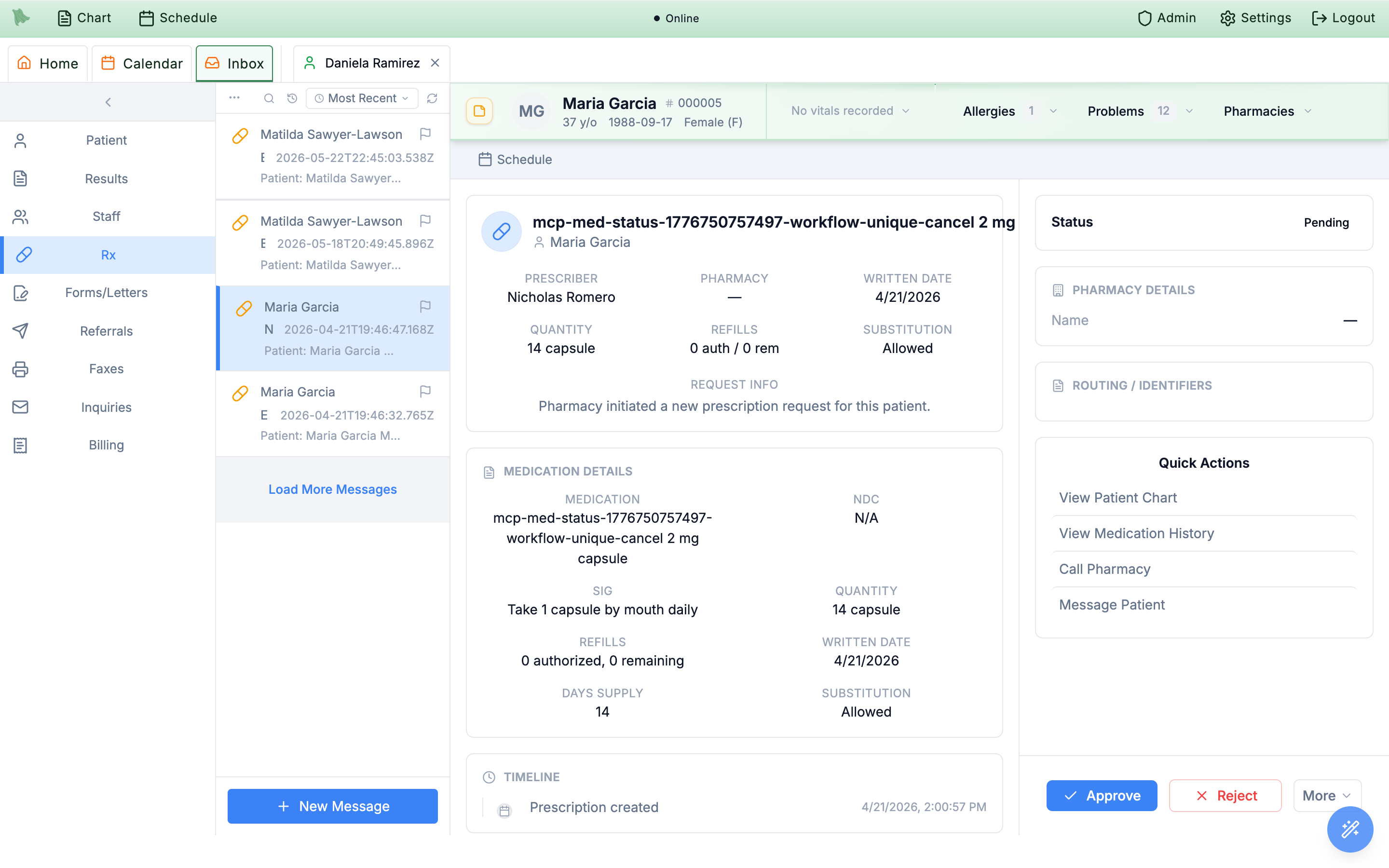
Approve / Reject / More action bar.Status card records the outcome — for example Renewal request approved with “Approval transmitted to the pharmacy.”, or for a change request, “Change response sent to the pharmacy. Any pharmacy follow-up will appear here.”
Controlled substance banner — “Approving requires passkey (EPCS) verification. Denials do not require passkey.” Approving opens the same passkey verification used for in-encounter EPCS signing. Schedule II renewals are blocked outright (“Schedule II renewals cannot be approved. Deny the request and issue a new prescription.”), and Schedule II change requests must carry a days supply between 1 and 30 before approval is attempted.
Work patient refill requests in Inbox > Refills
Patients ask for refills from the patient portal (Profile > Medications > Request refill). Each request lands in the Refills view of the Inbox — a worklist, not a message thread. Every request has an owner and an age, a checklist that checks the chart for you, and a Prescribe button that opens the normal prescription editor already filled in. When the request is decided, the patient is told the outcome. What patients may request, who reviews first, and how late is “late” are all set in Refill settings; nothing reaches patients until an administrator turns on Allow patients to request refills.
-
Open Inbox > Refills.
Refillssits underRxin the inbox sidebar. Providers (every active physician, NP, or PA in the practice) and practice administrators always have it; staff need the Review and route refill requests permission, which the Medical Assistant and Nurse role profiles include. The view stays hidden until the practice turns on portal refill requests (or has received one). Its badge counts requests waiting for you, not unread ones. -
Pick a folder tab.
With staff triage off (the default) there are two tabs,
OpenandCompleted. With triage on there are three:To triage,Ready for provider, andCompleted; providers land onReady for provider, everyone else onTo triage. Open tabs list the oldest request first;Completedshows decisions from the last 30 days, newest first. -
Choose Mine or All, and search.
Minemeans assigned to you or still in the shared queue (for triage staff: owned by you or unclaimed).Allshows the whole practice and adds a provider (or owner) filter. The search box,Search patient or medication, starts matching after two characters. -
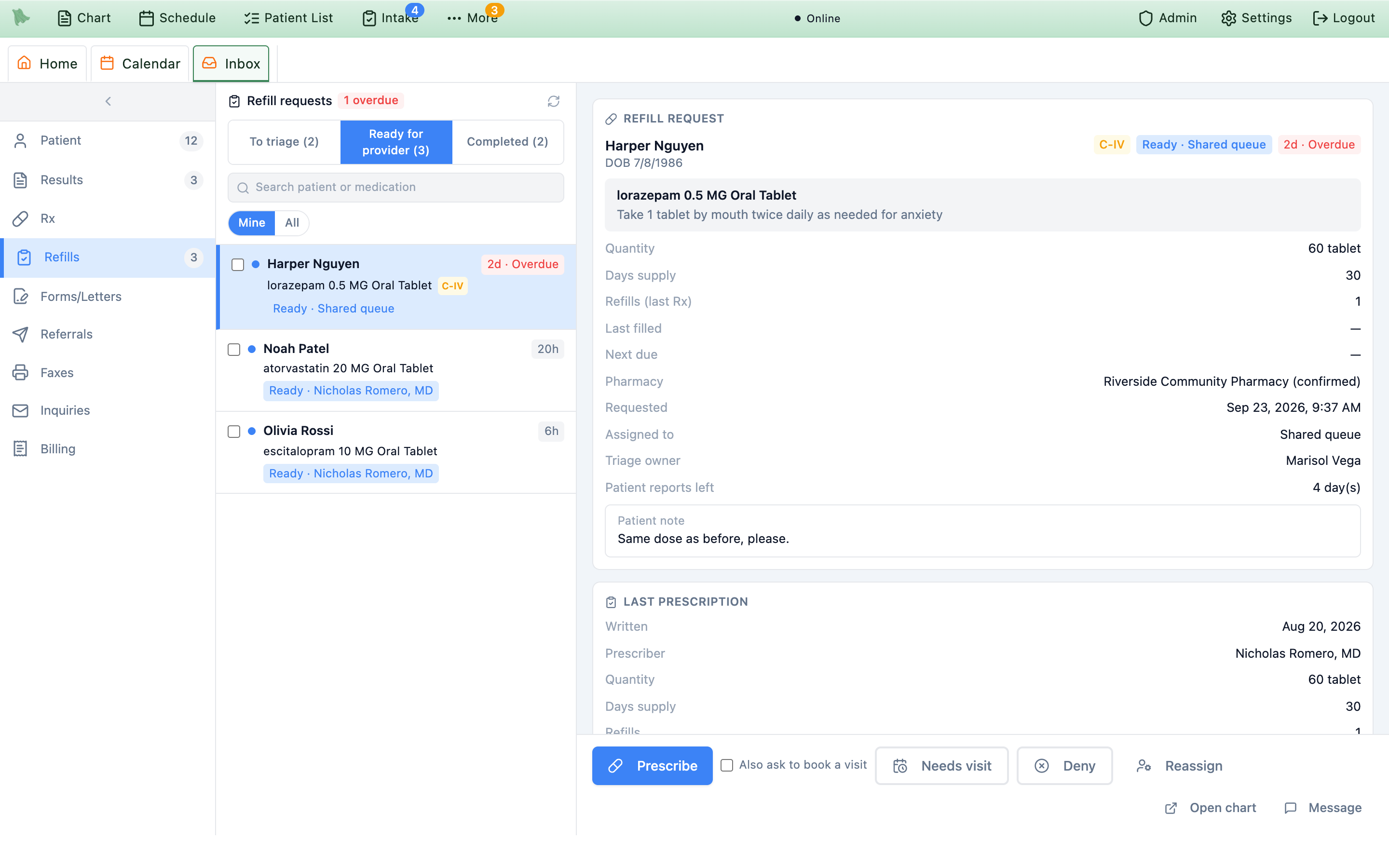
Read the row.
Each row shows the patient, the medication, a controlled-substance chip (
C-IItoC-V, orControlledwhen the schedule is unknown), and the request’s age (45m,5h,2d). The age pill turns amber withDue soonand red withOverdueat the hours you set. A stage chip says where it is:New,In triage · <staff member>,Ready · <provider>, orReady · Shared queue. Completed rows show the outcome instead:Prescribed,Not approved,Visit needed, orCancelled. - Open a request. Click the row. The detail pane on the right holds the request, the last prescription, the checklist, the activity log, and the action bar — see Review & decide.
| Stage | What it means |
|---|---|
New | The patient just sent it; nobody has worked it yet. |
In triage | A staff member has claimed it and is checking the chart (triage practices only, or when staff click Claim). |
Ready | Waiting for a provider — either one named provider or the shared queue any provider can pick up. |
Prescribed | A prescription was written from the request. Extra chips track it: Awaiting signature · Dr X while a supervising physician holds it, Returned by Dr X if they sent it back, and Rx not sent if it has not reached the pharmacy. |
Not approved / Visit needed | Declined, or the patient must be seen first. Both are final; the patient gets your message. |
Cancelled | The patient withdrew the request from the portal. |
Pharmacy renewals (n) → Rx link at the top of Refills.
Check the request, then prescribe, ask for a visit, or decline
The detail pane has four cards. Refill request shows the patient and date of birth, the medication and directions, Quantity, Days supply, Refills (last Rx), the Pharmacy (marked confirmed when the patient confirmed it), when it was Requested, who it is Assigned to, the Triage owner, how many days the patient says are left, and the patient’s note. Last prescription repeats the prior script. Checklist and Activity follow.
The checklist
The checklist looks things up in the chart so nobody has to. Each item shows a status — Met, Missing, Check, or Info — and the evidence it found. Items marked Required block Prescribe until they are met or someone clicks Mark reviewed (with an optional note such as “Reviewed outside records”). A reviewed item records who and when, and Undo review removes it.
| Item | When it appears | What satisfies it |
|---|---|---|
Last visit | Always | A completed visit inside the visit window (365 days by default, or the controlled-substance window). Otherwise Check. |
Refill timing, Pharmacy, Patient attestation | Always | Information from the request: days of supply left, refills that may remain at the pharmacy, whether the patient confirmed the pharmacy and attested they still take the medication. |
Verify controlled-substance schedule — required | The schedule could not be determined automatically | Only Mark reviewed. |
Controlled-substance agreement — required | Controlled drug, and Require signed controlled-substance agreement is on | A signed, current controlled-substance agreement on the chart (annual templates expire after 365 days), or Mark reviewed. When your practice has a controlled-substance agreement template, users who can edit patient records also get Send agreement, which sends it to the patient. |
Drug screen — required | Controlled drug, and Recent UDS window is set | A drug-screen lab result inside the window, found automatically, or Mark reviewed. |
PDMP review — required | Controlled drug, and Require PDMP check is on | A current PDMP check in Hero EMR, or Mark reviewed after checking the state PDMP yourself. |
EPCS — required | Controlled drug, and EPCS-enabled approvers only is on | The provider can sign controlled prescriptions, or is an NP/PA who can route them to a supervising physician. It cannot be marked reviewed; reassign the request instead. |
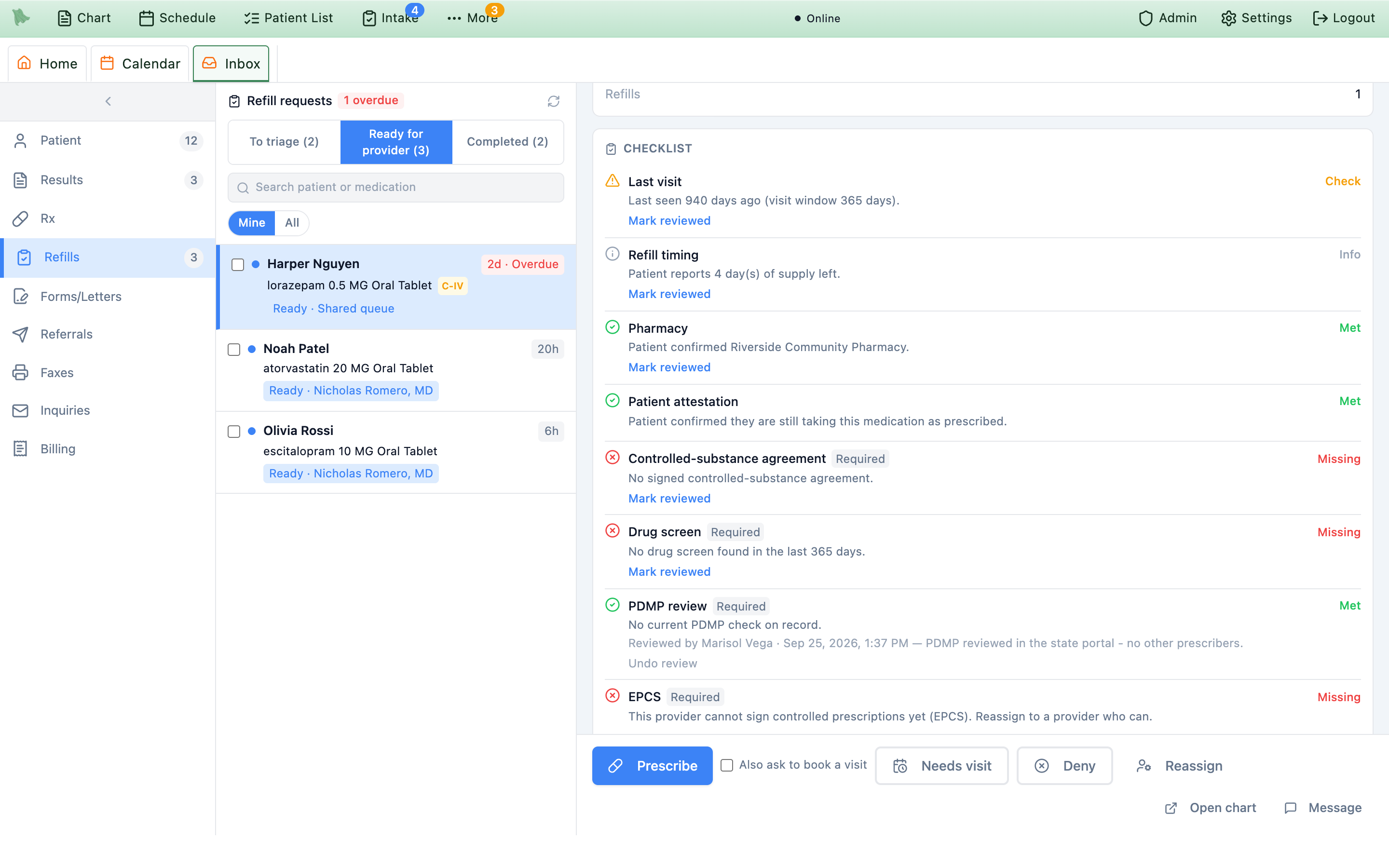
Prescribe.The action bar
The buttons you see depend on who you are and the practice settings; Hero EMR works this out for you, so a button that is shown is one you may use.
-
Prescribe (providers).
Prescribeopens the prescription editor titledRefill · <medication>, filled in from the last prescription the same way the chart’s Renew action works, with the pharmacy the patient asked for. Adjust anything, then send it as usual —Send 1 Orderfor a non-controlled drug, orSign & Sendwith EPCS for a controlled one. Sending closes the request asPrescribedin the same step. TickAlso ask to book a visitfirst to add a booking link to the approval message (a bridge supply). If required checklist items are open, Hero EMR stops with “Complete the required checklist items before prescribing.” and highlights them. -
Needs visit.
Opens Visit needed before this refill with a
Message to the patient(pre-filled: “Your care team needs to see you before this refill. Please schedule an appointment.”), an optional internal note, andText/email the patient a booking link(on). ClickVisit needed. Providers can always do this; triage staff can whenStaff may mark “needs visit”is on (the default). -
Deny.
Opens Don’t approve this refill. Pick a
Reason—Needs an appointment,Medication stopped,Too early,Refills remain at the pharmacy, orOther— write the requiredInternal note (care team only), and check theMessage to the patient, which is pre-filled from the reason. ClickNot approved. Staff may deny only whenStaff may deny non-controlled requestsis on, and never a controlled drug. -
Reassign, Claim, Send to provider.
Reassignpicks a provider (orShared queue (any provider)) and, for triage staff, a triage owner; providers who cannot sign a controlled drug are marked — no EPCS. Triage staff also getClaimandSend to provider(see Staff triage).Open chartandMessageare always there;Messagestarts a portal message with the subject “About your refill request”.
Prescribe reserves the request for you for 15 minutes; a colleague who opens it sees “name started prescribing this refill” and, on Prescribe, a Someone else is prescribing this refill dialog with Take over. Only one prescription can be sent from a request — the other editor gets “Nothing was sent.” If you prescribe the same drug from the chart instead, Hero EMR links it to the open request automatically (activity: Prescribed (linked automatically)).
EPCS item counts as met for them. Prescribe shows “A supervising physician signs this refill”; in the editor, choose Route to supervising physician. The request closes as Prescribed when it is routed and shows Awaiting signature · Dr X until the physician signs; if they send it back, the row shows Returned by Dr X and Rx not sent. The patient’s “approved” text waits until the pharmacy actually has the prescription.
Let staff triage first, work in bulk, and catch late requests
Practices where a nurse or medical assistant checks each request before the provider turn on Staff triage before provider review (see Refill settings, or apply the Group practice · nurse triage preset). New requests then wait in To triage, and providers only see what staff send them.
-
Claim a request.
Open a
Newrequest inTo triageand clickClaim— or just start working: adding a note, marking a checklist item reviewed, or sending it on claims it for you automatically. The stage changes toIn triagewith your name. -
Do the chart work.
Mark checklist items reviewed (for example the PDMP), use
Send agreementif the controlled-substance agreement is missing, and leave internal notes inActivity(“Add an internal note (not visible to the patient)”). -
Send to provider.
Send to providermoves it toReady for provider, either to the provider it was routed to or to one you pick. Staff can also close requests themselves withNeeds visit, and withDenyfor non-controlled drugs when the practice allows it.
Bulk actions
Tick the checkboxes on open rows to get a bulk bar: Assign provider, Assign owner and Send to provider (triage practices), and Needs visit. Up to 50 requests at a time; each one is re-checked, and the result reads, for example, “12 updated, 1 skipped (already changed or not allowed)”. Prescribe and Deny are never bulk actions.
Deadlines, escalation, and live alerts
Age badges
Warn after(default 24 hours) turns the age pill amber withDue soon.Overdue after(default 48 hours) turns it red withOverdueand counts it in the header’sn overduechip.- Hours are clock hours from when the patient sent the request, including nights and weekends.
Escalation
- With
Escalate overdue requestson (off by default), an overdue request alerts theEscalate toperson — by default the practice admins — and the assigned provider. - Each request escalates once; the activity log records
Escalated as overdue. - Hero EMR checks for overdue requests every 10 minutes.
While Hero EMR is open, in-app toasts announce New refill request, Refill request ready for you, Refill request assigned to you, and Refill request overdue, each with an Open button. Toasts name the patient as first name and last initial and say “controlled medication” when relevant — never the drug. Notify the assigned provider controls the provider alerts and Notify the staff pool the alerts to triage staff; the person who took the action is never alerted.
Needs visit and Deny, and cannot prescribe.
Refill requests from the patient’s side
Patients request refills under Profile > Medications in the portal. The Request refill button appears only when the portal’s Refill Requests feature (Admin > Patient Portal Configuration) and Allow patients to request refills are both on, and only for medications the rules allow. The request form asks them to confirm the pharmacy, how many days of medication are left, an optional note, and an attestation.
-
Track it.
Each medication shows the latest request, for example “Requested Sep 20 · Being reviewed”. A
Refill requestssection lists the history with plain statuses:Sent,Being reviewed,Approved,Approved – sent to pharmacy,Not approved,Appointment needed, andCancelled. -
Read the care team’s message.
For
Not approvedandAppointment neededthe patient sees the message you wrote in the dialog; aBook a visitbutton appears when you asked for a visit and online self-scheduling is on. -
Cancel.
While a request is still pending, the patient can cancel it (“Cancel refill request?” →
Cancel request). It moves toCompletedasCancelledon your side.
Tell patients the outcome on (the default), the patient gets a text, email, or app notification — following their contact preferences and quiet hours — when a request is not approved or needs a visit, and when an approved prescription has actually reached the pharmacy (checked every 10 minutes). The email subject is “Update on your refill request” and the app notification “Refill request update”.
Duplicate cooldown; the portal explains why (for example “Your care team recently reviewed a refill request for this medication and did not approve it. See your refill request history for their message.”). After Visit needed, the patient can ask again once they have been seen. When medication reconciliation is on, patient-reported medications the care team has not reviewed yet cannot be requested.
Prescribe from the chart with Create Orders
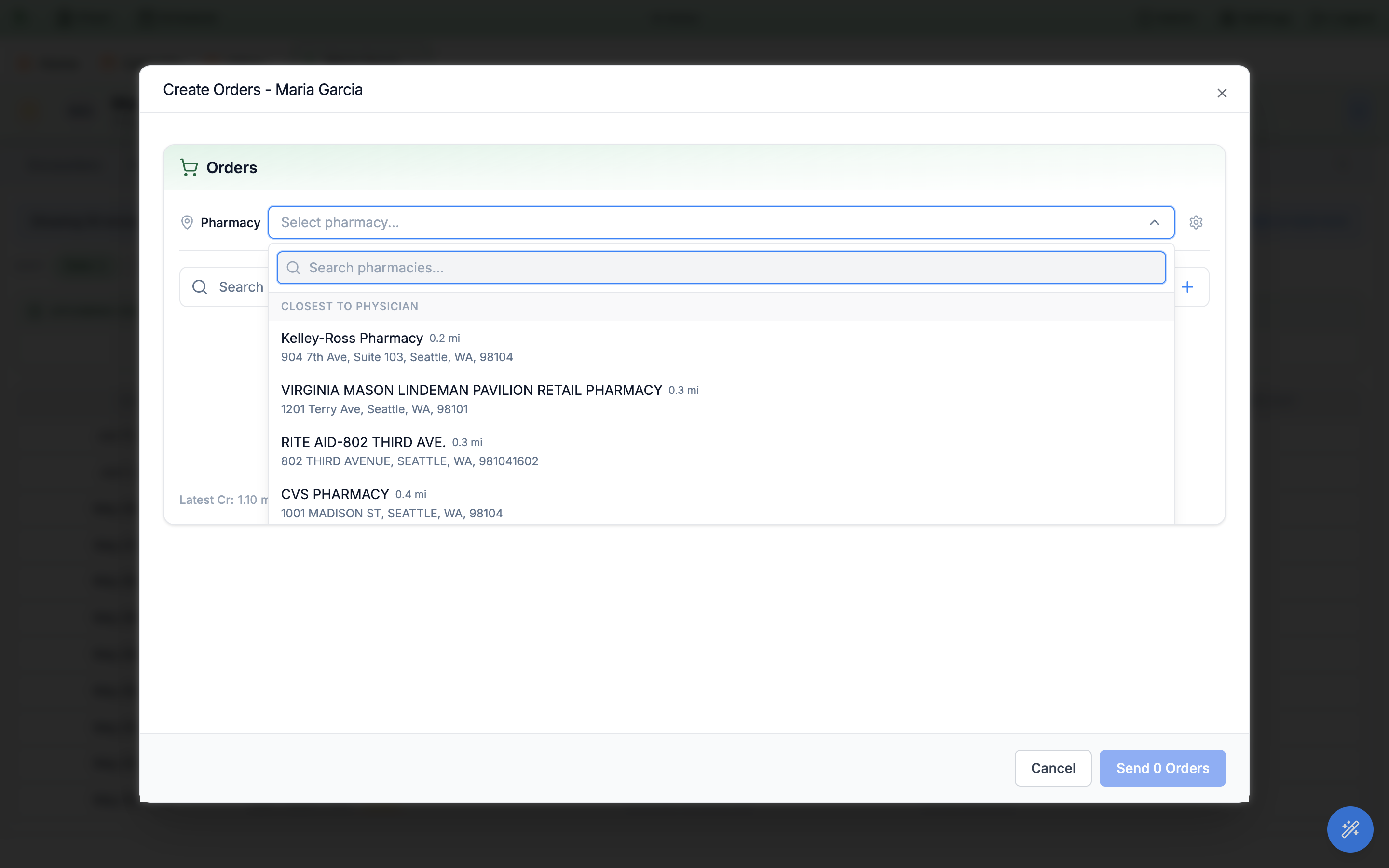
The Create Orders modal lets a physician prescribe — and order labs or imaging in the same send — straight from a patient’s chart, with no encounter open. It embeds the same order-entry workspace you use at encounter completion, so the search window, prescription builder, and safety checks all behave identically. There is no on-screen button for it: it opens from the keyboard or by voice, and the shortcut is physician-only.
-
Open it from the keyboard.
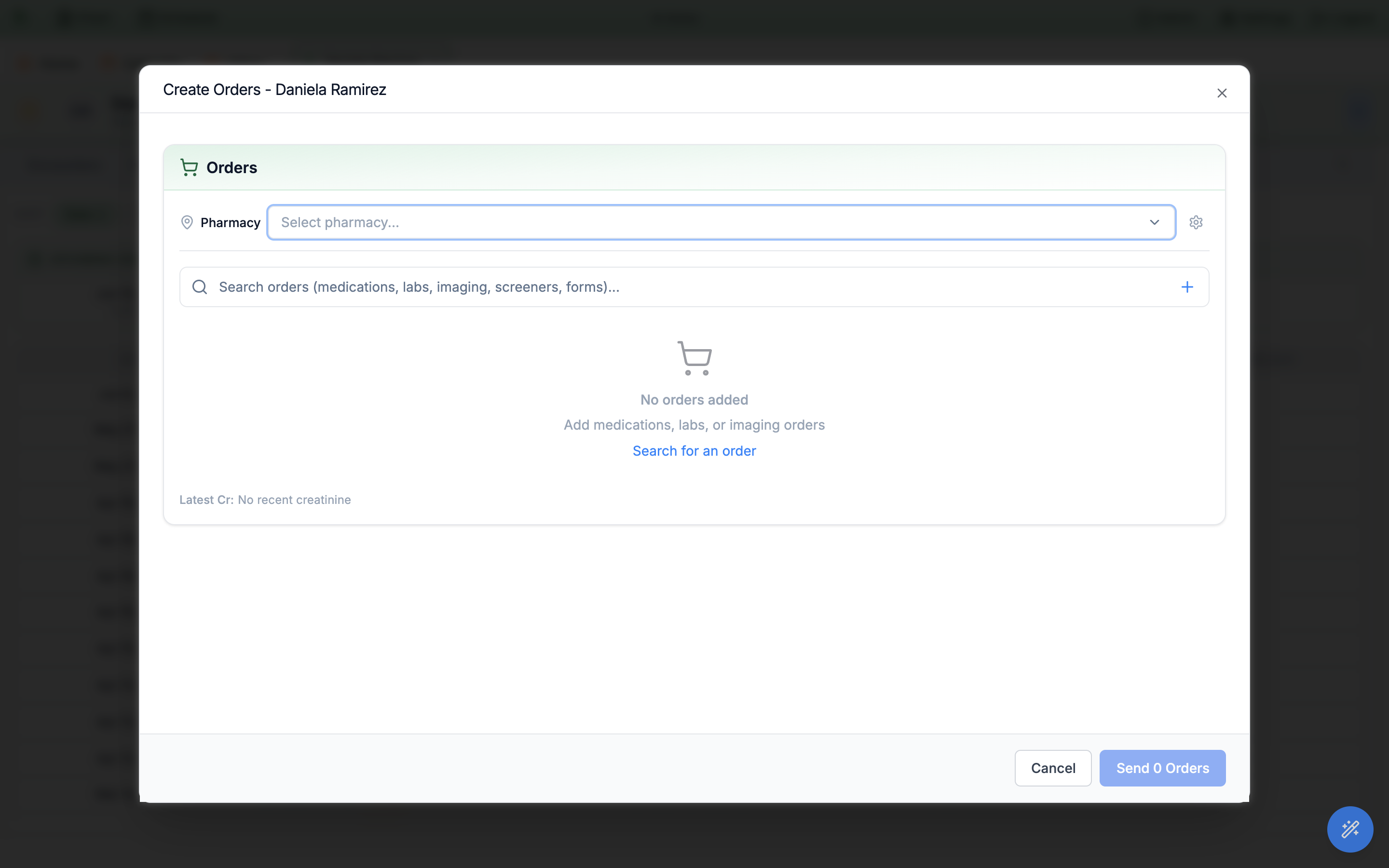
With a patient chart open, press F7 or Ctrl+O — the modal opens titled
Create Orderswith the patient’s name. You can also ask the voice assistant (“prescribe lisinopril 10 mg for this patient”) to open it pre-populated, titledPrescription from Command Hero; and inside a patient’s Inbox message, theNew Ordertoolbar button expands the same workspace as an inlineOrderspanel. -
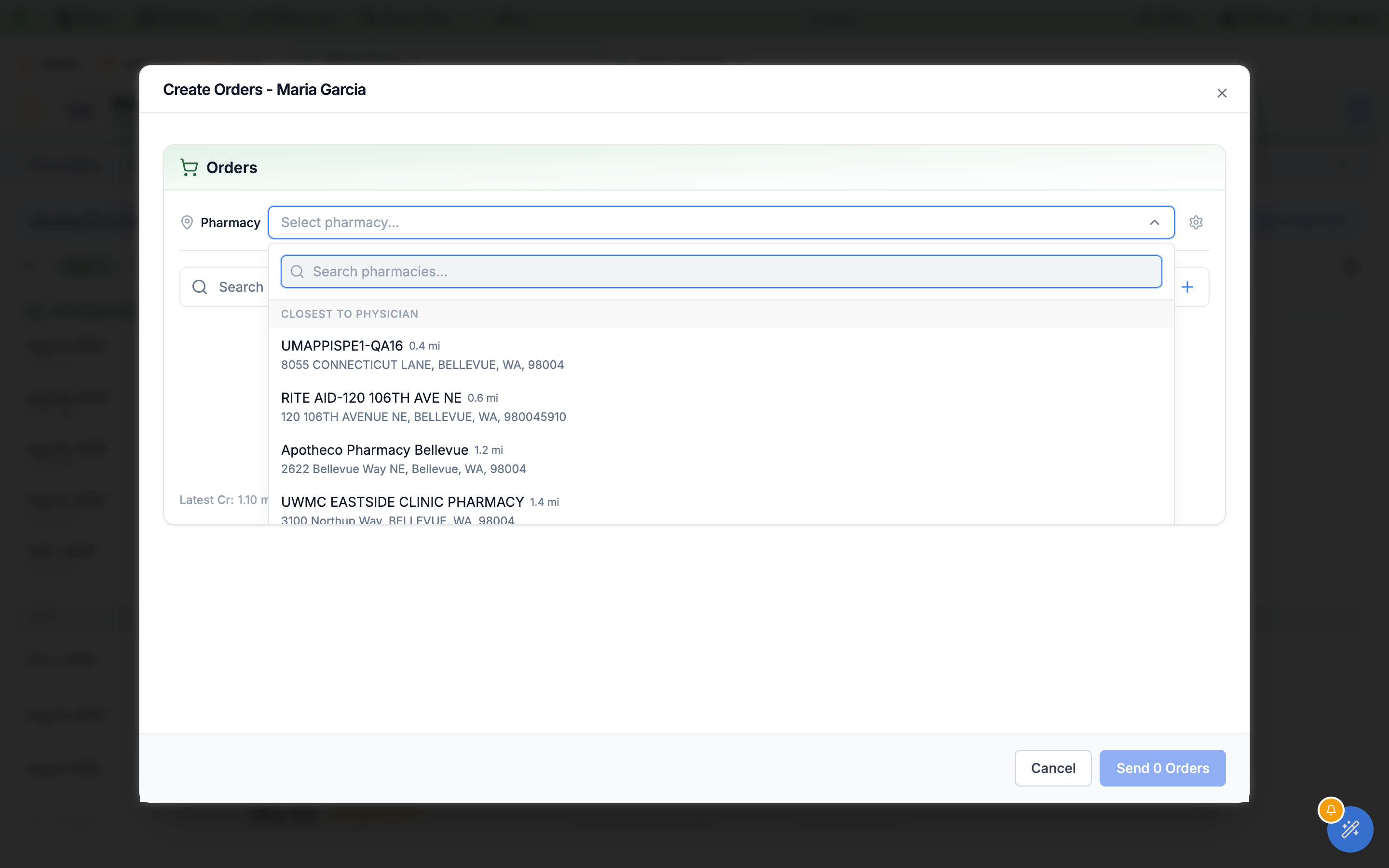
Pick the pharmacy.
The
Pharmacyrow preselects the patient’s primary pharmacy and also surfaces recommended nearby ones; the gear beside it opens the patient’s pharmacy manager (see Patient pharmacies). A pharmacy is required whenever a medication is in the cart — otherwise sending stops with “Please select a pharmacy for medication orders”. -
Add and edit orders.
Type into
Search orders (medications, labs, imaging, screeners, forms)…to open the Search Orders window. Each added medication row has a pencil to edit (the full structured builder — see Write a structured prescription), a star toSave as favorite, a trash toRemove medication, and the usual medication safety check icons.Frequencyoffers the whole clinical range —Daily,Twice daily,Three times daily,Four times daily,Every 4 hoursthroughEvery 12 hours,Every morning (QAM),Every evening (QPM),At bedtime (QHS),Every other day (QOD),Every 48 hours,Every 72 hours,Weekly,Every 2 weeks,Monthly, andAs needed (PRN)— and every one of them is stored with the prescription, so a bedtime medication comes back asAt bedtime (QHS)when youReorderit rather than as a blank field. -
Add a clinical note (optional).
A
Clinical notebox sits underDiagnosisin the prescription dialog, and a matchingClinical notepanel with anAdd a notebutton sits under the diagnoses in the modal body — the same note, shown twice. Dot phrases work here: type.then a few letters and pick from the list. The helper line states the contract: “filed as a signed progress note on an Orders-only encounter when the order is sent · visible to the patient in the portal”. -
Send.
The footer offers
Canceland a live-counting send button (for exampleSend 1 Order); while it works, the button readsCreating encounter and sending orders…. Confirmation — and any per-order failure text — arrives as a plain browser dialog. -
Clear the diagnosis gate.
E-prescribing requires a diagnosis on every medication. If one is missing, clicking send opens the diagnosis-association dialog with the banner “1 medication needs a diagnosis before it can be sent to the pharmacy.” Pick from the patient’s problem list, common diagnoses, or an ICD-10 search, then
Save & send orderslinks the diagnosis and transmits in one step (the same association concept as in-encounter linking).
Sign & Send button on its own row (the passkey flow described under EPCS signing), which stays on the row for controlled medications only, then send the remaining orders. Sending is also held while a medication’s DEA schedule is still being resolved: “Still checking whether these medications are controlled substances. Please try again in a moment.”
Orders only visit is created for you. Because no encounter is open, the first order that actually goes out creates one draft encounter of type Orders only, whose chief complaint reads Orders only, and the orders are filed against it — one visit per trip through the modal, however many orders you send. Nothing is created if you close the modal without sending, or if every order fails. Labs and imaging in the same send still route through your usual lab and radiology integrations.Orders only visit as a signed progress note the moment at least one order goes out — never before, and never at all if the send fails outright. The panel then shows a green Filed badge; if the orders went but the note did not, it says Not filed — your orders were sent, the note was not. and offers Retry. Because it is filed signed, the patient can read it in the portal, and the prescription’s detail dialog in the Prescriptions tab shows Orders only · {date, time} with a Clinical note filed chip. The note editor is offered only for a genuinely standalone send — the inline Orders panel inside an Inbox message keeps whatever encounter it was given and has no note box.Review the chart’s Medications tab
The chart’s Medications tab shows the patient’s medication list with the Medication Timeline above it. It is the same list you see in the encounter’s Medications section and in the reconciliation workspace. Rows sit in the same groups everywhere, and every count agrees with this tab, including the encounter footer chip, the timeline’s Current only button and patient-list columns. Only the medications in Current are counted.
| Group | What is in it |
|---|---|
Needs review | Medications the patient may still be taking but that need a decision. Each row says why in amber, next to the buttons that resolve it. These rows are not counted as current, but safety checks still see them (see the callout below). |
Current | What the patient takes now. This is the number shown everywhere. |
Scheduled | A prescription that starts later, such as one written with a Do not fill until date. The row reads Starts and the date. |
On hold | Medications a clinician has paused. They carry an amber On hold chip. |
Past | Stopped, finished, replaced and merged medications. The group is collapsed, and older courses of the same drug fold under the newest one behind Show N earlier courses. |
-
Pick the view.
The
Medication listmenu offersCurrent medications(the default),All medicationsandPast medications.Current medicationsshows Needs review, Current, Scheduled and On hold, and leavesPastcollapsed at the bottom.All medicationsopens Past too, andPast medicationsshows Past alone. Hero remembers your choice for every chart you open, and each user keeps their own. -
Search or sort.
Search medicationsmatches the medication’s name, its ingredient and what the patient wrote. While you search, the group counts show the matches, and Past opens if anything in it matches. By default, rows that carry a chip come first, then the most recently prescribed. TheA–Zbutton sorts alphabetically instead. The summary next to it reads, for example,16 current · 2 to review · 1 on hold. -
Read the name.
Each medication shows the product: the ingredient (every ingredient of a combination), a release badge such as
IR,ER,XL,XRorDR, then the strength and form. Hero showsIRwhenever the drug comes in more than one release form, so a missing badge never hides the difference. When the chart doesn’t say which release the patient takes, an amber dashedER / IR?chip takes the badge’s place. Click it (orSpecify) to openSpecify the medication, pick the exact product and clickUse this product. -
Look for duplicates.
A blue
Possible duplicatechip means another entry on the list is the same drug, often an old strength left behind after a dose change. Click the chip to openMerge duplicate entries. Choose the entry toKeep, tickMergeon the others and clickMerge N entries. The merged entries end as merged into the one you kept, and their history moves with them. Two strengths the patient really takes together are not duplicates. Prescribe them with Take alongside and Hero stops flagging them. -
Read the supply line.
For a prescription sent from Hero, the middle column describes it, for example
Rx 9/3 · 30 days · 0 refills, and then how long the supply lasts, for example12 days left · runs out 10/3, with a thin bar. The bar turns amber in the last seven days, when an amberN days leftchip also appears, and red once the supply is gone (Ran out Sep 18).est.means the dates were worked out from the directions and quantity. An as-needed prescription readsAs needed · authorized throughand the date. A medication with no prescription behind it (patient-reported or imported) starts the line withStartedand its start date instead ofRx, and readsSupply timing unknown. A greenRenewal sentline appears once a renewal has gone out. The prescriber is on the right. -
Check the other chips.
Where the medication came from:
eRx,Patient-reported,Staff-reported,Imported,OutsideorFullscript. An amberUnmatchedchip marks a patient-reported medication that is not yet matched to the drug database. Its tooltip reads “Not matched to the catalog: match it before refill requests are allowed.”, and the patient cannot request refills of it until it is matched.Not confirmed sinceand a date appears on a patient-reported or imported medication that nobody has confirmed in 180 days. Click it to recordStill taking. If the patient said they take no medications, the list says so, with the date. -
Work the
Needs reviewgroup. Every row states its reason and offers only the buttons that fit it:What the row says Why Buttons Ran out Jun 7 (30-day supply, no refills)The prescription’s supply and refills are used up and nothing newer covers today. If a later fill is already scheduled, it reads Out since…next fill scheduled…Renew·Still taking·StoppedPatient reports not taking· reported and the dateSomeone recorded that the patient isn’t taking it, from the chart, the encounter or the patient’s own report. Stopped·Still takingPrescription couldn't be matched to one chart entryA prescription arrived that could belong to more than one entry, so Hero kept it separate rather than guess. Specify·MergeImported without a statusAn imported record didn’t say whether the medication is still being taken. Still taking·StoppedConfirm medication statusA records clean-up flagged the entry for a person to check. Hover the line for the detail. Mark reviewed·Stopped -
Know what each button does.
Renewopens order entry (titledRenew ·and the medication), filled in from the last prescription with the product, directions, quantity, days’ supply and pharmacy. Review it and send. If no prescription is on file, for example for an imported or patient-reported medication, order entry opens empty so you can pick the product. Only prescribers seeRenew. Inside a visit,Renewworks differently (see the encounter’s Medications section).Still takingconfirms the patient still takes it, and the row returns toCurrent. It also clears a “not taking” report and an import without a status. For a prescription that ran out, the confirmation holds until a new prescription or fill changes the dates, or for 180 days. If a clinician stopped the medication, Hero won’t reopen it. It explains, “This medication was stopped by a clinician; renew it instead.”, and offersRenew.StoppedopensDiscontinue medicationwith an optionalReason for stopping. When a prescription for it is still live at a pharmacy, the dialog first checks with the pharmacy and then offersAlso cancel the prescription atand the pharmacy’s name. That box sends an electronic cancellation. It is ticked for you on controlled substances. OutsideNeeds review, the same dialog opens fromDiscontinue…in the row’s···menu.SpecifyandMergeopen the two dialogs described above.Mark reviewedrecords that you checked the entry.
-
Recover a past course.
Pastrows readStoppedorEndedwith the date and any recorded reason, orEnd date unknownwhen the record never said. Every past course offersRenew. It also offersStill takingwhen Hero closed the course on its own, because the prescription ran out and wasn’t renewed or a newer prescription replaced it.Still takingreopens such a course. A course a clinician stopped can only be renewed. -
Read the timeline.
The
Medication Timelinedraws one bar per course, coloured by drug category, with a redTodayline.Current only(with the current count) narrows it to current medications, and the category chips filter it further. A stopped medication ends at its stop date. A course that ran out ends on its run-out date, and the stretch from then to today is hatched (“Ran out: no supply covers this period”). A course whose end date is unknown fades out with a dashed edge, and its tooltip readsEnded: Unknown (last knownand the date). Only courses still running carry the arrow into today. The legend under the chart names each style:Current (ongoing),Needs review,Ran out,EndedandEnd date unknown.
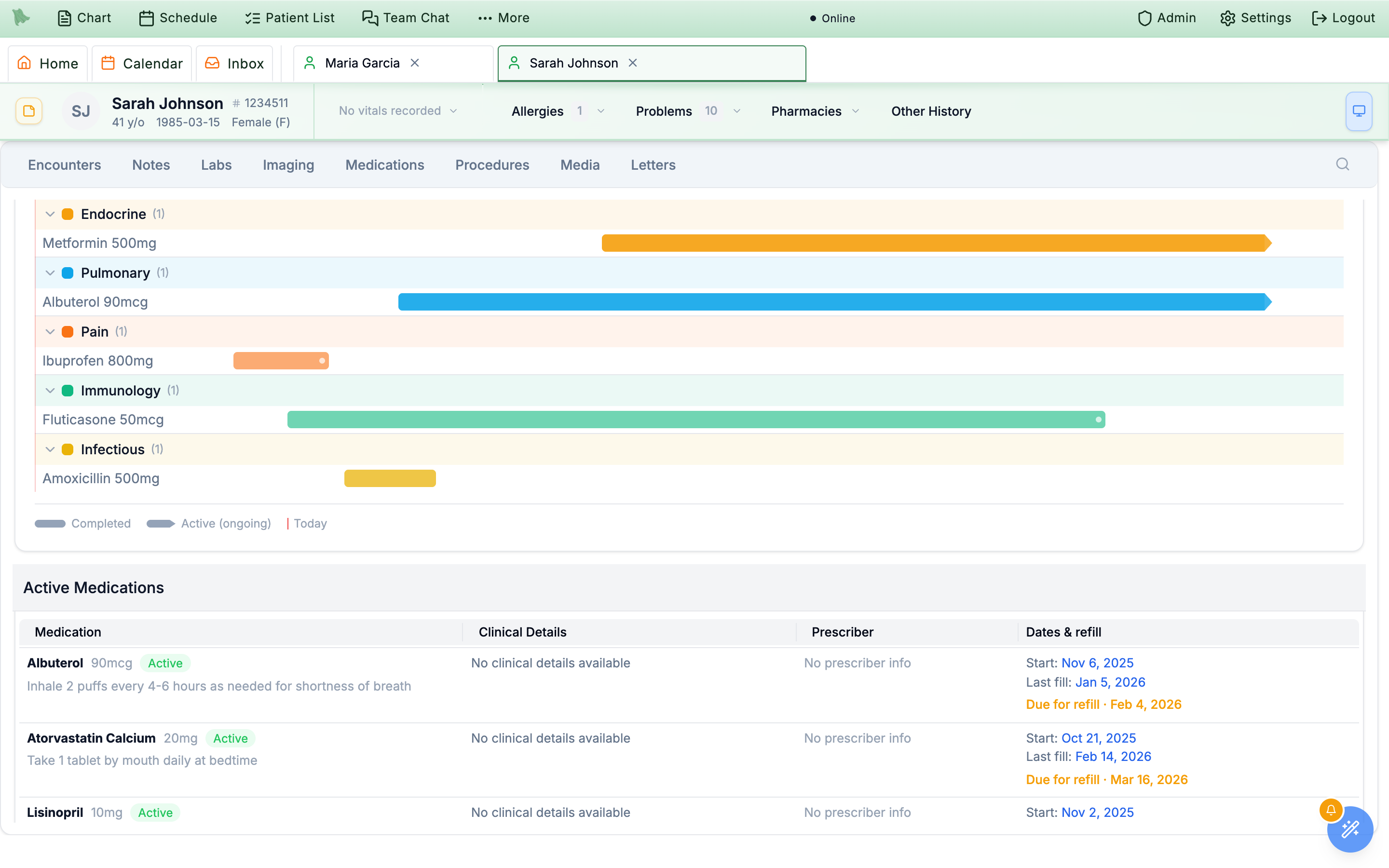
A–Z, the running summary and the Medication list menu. Rows carry the release badge or an ER / IR? chip, Possible duplicate where it applies, and the supply line.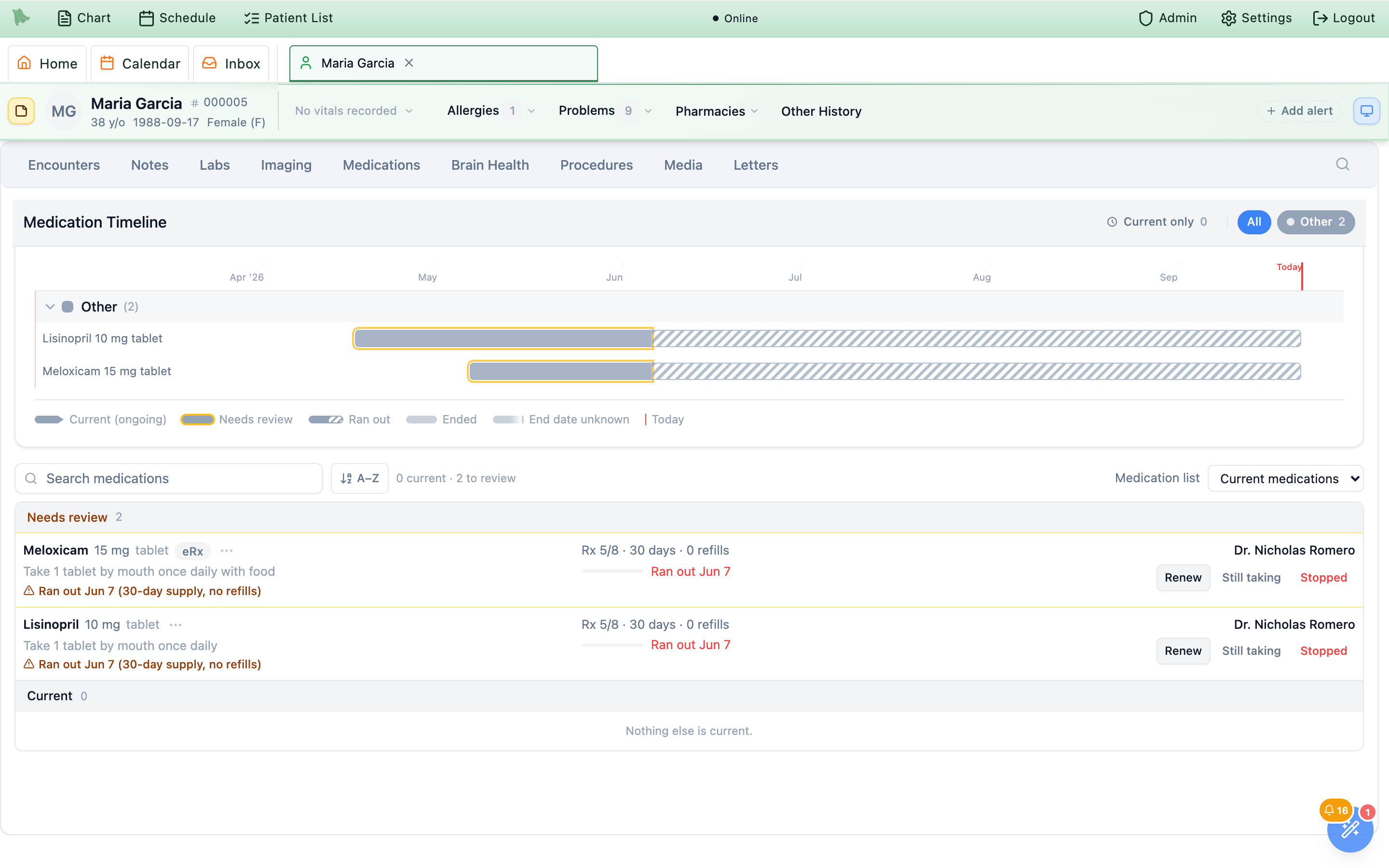
Renew, Still taking and Stopped.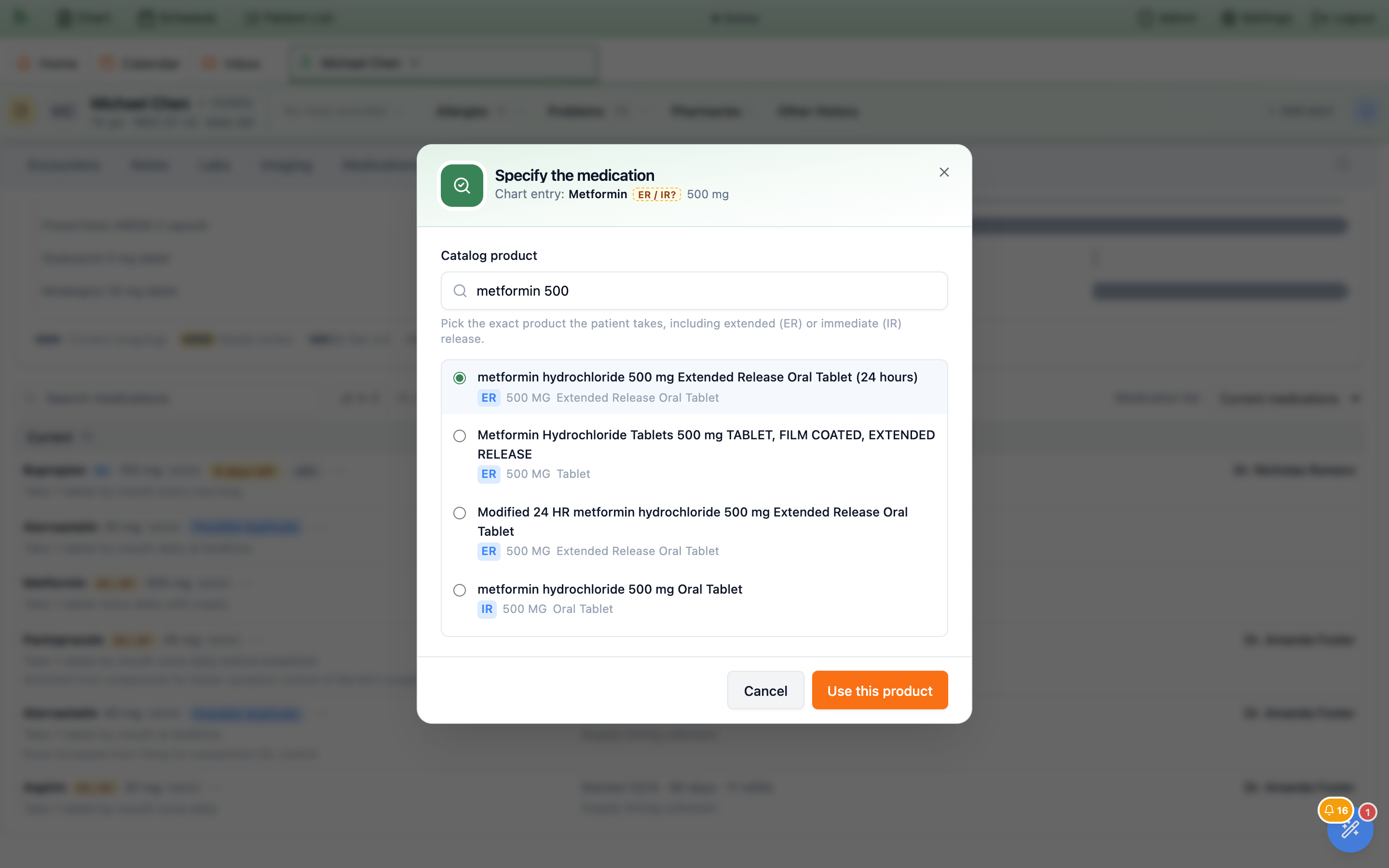
ER / IR? opens Specify the medication. Each catalog product shows its release type, so you pick the exact one the patient takes.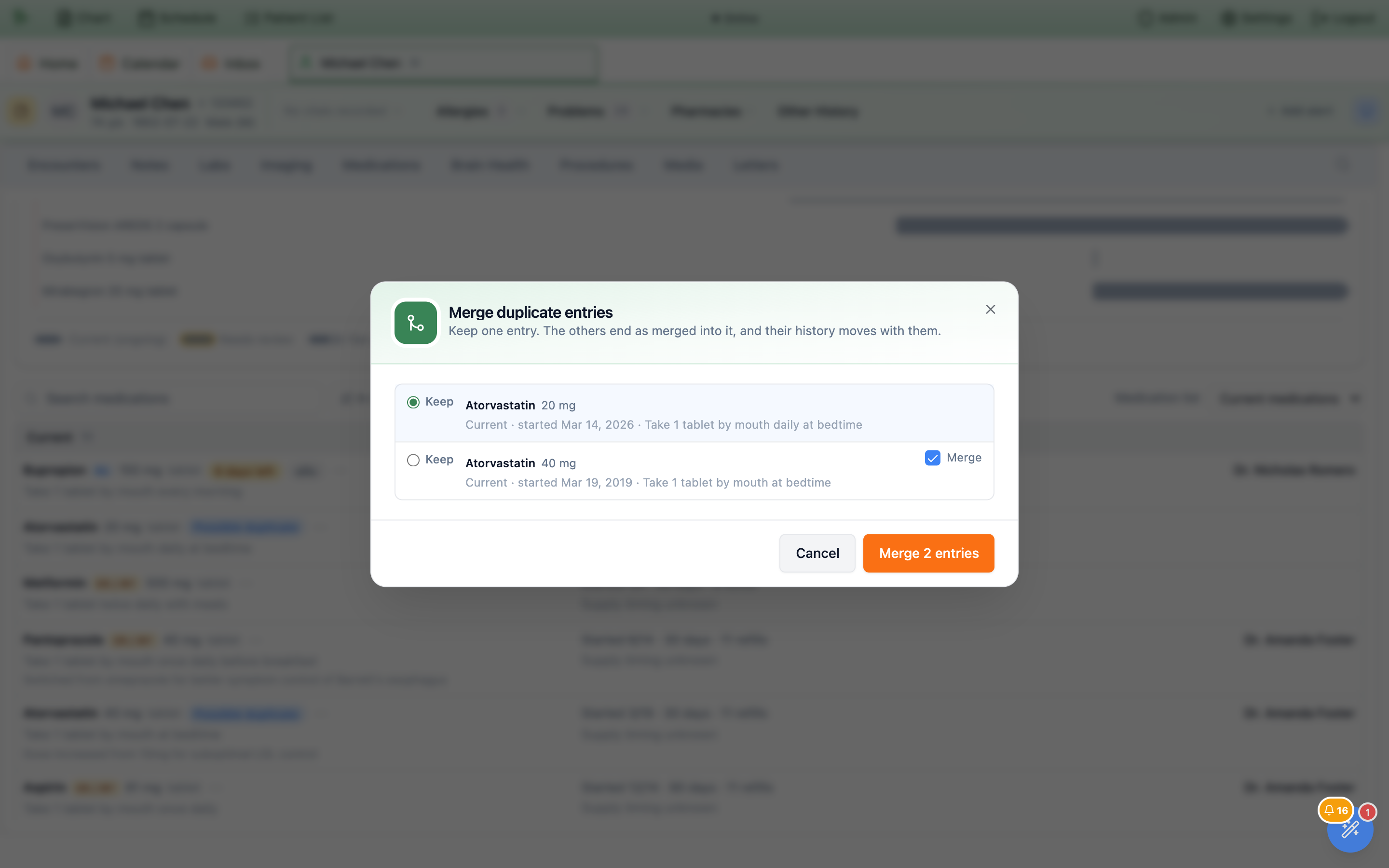
Possible duplicate opens Merge duplicate entries. Keep one entry and tick Merge on the others.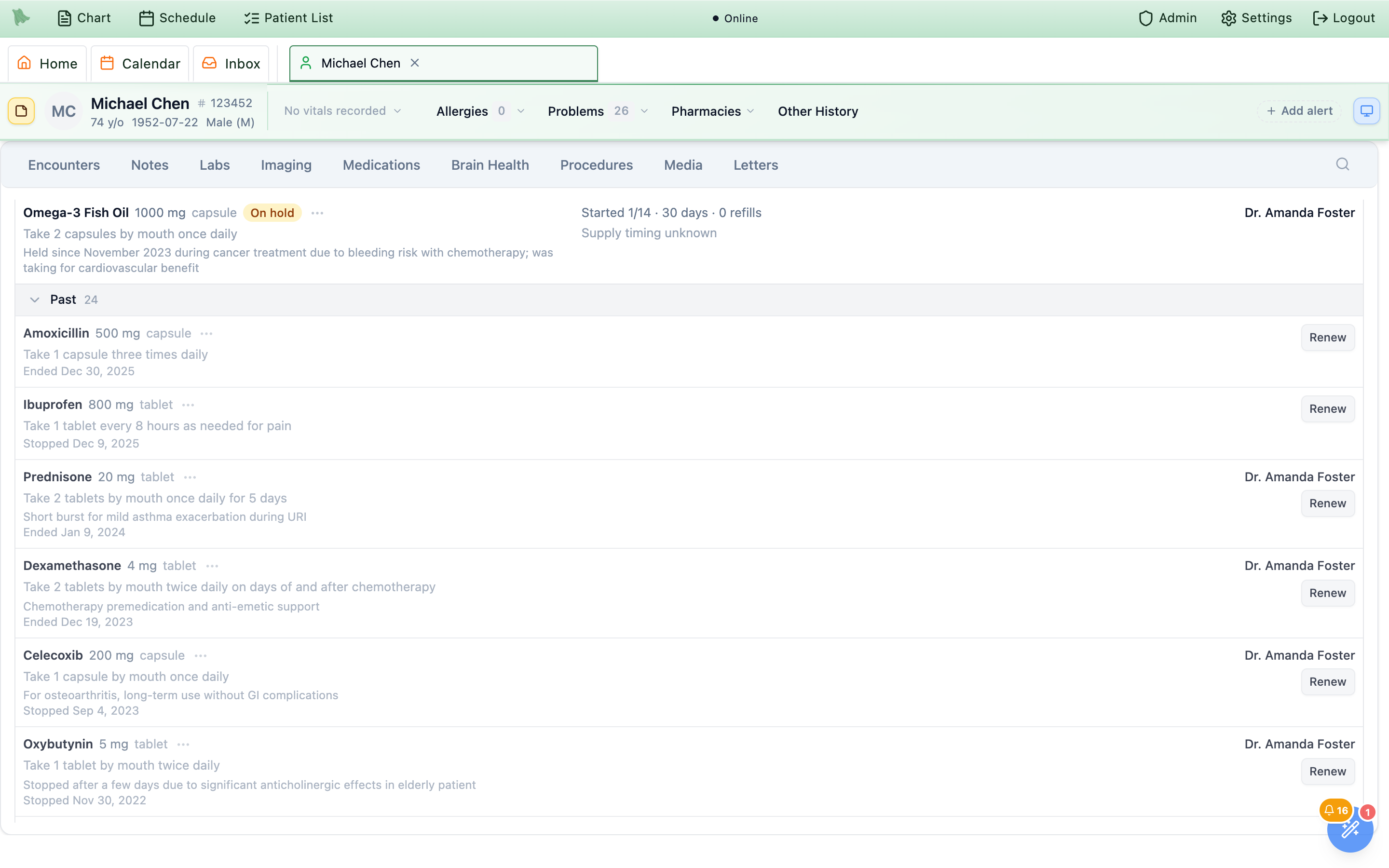
All medications opens Past. Each course shows when it was stopped or ended, and every one can be renewed.Needs review, Scheduled or On hold is left out of the current count but stays in every safety check. That covers interaction and allergy checks, stop detection on the after-visit summary, the AI’s chart context, reconciliation and refill rules. A prescription that ran out never silently drops out of an interaction check.··· button, for Quick edit…, Mark not taking…, Discontinue…, Mark reviewed and View history. Past rows add Renew, and Still taking where it applies. Prescribers and staff who hold the reconcile permission have the menu in every practice. With medication reconciliation on, other staff see the Propose… versions (see Chart & audit trail). Staff without the reconcile permission never get Still taking, Specify or Merge. For staff accounts, the tab itself is gated by the matching chart permission (see Staff accounts).How Hero decides what is current
Hero works out where each medication belongs every time the list loads. It uses the prescriptions that actually reached the pharmacy and anything a clinician has recorded. The day changes at midnight in your practice’s time zone, so a prescription runs out on the right day for your office, wherever the viewer is.
| Rule | What it means in practice |
|---|---|
| A prescription counts until its supply runs out. | The supply lasts the days’ supply × (1 + refills), counted from the day it was written, or from its Do not fill until date. For example, Rx 9/3 · 30 days · 0 refills is current through October 2. On October 3 it moves to Needs review as Ran out Oct 3 (30-day supply, no refills). Refills not yet filled stop counting when the prescription expires. The first fill always counts. |
| Pharmacy fills can extend it. | When the pharmacy reports a fill, the supply from that fill is added. A fill report can extend the dates but never shortens them. |
| A newer prescription replaces the old one on its start day. | A new prescription for another strength of the same drug, in the same release and route, replaces the old entry on the day the new prescription starts, when that old entry is the only one of its kind. Otherwise nothing is replaced unless you choose to. Until that day, the old one stays current. A renewal of the same product simply extends the same entry. A different release, such as IR taken with ER, keeps both unless you chose Replaces when you prescribed (see Prescribing). |
| A clinician’s correction wins. | If a clinician has corrected the chart entry’s days’ supply, start date, directions, quantity or refills, Hero times the supply from the corrected value rather than the prescription’s. |
| As-needed prescriptions count until the prescription expires. | A PRN prescription doesn’t run out by days’ supply. It stays current until its expiration date, or 180 days after it was written when no expiration date is on file. |
| Patient-reported and imported medications stay current. | With no prescription to time them, they stay in Current until someone confirms, stops or merges them. After 180 days without a confirmation they carry Not confirmed since and a date. An import that didn’t say whether the medication is active goes to Needs review instead. |
Still taking keeps a ran-out prescription current. | Use it when the patient has supply the chart doesn’t know about, such as samples or a fill at another pharmacy. It lasts until a new prescription or fill changes the dates, or for 180 days, whichever comes first. |
| “Not taking” is taken out of the count. | A medication the patient reports not taking moves to Needs review until someone records Stopped or Still taking. |
| Hero can close prescriptions that were never renewed. | This is on by default. A prescription left in Needs review as ran out is closed after a 30-day grace period, with the reason “Course ended, not renewed”, and moves to Past. An admin can change the grace period (7 to 180 days) or turn it off with Automatically close prescriptions that ran out and were not renewed under Admin > Patient Portal Configuration > Features. Still taking reopens it, and a new prescription brings it back. |
Needs review: the row gives the run-out date and the supply behind it, and Renew or Still taking fixes it in one click. If the dates look wrong, compare them with what was actually sent, meaning the quantity, days’ supply and refills, in the Prescriptions tab. The supply line shows the numbers Hero used.Track prescription status & resolve transmission errors
After you send a prescription it moves from queued, to transmitted, to sent once the pharmacy electronically confirms receipt. There is no global “all prescriptions” dashboard — status lives in two places: each Rx message’s Timeline card in the Inbox, and the medication row inside order entry.
| Stage | What it means |
|---|---|
| Pending | Queued and waiting to transmit. |
| Transmitted | Handed to the e-prescribing network; the Timeline records Prescription transmitted. |
| Sent | The pharmacy verified receipt — the prescription is at the pharmacy. |
| Error | Transmission failed or the pharmacy rejected the verification; an Error item appears in the Rx inbox with the reason. |
| Cancellation pending | You cancelled; waiting for the pharmacy to confirm. |
| Canceled | The pharmacy confirmed the cancellation. |
-
Audit from the Timeline.
Open any Rx message: the
Timelinecard listsPrescription created,Prescription transmitted, the request event, andLast filledwith timestamps. Pharmacy fill notifications update the record automatically — dispensed, partially dispensed, or not dispensed — feedingLast filledand the fill count. For support calls,Routing / Identifiershas theMessage IDandPharmacy Ref #. -
Resolve errors by re-issuing.
Failures surface as Rx inbox items titled
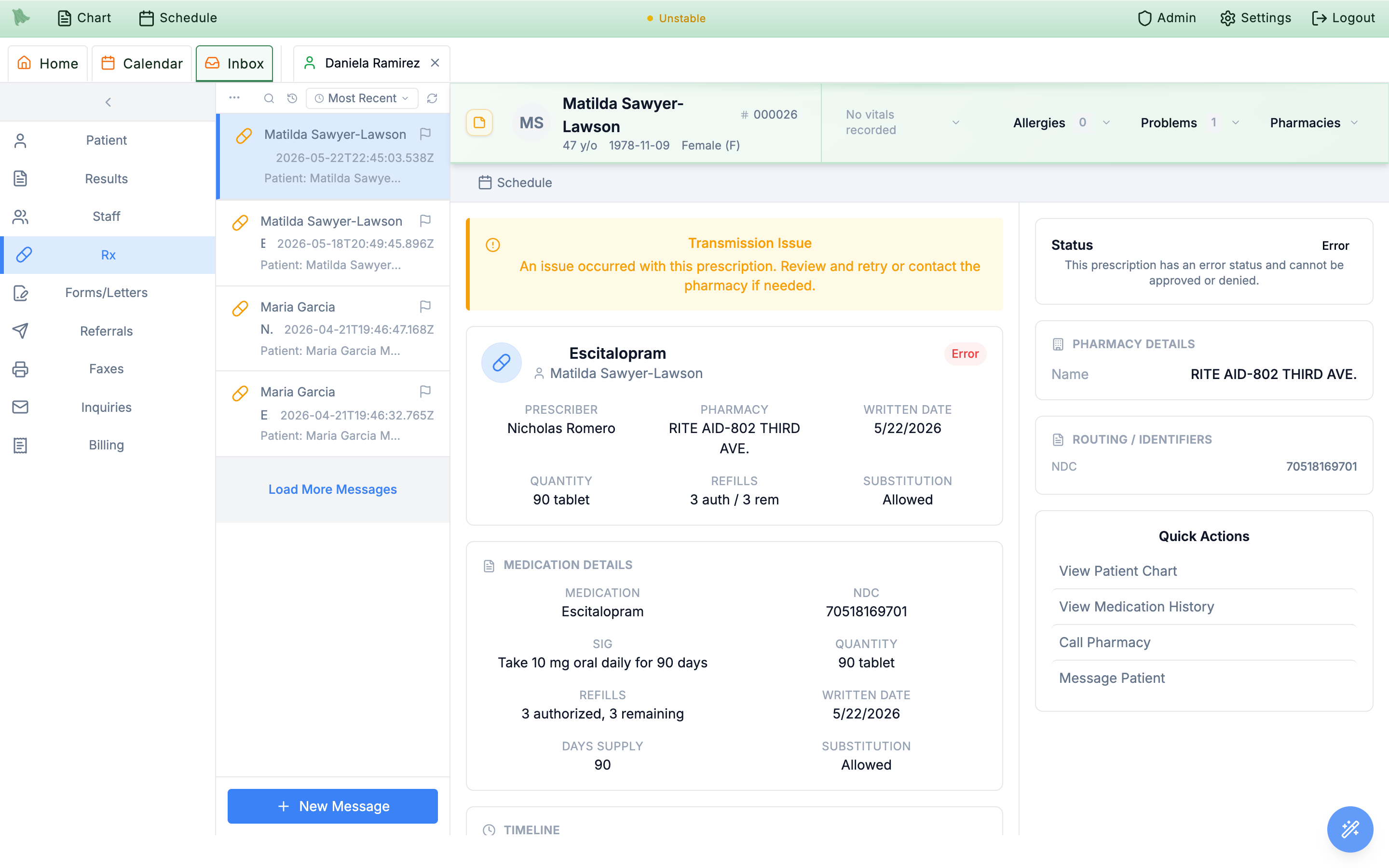
Error -plus the NDC, with aPrescription Errorbanner carrying the network’s error text (or a genericTransmission Issue). The status card explains: “This prescription has an error status and cannot be approved or denied.” There is no retry button — issue a new prescription (standalone or in-encounter) or call the pharmacy. -
Cancel a sent prescription.
In the order-entry workspace, a sent medication row shows
Rx ID:with its identifier and a redCancelbutton. Cancelling sends an electronic cancellation (CancelRx) to the pharmacy; the prescription sits in cancellation-pending until the pharmacy verifies, then flips to canceled. -
Read a cancellation denial.
If the pharmacy declines, a
Cancel Request Denieditem appears in the Rx inbox with aCancelRx Responsecard:Response Type,Received,Denial Reason,Reason Code,Prior Dispensing, andApproved/Denied Note, alongside theOriginal Cancel Requestdetails. A warning appears if transport clipped any fields.
Manage a patient’s pharmacies
Each patient carries a list of Preferred Pharmacies with one marked Primary — the primary is what the Pharmacy selector preselects every time you prescribe, in-encounter or via Create Orders. You manage the list from the chart’s patient-info panel, or from the gear next to the pharmacy selector inside order entry, so you can fix it mid-prescription without leaving the modal.
-
Find the panel.
The chart’s patient-info panel has a collapsible
Preferred Pharmaciessection listing each saved pharmacy card — name,Primarybadge, address, phone. The empty state readsNo preferred pharmacies set; compact layouts condense it toPharmacies (N)with the primary’s name. -
Open the manager.
The gear button (tooltip
Manage pharmacies) opens the Manage and Select Pharmacies dialog, with theCurrent Pharmacieslist and its count badge on top. -
Click a card to set the primary.
There is no separate radio or button — clicking a pharmacy card makes it the primary (green border plus the
Primarybadge). Hover a card to reveal the trash (Remove pharmacy); removing the primary automatically promotes the first remaining pharmacy. -
Add from the directory.
Add New Pharmacyopens thePharmacy Searchpanel — search byPharmacy nameand location against the national pharmacy directory and add results as preferred or primary. Duplicates are de-duplicated by name, address, and phone. -
Save.
Nothing persists until
Save Changes—Cancelor closing the dialog discards your edits. If saving fails, the dialog stays open with an alert so you can retry.
Set practice-wide refill rules
The Refill settings tab of the Prescriptions workspace (“Control how patients request refills and how controlled substances are reviewed.”) decides what patients may request from the portal, which chart checks a controlled refill needs, whether staff triage requests before the provider, where requests are routed, when a request counts as late, and what patients are told. Together these rules drive the Refills worklist.
-
Open it from the Admin menu.
In the top toolbar, open
Admin(shield icon) and choosePrescriptions. ThePrescriptionsworkspace opens in its own tab withPrescription status,Refill settings, andSupervisory signing(plusCompound formulaswhen compound prescribing is on).Refill settingsis offered to organization administrators — practice admins, office managers, and practice owners, including a solo owner who signs in as a physician — and to staff granted Manage clinic information, insurance, and branding. Staff with only the prescriptions-registry permission seePrescription status. -
Start from a preset.
Start from a preset(“Pick a policy that fits your practice, then fine-tune below.”) offers five policies:Standard Primary Care,Conservative Controlled Substance,Maintenance Med Friendly,Portal Disabled, andGroup practice · nurse triage— “Nurses or MAs triage every request first, then send it to the patient’s primary provider. Overdue requests are escalated to the practice admins.” The preset that matches your current values shows anActivebadge. -
Tune each group, then save.
Work through the cards below. A footer bar tracks your state —
Unsaved changesorAll changes saved— withDiscard changesandSave changes; saving confirms with “Refill preferences saved.”
Patient access
Allow patients to request refills is the master switch and starts off; the portal’s Refill Requests feature (Admin > Patient Portal Configuration) must also be on. Confirm pharmacy before sending (on), Require attestation (on), and Allow requests when refills remain (off — patients who still have refills are sent to their pharmacy first).
Timing & limits
Earliest request — how many days before the expected runout a patient can submit (default 7). Duplicate cooldown — the minimum wait before re-requesting the same medication (default 7).
Recent visit rule
Require a recent visit (on) with a Visit window (365 days) and an If outside the window behavior: Advise only, Allow, but flag for review (default), or Block the request.
Controlled substances
Schedule III/IV policy (Allow with clinician review, Require a recent visit, or Block patient portal requests), Unknown schedule (Block the request or Send to manual review), Visit window override, Recent UDS window, EPCS-enabled approvers only (on; see EPCS enrollment), Require PDMP check (on), and Require signed controlled-substance agreement (off). The last four become required checklist items on controlled requests.
Workflow & triage
Staff triage before provider review (off), Staff may mark “needs visit” (on), Staff may deny non-controlled requests (off), Warn after (24 hours) and Overdue after (48 hours; at least the warning time). Leave an hour field empty for no badge. Hours count around the clock, including nights and weekends.
Routing & alerts
Route incoming requests to (see the table below), Notify the assigned provider (on), Notify the staff pool (on; applies when staff triage is on), and Escalate overdue requests (off) with an Escalate to picker whose default is Practice admins.
Patient messages
Tell patients the outcome (on) and three outcome texts — Approved, Not approved, Visit needed — plus the portal copy When a request is blocked, When a visit is required, and Request received. Leave any of them blank to use the built-in text.
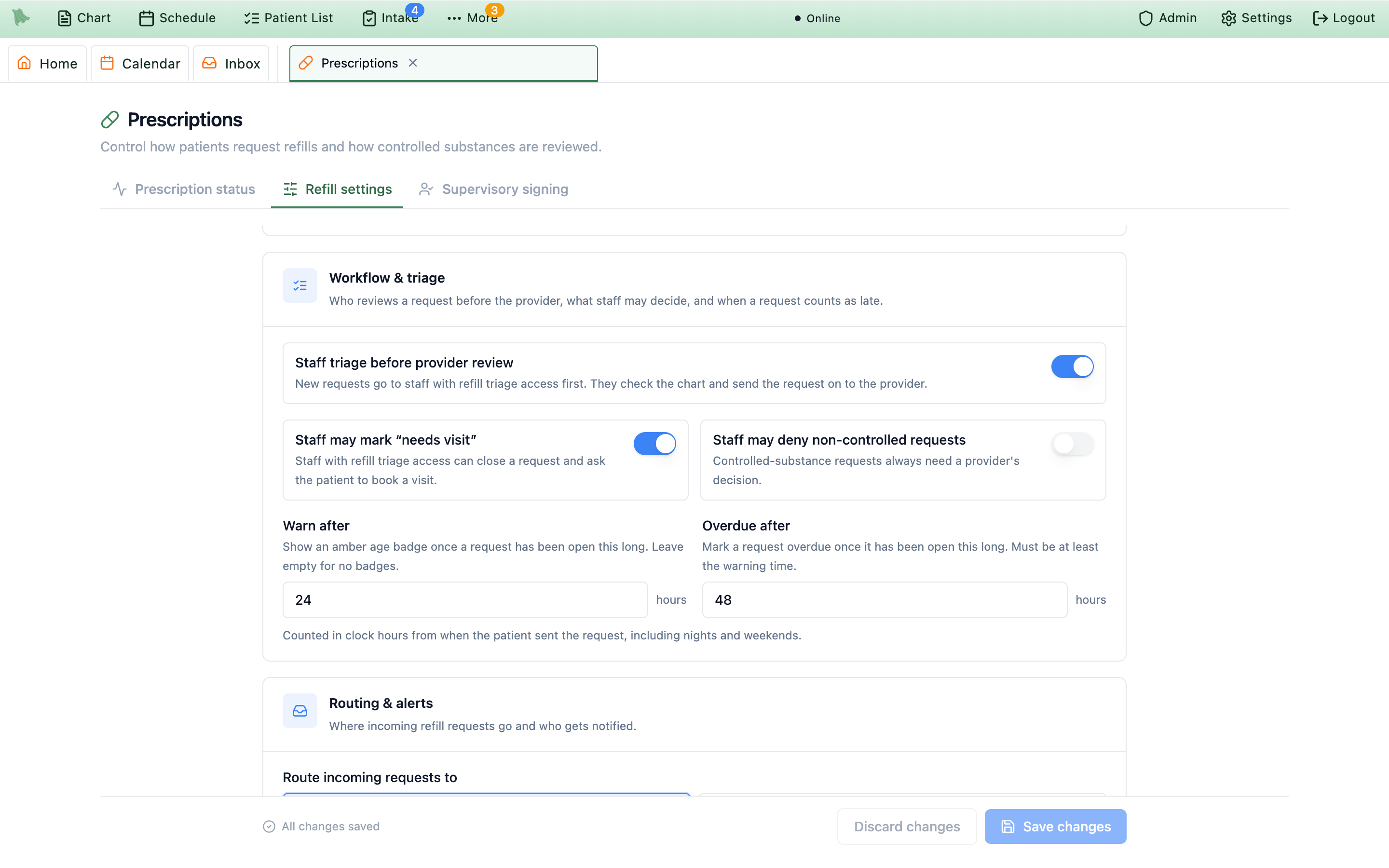
Workflow & triage card: who looks first, what staff may close, and when a request is late.| Route incoming requests to | Where a new request goes |
|---|---|
Prescriber, then primary provider (default) | The provider who prescribed it; if they’re unavailable, the patient’s primary provider; in a one-provider practice, that provider; otherwise the shared queue. |
Prescribing provider only | The provider who prescribed it; if they’re unavailable, the shared queue. |
Patient’s primary provider | The patient’s primary provider (or the provider they saw most recently); if neither is available, the prescriber; otherwise the shared queue. |
Shared queue | Unassigned — any provider or triage staff can pick it up. |
A specific provider | Every request goes to the provider you choose in Provider who receives refill requests; if they’re unavailable, the shared queue. |
“Unavailable” means inactive or hidden — and, for Schedule III–V drugs while EPCS-enabled approvers only is on, not able to sign controlled prescriptions. Group practices no longer fall back to the longest-serving physician; unroutable requests wait in the shared queue.
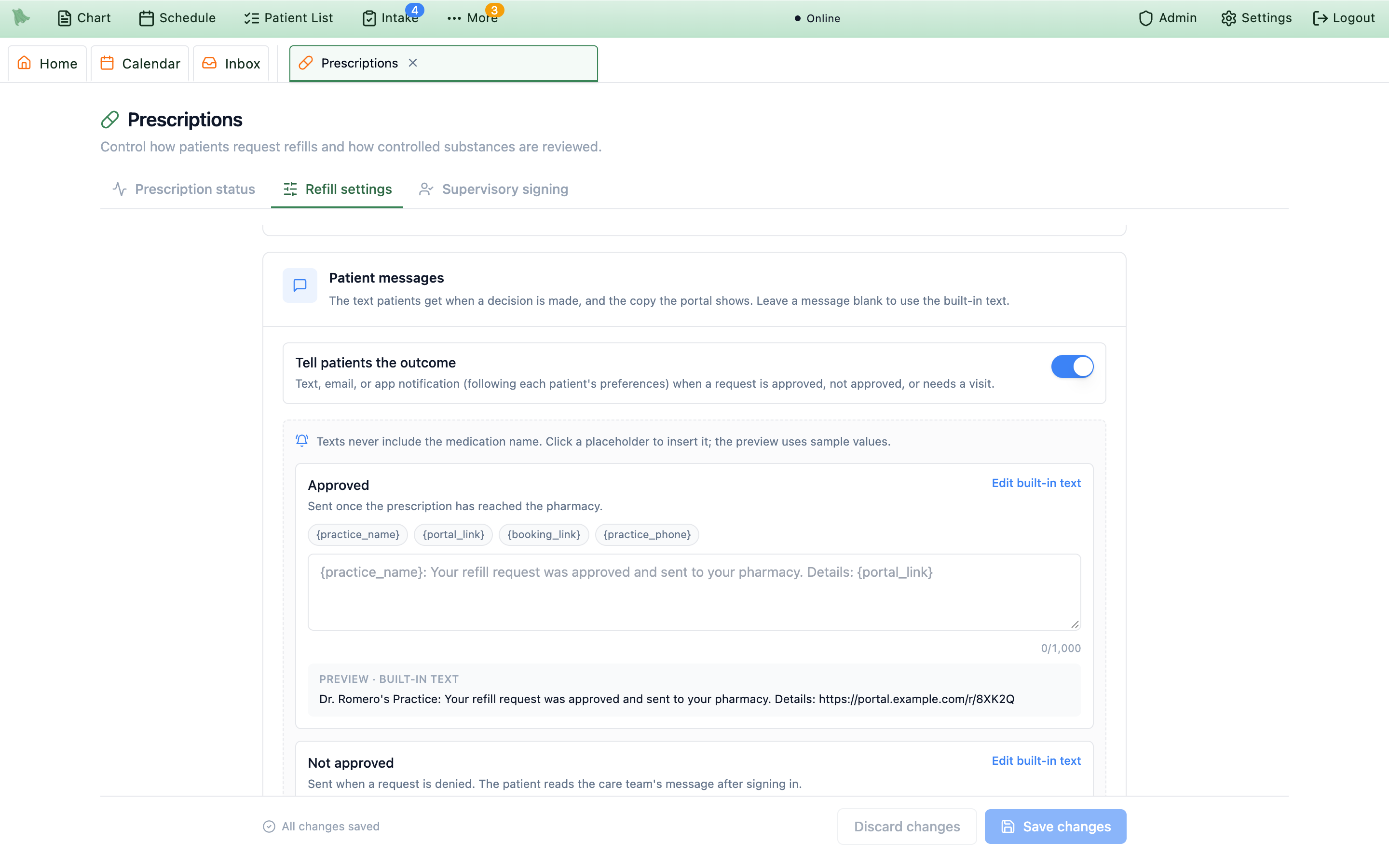
{practice_name}, {portal_link}, {booking_link}, and {practice_phone} are allowed (up to 1,000 characters). When online self-scheduling is off, {booking_link} becomes “call us at” your practice phone.
Discard changes if that was not what you wanted.
Need help? Email support@heroemr.com.