Billing operations
Work the money day to day: how the pipeline fits together, the Billing Command Center workspace, the Billing Monitor, the pre-visit readiness queue, claims, payment posting, patient balances and statements, memberships, and the APCM program.
Billing operations
Work the money day to day: how the pipeline fits together, the Billing Command Center workspace, the Billing Monitor, the pre-visit readiness queue, claims, payment posting, patient balances and statements, memberships, and the APCM program.
How billing works end-to-end
Before working the individual tabs, it helps to see the whole pipeline. Hero EMR is built so that money follows the chart on its own: every hand-off below happens automatically, and the system only asks for a person when it hits something it can’t fix itself.
- A visit is signed. Billing starts the moment the clinician signs and closes the encounter (see Sign & close) — there is no separate “send to billing” step.
- Charges are priced. The visit’s E/M and CPT codes become charges. Cash visits are priced by your layered billing setup — organization defaults, service overrides, and per-patient exceptions. Insurance charges bill the payer’s contract rate, else a rate learned from that payer’s payments, else your CPT List Price (CPT prices & payer rates). A code with no price at all holds the visit’s claim until you price it — Hero never files a $0 line.
- A claim is built and checked. For insured visits Hero EMR assembles the claim and runs readiness checks, so coding, demographic, and policy problems surface as fix before send issues in your queue instead of as payer rejections weeks later.
-
Claims go to the clearinghouse.
Ready claims leave by your practice’s claims route: Stedi sends them automatically every few minutes; Office Ally SFTP (and Availity SFTP) take them in a daily batch at a set time in your practice’s time zone; Optum-only practices send through Optum; or a biller submits them by hand or downloads a claim file (Manual 837P download) to upload elsewhere. The Claims Pipeline’s route line says which applies to you (see the claims pipeline). The clearinghouse answers with acknowledgements — a per-claim 277CA verdict, plus a file-level receipt (TA1 / 999) from clearinghouses that send one — confirming each claim actually arrived and was accepted for processing. Some connections never return a file-level receipt; Hero then relies on the 277CA and shows the missing receipt as
Not returnedrather than pending forever. A claim the clearinghouse bounces at this step shows asRejected: it never reached the payer, so there is no decision to appeal — you fix the data and refile it (see the claims pipeline). - The payer adjudicates — and the money posts itself. The payer decides what it pays, what it writes off, and what the patient owes, then sends back an electronic remittance (an 835 / ERA file). Hero EMR ingests it automatically and posts the payments and contractual write-offs to each claim — an 835 you upload yourself posts the same way. Anything a person has to decide waits in Unposted Remittances with the reason and the next step.
- What’s left becomes patient responsibility. Only after adjudication does the remainder — copay, coinsurance, deductible — move onto the patient’s balance, where statements and collections take over. Patients are never billed amounts insurance is still deciding.
Open and navigate the Billing Command Center
Day-to-day money work happens in the Billing Command Center — one workspace for pre-visit readiness, claims, payment posting, patient balances, and recurring-revenue programs. The header shows your organization name and the active payment-model label (Insurance, Pure Cash, DPC, Hybrid Insurance + Cash, or Not Set), and the whole workspace adapts to that model and to each user’s permissions — so two staff members can legitimately see different tabs.
-
Open the workspace.
There is no
Billingbutton in the top toolbar. Admins open it from theAdmintoolbar menu →Billing; anyone who can use Billing gets aBillinglink and aBilling inboxcount on the Home page, and Alt + 6 jumps to it from anywhere. Staff whose permissions include billing work start in Billing when they sign in. Other parts of Hero EMR deep-link in too: the calendar’s appointment window can jump straight to a visit’s billing records, opening the Claims Pipeline focused on that encounter (see the calendar). -
Pick up where you left off.
Billing opens on the
Dashboard— or, for logins without Dashboard access (Front Desk, for example), onPatient AR→Day Sheet. Leave Billing for another workspace tab and come back (the tab, Alt + 6, or the Home link) and it reopens the page you were on, with its filters, for as long as that browser tab stays signed in. The very first time, the sidebar shows grey placeholders and the page reads Loading billing workspace… until your tools are known, so nothing jumps under the pointer. -
Learn the sidebar groups.
Operations—Dashboard(the Billing Monitor, the pipeline-health view covered in Monitor billing health),Pre-visit(the upcoming-visit readiness worklist — see Visit readiness),Claims Pipeline,Payments,Patient AR, andReports, which offersQuick Reportswith date-range and group-by controls, aGenerate Reportbutton, and one-clickCSV/Excel/PDFexport. Date ranges are calendar periods — Today, This Week, This Month, Last Month, This Quarter, Last Quarter, This Year, or Custom Range — with the resolved dates shown under the select and on the result. The AR Aging Report places each account in one bucket (0–30 … over 120 days) by its oldest open balance and splits it into Patient AR, Pending with insurance, and Insurance AR, adding up to the same Total receivable as the Billing Monitor. The Revenue & Collections Summary shows charges, payments net of refunds, and the collection rate, with membership dues listed separately (for users who may see membership money). Reports grouped by payer show one row per payer, with its Payer IDs. The payer denial-rate report counts only claims the payer actually adjudicated and denied; claims the clearinghouse bounced before the payer saw them are broken out in their ownRejected Before Payercolumn, so routine transmission fixes never inflate your denial rate. Payers Hero knows to be clearinghouse test payers (the sandbox payers a demo or test practice uses) are left out of the payer reports — Denial Rates by Payer (rows, totals and exports), CPT Payment Analysis, and the by-payer view and spike alerts of Denial Trends & Spike Alerts — with the line “Clearinghouse test payers are not included: {names}.”; a practice without one sees no change.IDR— a narrow out-of-network dispute workflow under the No Surprises Act — appears here only if your practice enables it underAdditional Features.Programs—APCM, covered in APCM billing;RPM, when remote patient monitoring is on;Maternity, the global maternity-package worklist where proposed obstetric episodes are reviewed (Pending review,Pending facts,Confirmed,Dismissed), their facts and linked visits checked, and the global package confirmed into a claim; andSubscriptions, the membership workflow documented in Memberships. APCM, RPM, and Maternity appear only when enabled —Maternityneeds obstetrics turned on underAdditional Features, and confirming an episode additionally requires the claims-management permission.Configuration—Payment Model,Collections & Fees,Service Menu,CPT List Prices,Negotiated Rates,Claim Submission,Billing Identity,Rules & Overrides, andSimulator. This is the setup material covered in Billing setup. If you switch tabs with unsavedCollections & Feesedits, anUnsaved changesdialog asks before discarding (Keep editing/Discard). Dialogs that hold unsaved edits work the same way: theirCancelorClosebutton, ×, Esc, or a click outside asks “Discard unsaved changes?” before throwing the edits away.
-
Open a patient’s billing from any name.
Every patient name in Billing — Claims Pipeline rows and claim headers, Pre-visit, Patient AR (Aging, Invoices, Day Sheet), Subscriptions, Payments, APCM, IDR, and Maternity — opens the Patient billing dialog over the tab you are on, which keeps its filters (hover: Open patient billing). The dialog shows the patient’s name, MRN, DOB, age, and sex, an
Open chartbutton for users who can open charts, and the tabs your permissions allow, in this order:Demographics·Prior Auth·Custom Billing Rules·Insurance·Invoices & Charges. With the standard role profiles, a Biller gets Demographics, Prior Auth, Insurance, and Invoices & Charges; a Billing Manager, Office Manager, or admin gets all five; Front Desk gets Demographics, Insurance, and Invoices & Charges. Billers fix a patient’s address and guarantor and their insurance here without chart access; clinical content stays closed. -
Understand why tabs differ per person.
Tab visibility follows the payment model first — Pure Cash practices don’t see
Claims Pipeline,Negotiated Rates, orRules & Overridesby default, and DPC practices also don’t seeCPT List Prices— and is then filtered by each staff member’s billing permissions (assigned with role profiles). The rule is the same for staff and admins. A staff member with no matching permission seesNo billing tools are available for this staff profile.When the model hides a tool you are allowed to use, the sidebar footer showsShow all tools(and, once on,Use model defaults); a Dashboard chip or link that points at such a hidden tool shows all tools for the rest of that visit and opens the tool.
Show all tools only appears when the payment model hides something you may use (Pure Cash and DPC); in an Insurance or Hybrid practice nothing is hidden by the model, so there is no toggle. It is saved to your account, so it follows you to other browsers and computers.
Monitor billing health (the Billing Monitor)
The Dashboard tab is the Billing Monitor — one live picture of the organization’s billing pipeline over a window you pick (7d / 30d / 90d, plus Refresh). Instead of hopping between tabs to ask is billing healthy?, you read one strip left to right and click whatever looks wrong.
-
Read the lifecycle strip.
Eight linked stages mirror the end-to-end pipeline:
Signed→Charges→Claims→Submitted→Acknowledged→Adjudicated→Posted→Patient balance, each with its count or dollars for the window. A dashed amberNo billing / Cashtile sits directly afterSigned, counting signed visits that never enter the insurance pipeline (no claim) — it is informational, not an exception chip, so there is nothing to click and nothing to work. Every stage is clickable and jumps to the tab that works it — the claim stages open the Claims Pipeline, the money stages open Payments or Patient AR. - Work the exception chips. Chips appear under a stage only when something there needs attention, colored by severity and stamped with the age of the oldest problem (oldest Nd). A clean strip means a clean pipeline — there is nothing to dismiss. Each chip deep-links to the tab where you fix it; the table below shows what can surface where.
-
Scan the Billing Inbox rollup.
The
Billing Inboxpanel summarizes the alert rail without leaving the workspace: anN activebadge, one chip per alert type and severity (for example Charge AR drift 17 or ERA manual review 2), and the newest alerts with timestamps.Open billing inboxjumps to the main Inbox’sBillingfolder (see Inbox queues for how that folder groups and dates alerts), and the same active count shows as a red badge on theDashboardtab in the sidebar — visible from anywhere in the workspace. -
Read the money row.
A line above the cards adds up what the practice is owed: Total receivable = Patient AR + Pending with insurance + Insurance AR · Same total as Reports → AR Aging. Then three cards:
Insurance AR— “Not filed yet, or back from the payer and needing billing review — excludes claims waiting on the payer”, split into Not filed yet and Needs billing review and aged 0–30 days through Over 120 days;Patient ARwith its aging buckets and a Pending with insurance line (“Filed claims waiting on the payer; excluded from Patient AR”); andCollected in windowsplit into insurance and patient collections, with a footer showing ERA ingestion health — how many remittance runs landed in the window, by source and status in plain words (for example ERA runs in window: 79 · Manual upload: 60 posted, 19 waiting to post, or Office Ally for clearinghouse files), and when the last one ran. -
Expand the Revenue Overview for trends.
The collapsible
Revenue Overviewhas period buttons from7 daysto12 months, summary cards such asInsurance BilledandOutstanding AR, aClaim Status Pipelinechart, and anAR Agingcard with the same total and buckets as the AR Aging report. In Insurance and Hybrid practices it sits collapsed below the Monitor. In a DPC practice it is the Membership Overview (with Gross membership payments received · selected period (USD)), and in a Pure Cash practice the Collections Overview; there it comes first, expanded, with the Monitor below it, and the Monitor drops its claim stages when there is no claim activity.
| Stage | Exception chips that can appear |
|---|---|
Signed | Unbilled insured — insured visits signed but never billed, including ones whose claim was deleted or that carry custom fees; Self-pay review — self-pay visits left with an open balance. |
Claims | Readiness blocked — claims failing pre-submission checks; Duplicate live claims — two live claims covering the same visit. |
Submitted | Rejected unworked; Batch failures; Voids unconfirmed; Voided, payer-live — a claim you voided that the payer still shows as active. |
Acknowledged | Stale in-flight — no acknowledgement 14 days after submission, or no adjudication 25 days after acknowledgement; Missing 277CA acks. |
Adjudicated | Denials unworked; Unposted ERAs; Orphan/reversal ERAs — remittances that match no claim or take money back; Filed outside EMR. |
Patient balance | Charge/AR drift — bookkeeping drift between charges and the patient ledger; Stuck payments — payment attempts that never completed. |
Behind the monitor, automated checks sweep the whole pipeline nightly — unbilled insured visits, self-pay balances, stale in-flight claims, claim-integrity problems (duplicates, void confirmations, orphan charges, bookkeeping drift), payment-posting problems, claims a claim-file run had to leave out (see the claims pipeline), and statement, refund, and batch failures — and file each finding as a billing-inbox alert. The chips and the rollup are two views of that same alert rail.
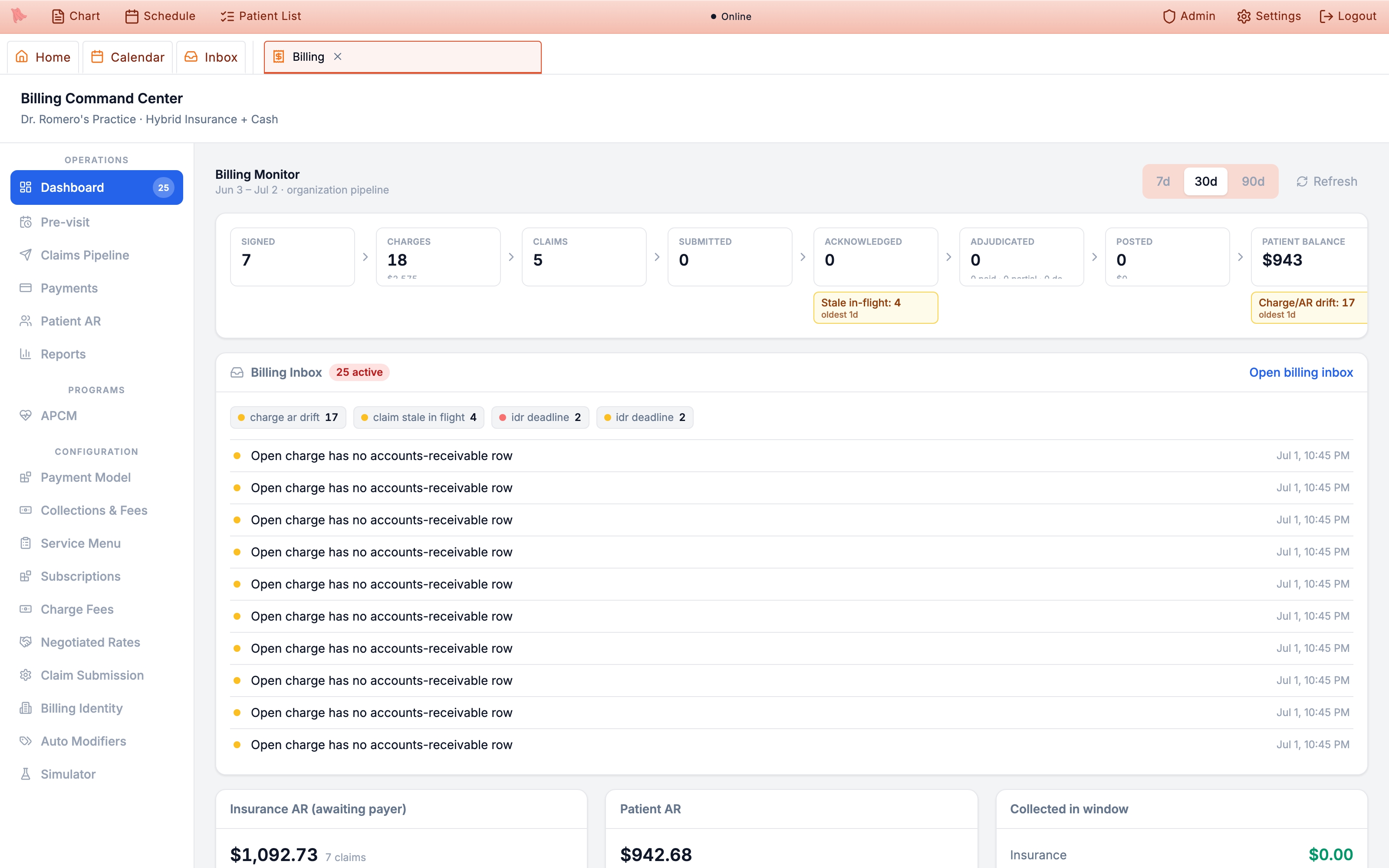
Billing Inbox rollup, and the money row along the bottom.Dashboard sidebar tab counts the alerts still active, so a quiet badge genuinely means a healthy pipeline.
Open Claims Pipeline button. Failed online payment attempts land in the main Inbox under the Billing folder with charge and error details plus Chart and Patient AR jump buttons — see Inbox queues. The Monitor shows a warning (Failed to load billing monitor, with the time of the cached figures it is showing) only when loading actually failed; while it refreshes older figures, the window line just adds · Updating….
Work the pre-visit billing readiness queue
The Pre-visit tab is the Upcoming Visit Readiness worklist — every scheduled visit in the next 14 days (by default), built to catch eligibility and insurance problems before the patient arrives. It has its own sidebar tab next to the Billing Monitor on the Dashboard. The header shows the date range plus Filters, CSV, and Refresh buttons. Dates and times — on the rows, in the drawer, and in the CSV — are in your practice’s time zone, providers show by full name, and your filters stay put when you switch tabs or reload, for the rest of the practice day.
-
Scan the chip strip.
Summary chips count
Upcoming,Missing elig.,Stale elig.,COB missing,Open problems, andIn progress, plus payer-class chips forMedicare,Medicaid,Private, andUnknown. The counts cover the date range and filters, whichever chip is on, and clicking a chip shows just those visits (it replaces any other chip filter). Hover a chip for its definition:Missing elig.— “No eligibility check on file for this visit’s primary policy.”;Stale elig.— “The last eligibility check will be more than 7 days old by the visit. Hero re-checks these automatically the day before the visit.”;COB missing— “Another plan is on file, or eligibility named another payer, and there is no COB result yet.” The automatic re-check skips self-pay visits.Filtersnarrows byStart date,End date,Payer search(Aetna, BCBS…),Provider,Visit type,Payer class, eligibility status (Any eligibility),Problem(Any problem state/No problem/Open/Resolved),New patient(New patient only/Established only), andSecondary insurance(Has secondary/Primary only).Reset filtersclears the lot. -
Run eligibility checks.
Each row’s
Recheckbutton queues a live eligibility verification with the payer for the patient’s primary policy, through whichever clearinghouse your practice has set up for eligibility (Office Ally or Stedi) — you’ll see Eligibility check queued. On rows without an active primary policy the button is greyed out — hover it for the reason (No active primary policy). Checks run in the background, so results don’t appear instantly;Refreshafter a few minutes. -
Read setup problems separately from patient problems.
When checks can’t run because of your practice’s setup, the row keeps its real
MissingorStalebadge with a small amberNot set upnote, and one banner above the list explains it — for example “Eligibility checks aren’t set up · 3 upcoming visits couldn’t be checked. Office Ally isn’t connected for eligibility (or its sign-in expired), and no other clearinghouse took the check.”, or Office Ally needs to be signed in again. Admins getOpen External Providers; everyone else reads “Ask your practice administrator to set this up in External Providers.” Problems with the patient’s own coverage still readFailed, in plain words rather than codes. -
Run a COB check, and act on the answer.
The row’s
Run COBbutton (Run COB check ($1)) queues a paid coordination-of-benefits check against the visit’s primary policy — the same check, confirmation dialog, and cost as the one on the patient’s Insurance tab. It needs the COB permission (Requires the COB check permission) and an active primary policy, and it is disabled, with the reason on hover, when your practice can’t run COB checks (for example in Stedi test mode, or with COB turned off). The same reason appears as a note above the list only when a visit in the current list actually needs an other-coverage check (its COB cell readsMissingorFailed) — for example “Other-coverage checks can’t run in Stedi test mode — …”. TheCOBcell readsNot neededwhen nothing points to a second plan, andMissing(hover: Another plan is on file or Eligibility named another payer) when something does. While a check runs it readsChecking…; a check the payer refuses leavesFailedwith the reason on the row. When a result finds other coverage the cell grows an amberReview orderbutton that opens the same coverage-order dialog, so you can fix primary/secondary from the worklist without opening the chart. Once applied it readsOrder applied. -
Hold automatic charging when needed.
For practices that charge saved cards before visits, the row’s auto-charge cell shows the next attempt (Next attempt in 3h), and
Hold/Releasestops or restarts automatic charging for that visit. Once the visit’s start time has passed the button is disabled — “This visit has started; automatic charging no longer applies.” The calendar’s right-click menu follows the same rule:Hold auto-charge…/Release auto-charge hold…andWaive pending depositappear only before the visit starts, andWaive pending depositalso disappears once the patient has arrived (checked in, or joined a video visit, even early). A deposit the patient owes after arriving is handled on the patient’s billing instead — the refusal says “The patient has already arrived, so the deposit can’t be waived here. Use Invoices & Charges → Adjust / write off balance on the patient’s billing (needs sensitive billing access).” -
Flag what needs a human.
Flag(Flag billing problem) opens a dialog asking “What needs human resolution before this visit?” withReason,Priority, andNotesfields; flagged visits later showResolve. Both actions require billing AR permission (tooltip:Requires billing AR permission). -
Open the detail drawer.
Clicking a row opens a drawer with
Visit & patient,Eligibility,Insurance policies,Coordination of benefits,Work items,Billing messages, andBilling notes— notes are visible to billing staff only. TheCoordination of benefitspanel repeats the determination and coordination order, lists what the payer reported, and carries its ownRun COB checkandReview coverage orderbuttons; it says plainly when a result is in hand but the chart’s primary/secondary order has not been updated yet. The check log reads in plain words — Checked, Failed, Staff review, Checking…, and triggers such as Pre-visit recheck, Appointment, New policy, and COB check.
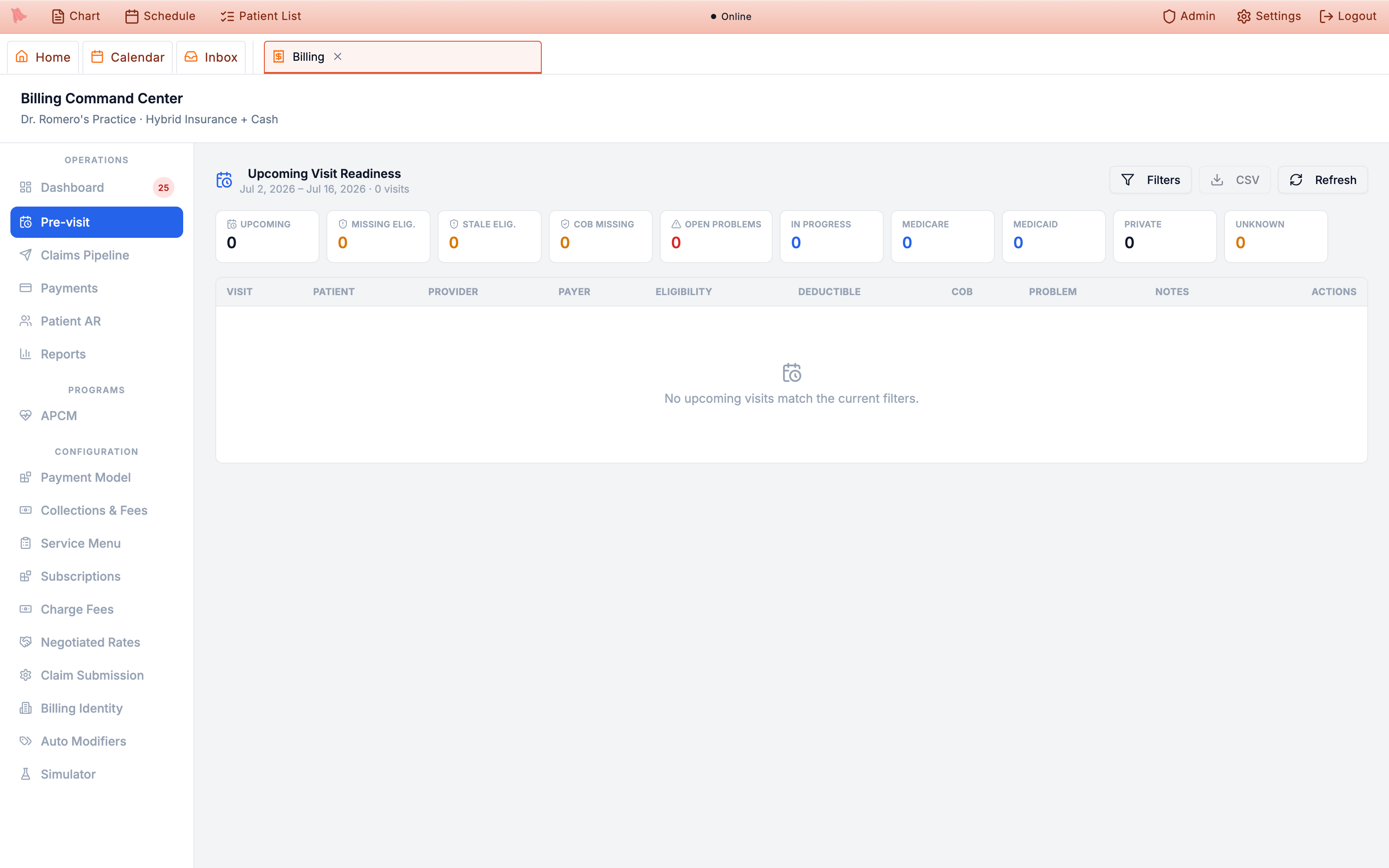
Pre-visit tab, with its chips, filters, and visit table.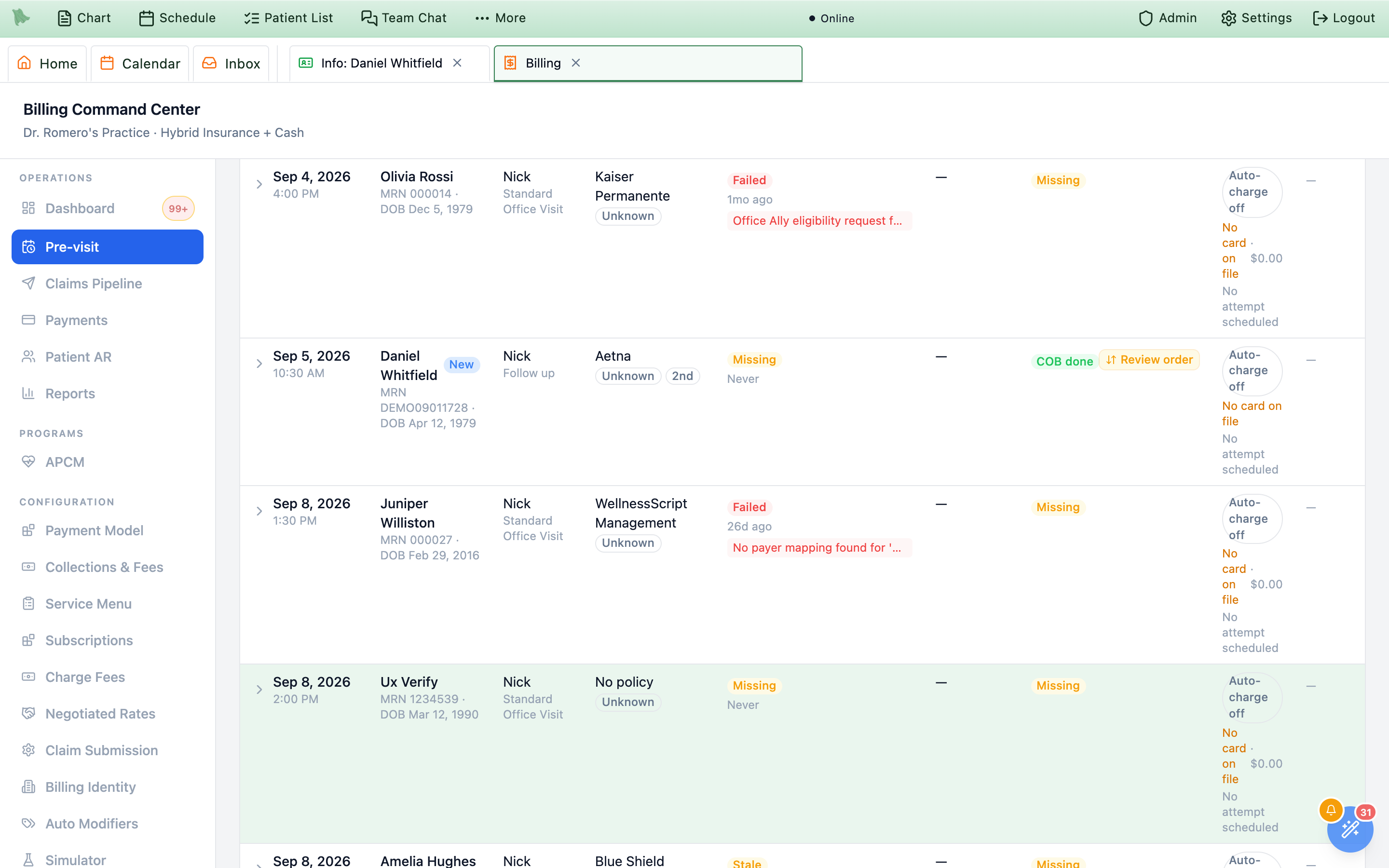
COB cell into Review order — the coverage-order dialog opens straight from the worklist.Recheck, Run COB, Hold / Release, Flag / Resolve) instead of icons; a visit with no sign of a second plan reads Not needed in the COB column; and practice setup problems show the amber Not set up note and banner instead of a red Failed.
Review charges and run the claims pipeline
Charges created when a visit is signed and closed (see Charges & E/M) flow into the Claims Pipeline, which moves them from review through submission to resolution. The tab has four views — with clickable summary stats (needs review, ready, active batches, follow-up, stuck 25+ days) that jump you to the matching slice. Every view has the same search box (Search patient, MRN or claim #), and names match in any order (“First Last” or “Last, First”). In Flight and Resolved search every claim on the server, not just the page you have loaded, and also match partial names, the payer’s claim number (ICN), the clearinghouse claim number, and the payer name. Switching views, searching, or changing a lane keeps the page in place: the list shows Loading work items… or Loading claims… the first time; after that the current rows stay, dimmed, with Updating… beside the title, and change once when the answer arrives. An open claim that is still in the list stays open. In Flight says when it shows only part of the list — “Showing 50 of 132 in-flight claims. Search to find the rest.” or “Showing 50 of 70 matching claims. Narrow the search to see the rest.” Patient names open the Patient billing dialog (§5.7).
A claim file the clearinghouse never answered is flagged at the top of the Claims Pipeline for staff who manage claims, on whichever view you open first: “Claim file B2 has had no clearinghouse response for 17 days (7 claims).” / “Confirm with the clearinghouse before sending these claims again.” with Review claim file, or, for several, “3 claim files have had no clearinghouse response — the oldest for 17 days (21 claims).” with Review claim files. It is red when a file is eligible for recovery or already a delivery incident, and amber when it is only delayed. If not every claim file could be checked from there, it adds “Not every claim file could be checked here — open In Flight for the full list.” The button opens In Flight at the Clearinghouse delivery lane.
-
Review new charges.
Ready to Submitsplits intoNeeds Review— charges carrying issue badges such as coding or demographic problems — andReady to Send. Fix the issue, then useMark readyon the charge’s work item in the Action Center. A visit held because a code has no price reads No claim yet: 99050 has no price… with aSet a price for 99050button (§5.4b). Cash-pay and self-pay charges, deposits, and patient fees never appear here. -
Read how your claims are sent.
Ready to Sendopens with one line that says how this practice’s ready claims leave — the same sentence Claim Submission and External Providers show. For example: “Ready claims go to Office Ally SFTP in the daily batch. Next batch: today at 2:00 PM EDT.” (always in your practice’s time zone), “Ready claims go to Stedi automatically, about every 15 minutes.”, “Nothing is sent automatically. Select claims below and create a claim file to upload to your clearinghouse.”, or “Claims can’t be sent yet. …” with what is missing. -
Send claims yourself.
In
Ready to Send, tick claims (orSelect all) and pick the channel:Office Ally SFTP,Availity SFTP,Stedi, orManual 837P download. The select starts on your route’s channel (or the first one that works), and a channel that can’t send yet says why — Not connected, Setup not finished, or Missing settings. The button follows the channel:Create Batch,Create Claim File(a downloadable 837P file for upload elsewhere), orSubmit through Stedi. When nothing can send, the panel says “No way to send claims is set up yet.” and offers onlyHold selected. -
Hold claims.
Hold selectedopens Place submission hold. Held claims wait underHeld (N), which follows the search box (No held claims match your search). The Held view also has an Insurer holds panel:Hold claims to an insurerholds everything going to one payer, andLift holdends it. Both dialogs leave the Follow-up date empty (“Leave empty for no reminder.”); the date you set is a date on your practice’s calendar, and for an insurer hold billers get an alert when it arrives. -
Track what’s in flight.
The
In Flightview lists batches with per-batch actions:Download 837P, submit to the channel,Mark manual portal upload complete, andCheck acknowledgements. Each batch sums up its acknowledgements as one plain-language chip —Clearinghouse receipt ✓,Clearinghouse receipt ✗, orClearinghouse receipt pending— instead of raw TA1/999 codes; the control numbers and raw acknowledgement text are still there for support calls, tucked into a collapsedTechnical detailsdisclosure inside the expanded batch. A batch the clearinghouse answered only with 277CA claim verdicts still counts as received (Clearinghouse receipt ✓; its tooltip adds 277CA: Received), and on the claim’sSubmissionbox a file receipt that never came readsNot returned. Expanding a batch also shows the per-claim roster: every claim in the batch with a plainAcceptedorRejectedverdict (no more ack-code legend to decode), the status message that came back, and a link that jumps straight to that claim’s Action Center item. A payer duplicate rejection readsRejectedwith aDuplicatechip (“The payer already has a claim for this service. Check that claim before refiling.”). A claim moves throughDraft,Ready,Submitted,Acknowledged, andIn Process, then resolves toPaid,Denied,Partial,Pended,Appealed,Voided,Replaced,Removed at clearinghouse, orClosed(theResolvedview filters on each) — and a claim the clearinghouse bounced shows asRejected, stays in this view tinted red, and carries aCorrect & Refilebutton right on its row (the one exception is a rejected void — a claim you were cancelling has nothing to refile, so it reconciles from the batch view instead). A claim Hero couldn’t hand to the clearinghouse at all readsSubmission failed. Rows also print the last submission error as readable text rather than hiding it behind an icon, and the status filter only offers statuses the view you’re on can actually contain. Claims with no activity for 25+ days raise an amber banner with aReview oldest stuck claimsfilter as soon as In Flight opens. -
Watch for a claim file the clearinghouse never answered.
The Clearinghouse delivery lane sits first in
In Flight, above In Flight Claims. With nothing waiting it is a single line — Clearinghouse delivery · No uploaded claim file is waiting on a clearinghouse acknowledgement. withRefresh— and the Acknowledgement poller (separate from batch receipt) status under it. When files are waiting it shows a card for each uploaded batch that got no acknowledgement — batch number, a status such as Recovery eligible, Acknowledgement delayed, or Delivery incident, Uploaded — no acknowledgement, the clearinghouse, upload time, time elapsed, and claim count — withRelease lost batch…to put its claims back to work. -
Tell rejections from denials.
Hero EMR treats these as different problems, because they need different responses.
Submission failedmeans Hero couldn’t hand the claim over; fix what the error names and send it again.Rejectedmeans the clearinghouse (or the transmission itself) bounced the claim before the payer ever processed it — no one adjudicated anything, so there is nothing to appeal; fix the underlying data and send a corrected claim withCorrect & Refile.Deniedmeans the payer processed the claim and decided not to pay — a real adjudication you work withLog Appeal,Resubmit as-is, orWrite Off. Earlier versions of Hero EMR showed both as “Denied”; if you learned the pipeline then, the practical change is that a rejection is routine data-fixing on the way to the payer, not a lost decision. -
Work the Action Center.
The
Action Centeris a smart-sorted worklist across six lanes (table below). The lane cards across the top show each lane’s count, dollar total, and the age of its oldest item (oldest Nd) — so a lane that’s quietly aging stands out at a glance — and each claim row carries a readiness badge that leads with the first blocking problem by name —Patient ZIP code is invalid, say — with the issue count beneath it, so you know what to fix before you even open the claim (a claim with nothing blocking simply readsReady). Each row’s reason line says what happened in plain words: on the Denied lane “Underpaid: Paid $121.60 of $190.38. $30.38 is unpaid and isn’t a contractual adjustment or the patient’s share.”, “Denied: Paid $0.00 of $190.38.” (plus what the patient owes, if anything), or “Line denied: Paid $150.00 of $190.38; a service line was denied.”, and once you log an appeal “Appealed: Paid $0.00 of $190.38. Appeal logged; waiting on the payer’s decision.” (a denied claim you write off leaves the lane); on the Rejected lane Rejected as a duplicate: … for payer duplicates; on the Pended lane the payer’s pend reason, else “The payer is holding this claim for review or more information.”; on the Fix lane the first blocking issue itself (for example Fix and submit: Patient ZIP code is invalid). A note you add shows under the reason as Note: …, and a claim appears once, not again as a separate charge row. Search bySearch patient, MRN or claim #, sort bySmart sort/Newest update/Highest dollars, and narrow withMy items,Include snoozed, orGroup by lane. Selected claims take bulkSnooze selected/Flag; each item also offersFlag,Note,Assign me,Snooze,Mark ready(charges), andMark uploaded(manual batches). -
Resolve a claim.
Expanding a claim shows
Exact Problems(denial and rejection issues with codes, financial impact, and appeal deadlines — denial codes are decoded into plain language by a glossary the server builds from your payers’ actual responses, e.g. CO-16: “Claim is missing information or has invalid information.”; codes it can’t decode still appear with their raw code rather than being dropped), anIssues & fixespanel (the same readiness checks behind the row badge, each issue with its own fix button),Codes(editable diagnoses and per-line CPT/modifier edits with save-and-resubmit),Financials,Submission, and aManual Submission PackagewithShow Raw 837P/Copy raw 837P/Download raw 837P. Denied claims offerLog Appeal,Resubmit as-is, andWrite Off; partially paid (underpaid) claims offerLog AppealandWrite Off; rejected claims offerCorrect & RefileandResubmit as-is.Log Appealopens the Log appeal dialog: “Hero records the appeal here; it doesn’t send it. File the appeal with {payer} in its portal or by mail or fax, then log it here.” — with the appeal deadline when known, a required Reason for appeal, and an optional Payer’s appeal reference.Mark reviewedfiles a claim away inResolved(“It comes back automatically if the payer sends anything new.”); for a denied claim it needs a Reason of at least 5 characters — why it needs no appeal, refile, or write-off — and any unpaid balance stays in insurance A/R until you write it off. Selecting several claims gives a bulk Mark claims reviewed prompt that requires the note when a denied claim is among them.Resubmit as-isis the action formerly labelled “Correct & Resubmit” — the new name says what it always did: it re-sends the claim unchanged, so make your corrections first. And buttons that aren’t available are no longer silently greyed out — hover a disabledEdit Codes,Regenerate, PDF editor, orMark Manually Submittedbutton and a tooltip says exactly why (for example “Locked: this claim already reached the payer — use Correct & Refile to change it.”). -
Fix demographics without leaving the claim.
Patient-address problems — the most common reason a claim blocks or bounces — are now fixed in place. On the claim’s
Issues & fixespanel, and on the blocker list inside theCorrect & Refiledialog, demographic issues carry anEdit demographicsbutton that opens the patient’s demographics editor right there, already in edit mode — no jump to the chart, no lost context. Save the correction and the claim, its row badge, and its worklist item all refresh on their own. Insurance issues carryEdit insuranceorAdd replacement policythe same way. Billers and billing managers get these fixes without chart access: billing staff who manage claims but not the full patient record get a trimmed editor limited to address and guarantor fields (which is all their save can change), and staff with the claims permission can add, edit, and expire policies. Links that would leave Billing for the chart or a note are shown only to users who can open them. When the practice’s claims route can’t send at all, the panel says Claims can’t be sent yet with the setting to fix —Open Stedi settings,Open Office Ally SFTP settings, orClaim Submission settingsfor admins, and “Ask your practice administrator to finish this in External Providers.” for everyone else. Once the data is right, a demographic issue on a claim that hasn’t reached the payer also offersRebuild claim, which rebuilds it from the corrected chart; a claim that has already reached the payer routes throughCorrect & Refileinstead, so payer tracking is preserved. -
Correct & Refile a claim the payer has.
Correct & Refilebuilds the corrected claim and shows it beside the original (a Member row shows each side’s masked member ID and relationship) before anything is sent. A What will be sent line says which kind of claim it is, and the button follows: a replacement (“Sends a replacement (frequency 7) for {payer} claim {number}…”,Replace & Refile corrected claim); a new claim when the member ID or the policyholder/dependent relationship changed, because a replacement can’t change the member and the payer would deny it (File new claim); or a corrected claim when the payer never accepted the first one (Refile corrected claim). A member-ID change is sent only after the payer has answered the original without paying it: until then a Member ID changed — waiting on {payer} panel explains how to wait for the ERA or post the payer’s $0 EOB; if the payer paid the original, Member ID changed — {payer} paid the original claim tells you to ask the payer to void it and take the payment back, then contact Hero support. Moving a claim to a different payer is staged on hold (Stage new claim on hold), and an unpaid charge is re-priced for the new payer — for example “Charge changes from $271.22 to $86.78 (Aetna contract rate)”. When Hero can’t build the correction it says why in plain words, withEdit insurancewhere the fix is on the patient’s policy;Edit coverage datesopens the Patient billing dialog onInsuranceand rebuilds the preview when you save. -
Trust what the claim-file viewer tells you.
The raw 837P viewer labels what you’re looking at:
Transmitted file from batch Nfor bytes that actually went out,Stored file (not yet transmitted)for a built-but-unsent file,Upload outcome unknown — this file may have reached the clearinghousewhen a hand-off was interrupted, orLive rebuild — not yet transmitted. If the chart changed after the file was built, an amber banner warns that the file is not the current claim content, with aView current rebuildbutton beside it — so “the file still shows the old address” confusion is over. When a preview can’t be generated, the viewer prints the reason instead of failing silently, and the CMS-1500 preview does the same: blank boxes come with an explanation (for example “Address boxes are blank: the patient chart has no complete address on file.”).
| Lane | What lands there |
|---|---|
Denied / underpaid | Claims the payer denied, partly denied, or paid below what it explains — the reason line says which, in dollars. Work them with Log Appeal, Write Off, or Mark reviewed (a reason is required for a denied claim). |
Rejected | Claims the clearinghouse bounced before the payer saw them — fix the data and Correct & Refile. Payer duplicates read Rejected as a duplicate. |
Pended | Claims the payer is holding for review or more information. |
Fix & submit | Charges and claims with review issues to fix and mark ready, each showing its first blocking issue — including visits waiting on a price for a code. |
Awaiting manual upload | Manual-portal claim files waiting to be uploaded and marked complete. |
Follow-ups due | Claims whose follow-up date has arrived. |
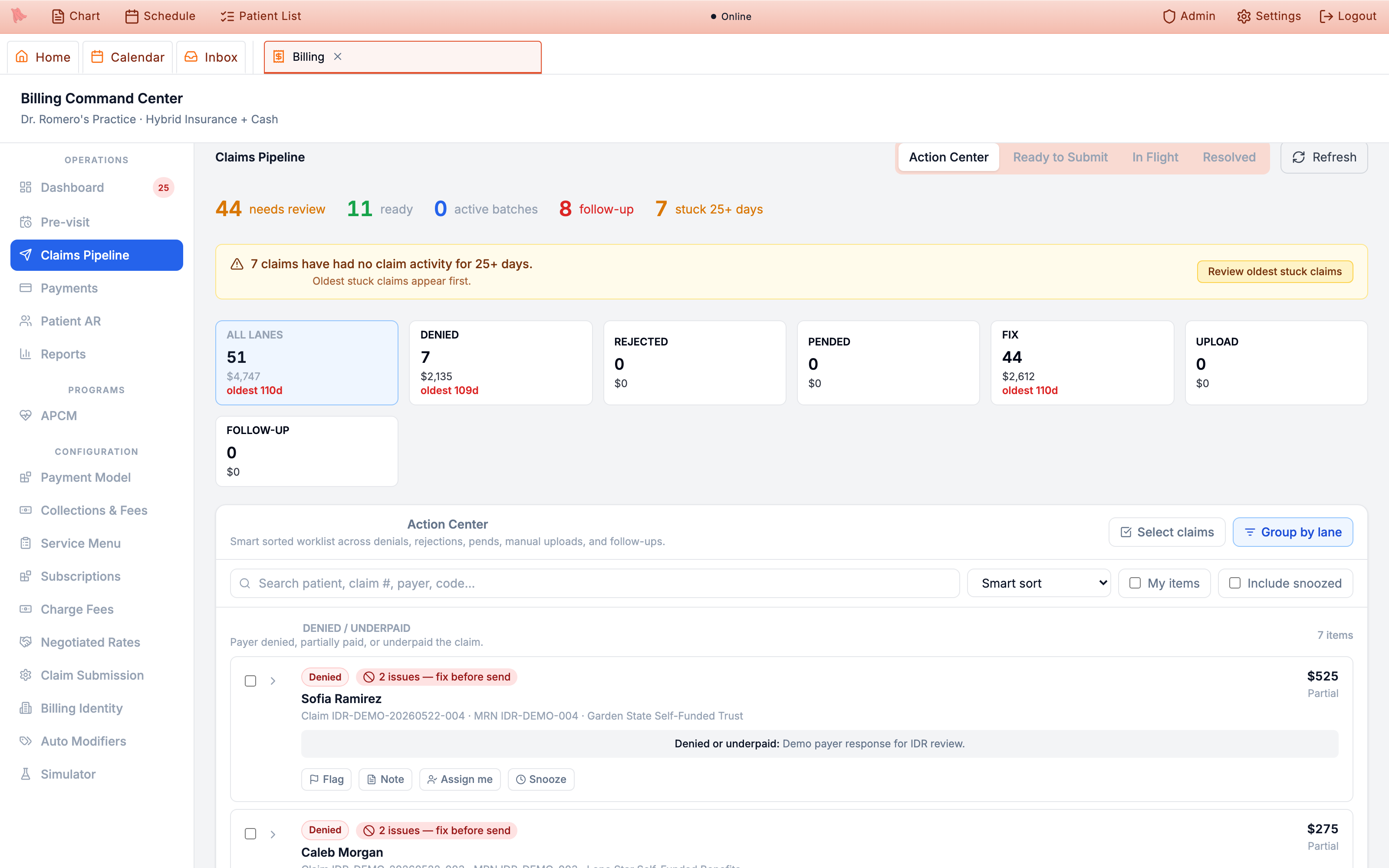
2 issues — fix before send.Write Off is hidden entirely without the sensitive-billing permission. Assign role profiles to match who does what.
410561234 stores 41056-1234). An empty ZIP is allowed at intake, but an insured claim will not transmit until the address is complete and valid — the readiness check names the problem (Patient ZIP code is invalid) and links straight to the fix, and the same check watches your practice’s own billing address (Billing ZIP code is invalid points you at Billing Identity). If a scheduled claim-file run has to leave a claim out over a data problem, it files a billing-inbox alert — Claim excluded from claim file — naming the claim and the error instead of letting it sit; and a claim wedged behind a blocked claim file raises an immediate Claim stuck after blocked claim file alert.
Post ERAs, manual payments & refunds
The Payments tab is headed Payment Posting, with Manual Entry, Post EOB, Upload ERA 835, and Refresh buttons across the top. It’s where insurance remittances and hand-keyed payments get applied to claims — and where refunds are issued. The tab opens on Payment Posting; the Overpayments & credit balances panel is the last section on the page (shown to admins and staff who can collect payments), and a chip beside the Payment Posting title — Overpayments & credits · 18 open · 3 overdue, or none open — jumps straight down to it. The panel tracks “Payer overpayments and patient credits the practice may owe back” until they’re returned: confirming a case starts its clock — 60 days for a payer overpayment (the legal deadline for Medicare and Medicaid, a work target for commercial payers) and 30 days for a patient credit — or you dismiss it. It has its own search (Search patient, MRN or claim #) and, with nothing open, shrinks to one line: Overpayments & credit balances · None open.
-
Upload an ERA.
Upload ERA 835accepts .835, .edi, and .txt files and posts them the same way remittances from your clearinghouse post; anything that needs a person waits in Unposted Remittances. The result says what happened — for example “Posted 3 of 4 claims (3 payments, 5 adjustments). 1 needs review — see Unposted Remittances.”, “Nothing posted: 2 of 2 claims need review — see Unposted Remittances.”, or “Nothing new to post — all 4 claims on this file were already posted.” A file that was already posted is never posted twice, and a claim that matches nothing in Hero is left for review. -
Post queued remittances by payer check.
Unposted Remittancesholds “Remittances Hero hasn’t posted yet, grouped by payer check. Each one says why it’s waiting and what to do next.” Each check group shows the claim count, the payer’s check date and when Hero received it, and Check total, Not posted, and Posted (plus Other — money on the check that isn’t on a listed claim — when there is any);Post all ready (N)posts every ready row at once. Expand a group for its per-claim rows (Claim, Billed, Paid, Patient Resp, Status), with a note saying why the check wasn’t posted automatically. Each row’s status pill names its situation —Ready to post,Payer take-back,Cancelled out,Match service lines,Claim already paid,Claim closed,Claim voided,Money posted since,Patient share too high, and others — with a sentence saying what happened, and the row shows only the buttons that resolve it:Post,Map lines,Rebuild claim lines from charges,Post to claim of record(type a reason; the payment is recorded on the visit and inert duplicate claims are closed),Record payer reversal(shows what will change before anything posts),Reviewed — no posting needed, orPost anyway(after you tick “I checked: the money recorded since the hold is not this payment.”). If aPostis held after all, the row turns amber — Not posted — {pill}. {reason} — and the matching dialog opens. With nothing waiting, the card reads “Nothing is waiting — every remittance Hero received has posted.” -
Post a paper or portal EOB.
When a payer sends a mailed or portal EOB instead of an 835,
Post EOBopensPost Insurance EOB. Pick the claim with the same live search picker, then key what the EOB says:Payer paid,Allowed,Patient resp. (total),Deductible,Coinsurance,Copay, andContractual write-off, plus aWrite-off CARC(e.g.CO-45), aDenial CARC(e.g.CO-16) with theDenied amount, thePayer claim # (ICN),Check #,Payment date,EOB date, and aNote. For an EOB that splits amounts by service line, Enter EOB amounts by service line takes them line by line; a half-filled denial row is flagged when you leave it or pressPost EOB. Submit withPost EOB. A CARC-coded denial entered here starts the appeal clock just as an 835 denial would. If an electronic remittance for the same payment is already waiting in Unposted Remittances, Post EOB refuses with a red banner that names it — “This claim already has an electronic remittance for this payment that hasn’t been posted yet (check {check #}, {amount}). Post it in Payments → Unposted Remittances instead of keying the paper EOB.” (or, for one on hold, “… Resolve it there instead of keying the paper EOB.”). -
Enter a manual payment.
Manual Entryopens theManual Payment Entryform:Claim #(required),Payment Type(Insurance Payment,Patient - Cash,Patient - Card,Patient - ACH),Payer,Check #,Amount(required),Payment Date, andNote— thenPost Payment. TheClaim #field is a live search picker — type a couple of characters of the patient, claim number, or payer and pick the claim from the results; no more pasting exact identifiers. -
Reconcile the edges.
Two collapsible panels keep the odd cases honest.
External / filed outside EMR (N)lists remittance and status references that match no claim in Hero EMR — typically claims filed directly at the clearinghouse portal (Office Ally references likeC###P##) — with source, payer, service date, and amounts, so money arriving for them is tracked instead of vanishing; at zero it still shows, with “No payer remittance or claim status has come back for a claim filed outside Hero.”Recent ERA Ingestion Runsshows “One row per 835 file, from your clearinghouse or an upload.” — received time, source (Office Ally, Stedi, Manual upload), status (Posted, Waiting to post, Needs review, Unmatched, Failed, and so on), and matched / posted / unmatched counts — your proof that remittances are actually flowing in. -
Look up any check.
Remittance Historyis the ledger of every payer check/EFT received, posted or not. Search byCheck #, payer, or claim #, narrow withFrom/Todates and a status —Not fully posted,Posted,Partially posted,Needs review, orUnmatched, the same words the rows use —, and page through the results. Each row shows the Check date (the payer’s payment date, with a muted received date when Hero got it on a different day), check/EFT number, payer, method, check total, claim count, posted amount, and status — and expands into the per-claim EOBs behind that check, down to CPT-level adjudication. This is where you answer “did we ever get paid for this?” -
Audit and refund.
Recent Payment Activitylists the latest 200 payments with Date, Patient / Payer, Type (ERA-835, Insurance, Cash, Card, ACH), Check #, Billing Entity, Amount (with any Refunded sub-line), Claims, and Status (Posted / Pending). Refundable payments show aRefundaction that opens theIssue Refundmodal — remaining refundable balance,Refund amount, andRefund reason, confirmed withRefund Payment. Card refunds flow back through Stripe automatically.
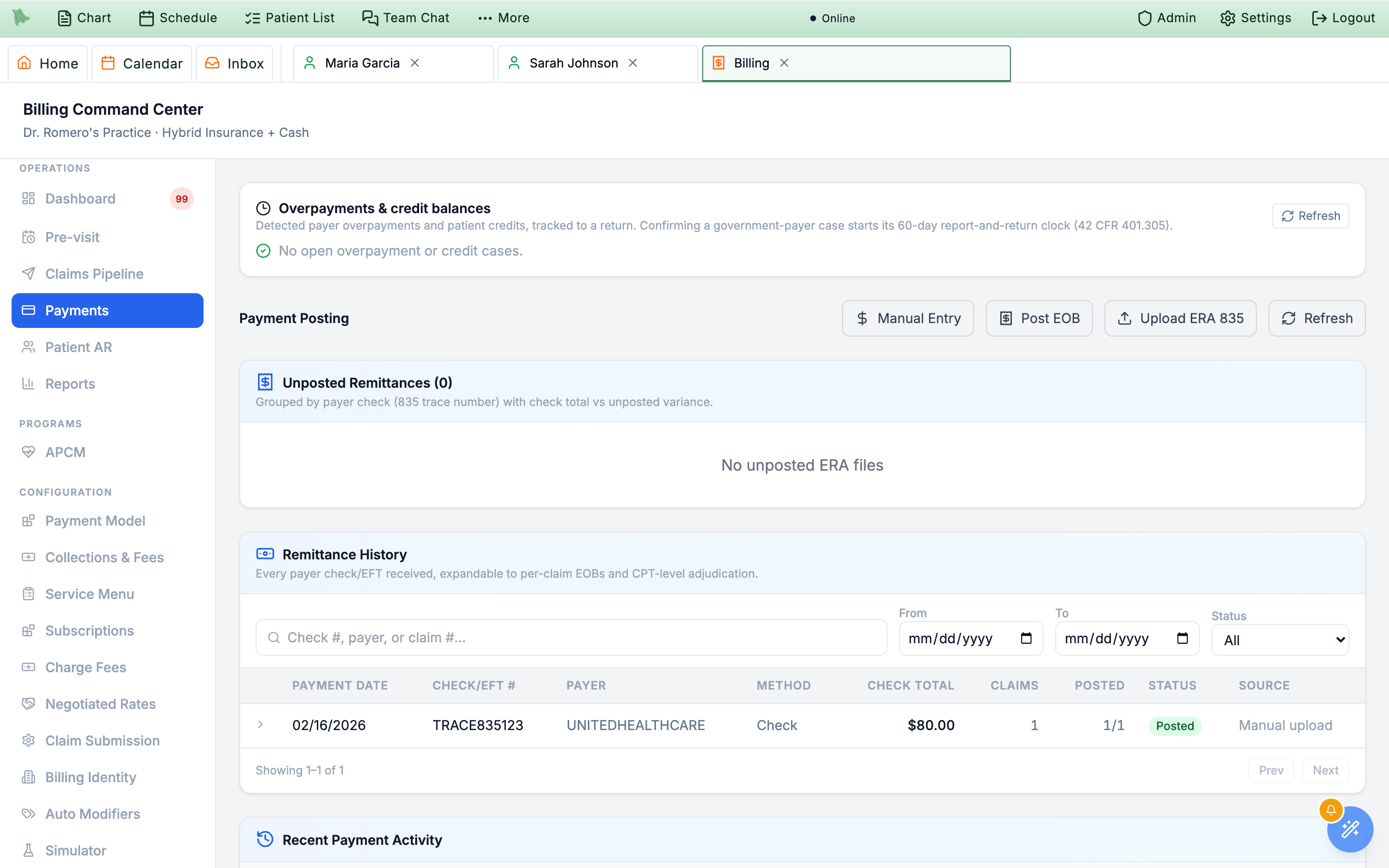
Unposted Remittances queue — grouped by payer check — up top, Recent Payment Activity below with per-row Refund actions.Post all ready (N) button, rows carry plain-language status pills instead of Needs review (reversal/takeback) or Held: original was voided, and the Paid column shows each remittance’s payment. Overpayments & credit balances has moved from the top to the end of the page, reached from the Overpayments & credits chip beside the Payment Posting title.
Manage patient balances, statements & collections
The Patient AR tab opens the AR Workspace, which summarizes total outstanding (for example $1,601.51 across 10 patients) with Filters and Refresh buttons and a Search by patient name or MRN… box; practices with multiple billing entities also get a Billing entity switcher. Billing-inbox alerts about a specific patient deep-link straight here with that patient already filtered, so you land on the account in question rather than the whole roster. A toggle flips between three views — Aging, Day Sheet, and Invoices (the last one only for staff who may read patient invoices). Under the total, a second line splits the rest of what is owed: $A pending insurance · $B not filed yet · $C needs billing review · $D total receivable — the same figures as the Billing Monitor and the AR Aging report. Patient names open the Patient billing dialog.
Aging — who owes what
- One row per patient: Balance (with Copay / Coins / Ded / Credit / Held breakdowns), Last Statement, Last Payment, and an aging badge —
0–30 days,31–60 days,61–90 days,91–120 days, orOver 120 days(the same buckets every Billing screen and report uses). - Status filters include
Current,Past Due,Payment Plan,Credit Balance, andCollections Warning;Aging FiltersaddsMin Total Receivable,Max Total Receivable(they filter each row’s total receivable — patient plus insurance — not the Patient owes figure), andAge of oldest balancewith all five buckets. A row is marked Collections Warning only when the patient “Owes $100 or more, more than 90 days past due”; a smaller overdue balance reads Past due. - Row actions:
Take payment,Timeline,Statement,Plan(beta),Activity, andCollections(only when the collections rule is met) — plus a checkbox per row for bulk statements.Take paymentlists the patient’s open balances first and a cancelled (“entered in error”) invoice last; an invoice whose share is held for a pending secondary claim reads Awaiting {payer} and isn’t pre-selected.
Day Sheet — one day’s money
- The front-desk view for a single date:
Previous Day/Today/Next Dayplus weekday quick-pick chips, with filters for visit status,Provider,Location, andOnly issues. Logins without Dashboard access, such as Front Desk, open Billing here. - Each visit row shows cash
Owed/Paid, credit and held-credit lines, the pre-visit collection state (e.g. Optional prepay or Collection due amounts), claims owed/paid, membership status, and issue flags. - Row actions:
Take payment,Statement,Plan(beta),Fees, andActivity.
Invoices — every invoice, two ways
- A grouping switch chooses
By patient— an accordion of patients, scoped toOpen balancesorAll invoices, whose name search runs across all matching accounts — orBy invoice, a flat organization-wide table. - The
By invoicetable lists Invoice, Patient, Service date, Status, Billed, Ins. paid, Patient paid, and Balance, filtered by status chips (Balance due,Partially paid,Paid,Cancelled,With insurance,Insurance review),Service from/Service todates,Min amount/Max amount, and aSortof newest, oldest, amount, or balance.Clear filtersresets them. Partially paid means the patient has paid part; an invoice only the payer has paid reads Balance due. An invoice waiting on the payer shows its number and billed amount, not a blank. An invoice whose patient share is held for a pending secondary claim reads Awaiting {payer} in amber (see the callout below). - Results are paged from the server —
Load morereports how many of the total you’re seeing. Expanding any row opens the same invoice detail as the patient’sInvoices & Chargestab, so staff read one invoice record everywhere.
-
Send a statement.
Statementopens theStatement Preview— practice and patient addresses, line items with Charges / Insurance / You Owe columns,TOTAL AMOUNT DUE:, and a Due by date that follows the statement due days in Collections & Fees. Deliver it withDownload PDF to print(records the statement and downloads the PDF — Hero never mails paper, so print and mail it yourself),Email payment link, orEmail + download PDF. The message says which happened, for example “Statement recorded for {patient} — the PDF downloaded; print and mail it.” or “Statement emailed to {patient}.” A line whose share is held for a pending secondary claim ends “— waiting on {payer}”, is left out ofTOTAL AMOUNT DUE:, and the preview adds “Pending other insurance: $10.00 (not due until the other insurance processes the visit)”. When nothing on the account is patient-billable, the statement actions are disabled with “No patient-billable balance — this balance is pending with insurance (including a secondary claim) or already settled, so a statement would be blank.”, and a bulk send skips that patient with the reason. -
Send statements in bulk.
In the
Agingview, tick the checkbox on each row you want (up to 200 at a time), choose the method — Email, Download PDF to print, or Email + download PDF — and clickEmail statements (N),Download statements (N), orEmail + download (N). Printing downloads one combined PDF. The result reports per patient — failures are named — and the failed patients stay selected so you can fix the issue (say, a missing billing email) and retry without double-sending anyone who already got theirs. -
Open the billing timeline.
The
Timelinerow action opens theBilling Timelinedrawer: the patient’s outstanding balance and available credit up top, then the history grouped by visit, newest visit first (Visit Sep 12, 2026 · Office visit). Inside a visit, events read in order — charge, claim, payer payment, payer adjustment, then a Patient share from {payer} line that spells out the coinsurance, copay, and deductible the payer assigned — then the patient’s payments. Statements and account-level events sit under Account activity. It’s the fastest way to answer “what happened with this patient’s money?” without hopping between tabs. -
Offer a payment plan (beta).
Plan— badgedBetain the UI — opensCreate Payment Planwith a frequency choice and an installment preview before you commit. -
Review fees and payment activity.
On the Day Sheet,
Feesopens theFee Reviewmodal listing no-show and late-cancellation fees generated by your missed-appointment policy, with aWaive Feebutton that requires a waive reason (shown to admins and staff with the sensitive-billing permission); cancelling after you typed a reason asks before discarding it. The same fees can be waived from the fee’s invoice inInvoices & ChargeswithWaive fee. A fee is kept out of the money still on file for the visit (net of earlier refunds), so only the uncovered part appears as a new fee charge; and once a cancelled or no-show visit’s refund completes, its invoice reads Paid with an Appointment balance released line and the patient no longer shows that balance in Patient AR.Activityopens thePayment Activitymodal — the receipts and credits hub: receipt numbers, amounts, refunded amounts, payment methods, aStatement history(delivery method and status per statement), andIssue Refund,Hold Credit,Apply Held Credit, andRelease Held Creditactions (all require the sensitive-billing permission). Available credits auto-apply to future balances; held credits stay off the balance until you apply or release them. -
Escalate to collections.
Collectionsappears on an Aging row when the patient owes $100 or more and their oldest share is more than 90 days past due (hover: Owes $100 or more, more than 90 days past due) — the same rule as the Collections Warning status. It asks you to confirm sending the patient to collections, then moves the account into the collections workflow. - Prepare financial documents. Superbills, Good Faith Estimates, receipts, and statement PDFs live with the patient’s invoices — see Invoices & Charges.
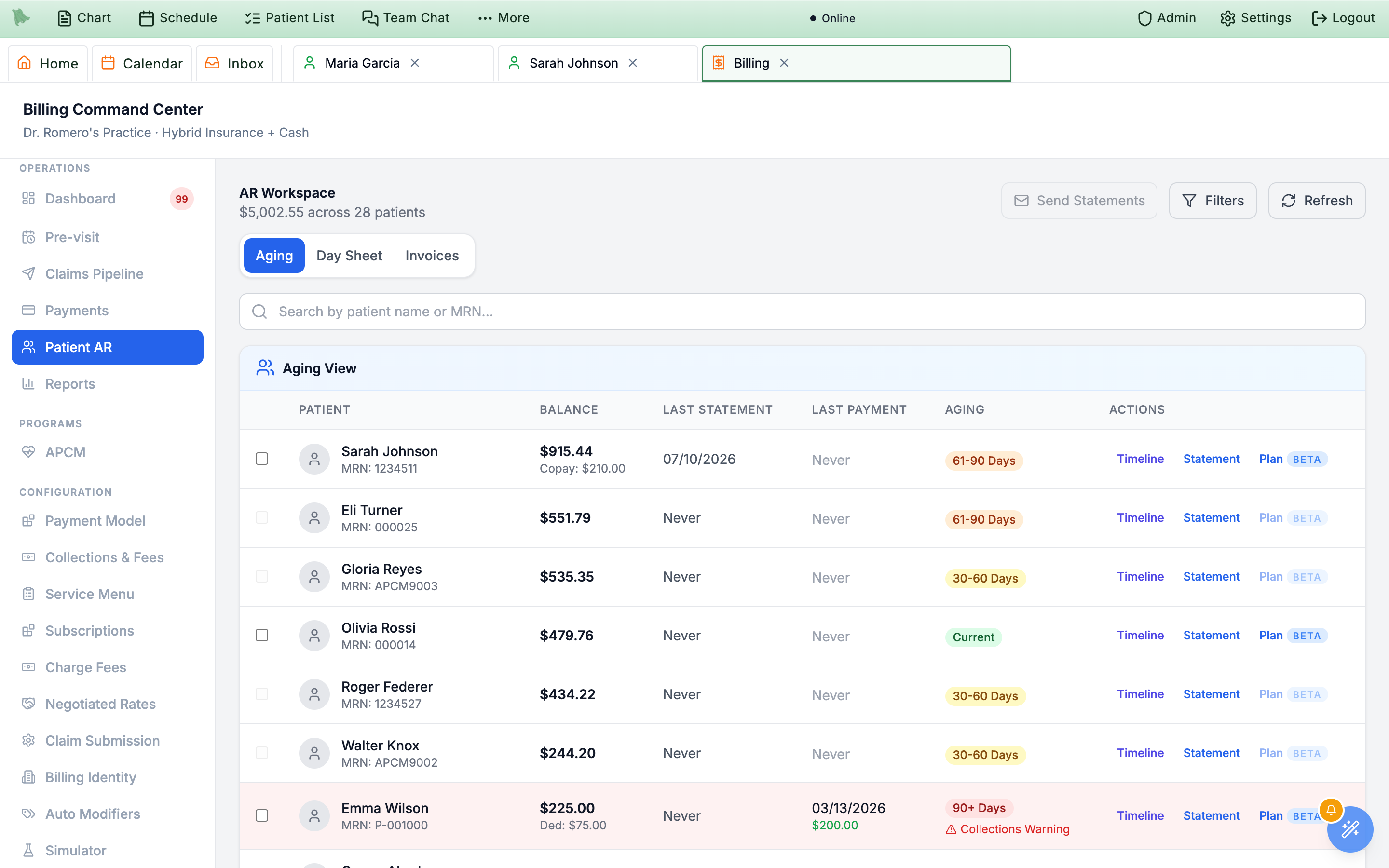
Aging view — balances, aging badges, and per-patient Statement and Plan (beta) actions.Take payment.
Charge saved card, the kiosk, or automatic charging — while that claim is pending. Cash and check payments the patient hands you can still be recorded from the invoice. The hold ends when the secondary claim stops being pending: when the payer processes it, and also when it is rejected, fails to send, is closed, voided, replaced, removed at the clearinghouse, or deleted. A secondary claim left in draft or waiting for review keeps the share held until someone works it. The Aging view’s balance still counts the held share.
Plan action is explicitly badged Beta — expect the workflow to evolve, and double-check installment schedules before promising them to patients.
Collections & Fees policies from Billing setup; the patient-side experience is covered in Portal payments.
Run membership & subscription billing
The Subscriptions tab (under Programs in the sidebar) — “Manage recurring membership plans and patient billing.” — is the home of recurring revenue, and the primary billing workflow for DPC practices. All money movement runs through your connected Stripe account, so complete Stripe Connect onboarding first. Which visits a membership covers is set per service in the Service Menu (Membership coverage, §5.3), not on the plan.
-
Turn on subscriptions.
The
Subscription Settingscard gates everything. WithEnable subscriptionsoff, the rest is hidden behind “Turn on subscriptions to set payment, cancellation and access rules.” Turned on, it showsAllow patient self-cancelfor portal self-service;Let patients undo a scheduled cancellation(until their paid period ends, a patient who cancelled can keep their membership from the portal);Members can finish portal setup with a balance due; the Grace period after failed payment; When cancelled, access ends —At end of billing periodorImmediately; Access after a failed renewal; Messaging when membership access is restricted; the Booking exception; andAllow staff membership exceptions. The save bar reads No unsaved changes or Unsaved changes besideDiscardandSave Settings. If Stripe Connect isn’t active you’ll see: “Stripe Connect is not active. Plans cannot be published until Stripe is configured in Admin > External Providers > Stripe.” -
Build your plans.
Under
Membership Plans,New Planopens the plan form —Plan name,Amount,Currency, anEverybilling-interval selector, an optional trial, andPlan group (optional): “Plans in the same group appear to patients as one plan with a Monthly/Annual choice. Leave blank to use the plan name without ‘Monthly’ or ‘Annual’.” Plan groups only pair the monthly and annual versions of one plan — there are no household or family plans. Plan cards (for example v1 · Group: adult · Order 1) support edit, publish/unpublish, and archive; published plans list first, and archived ones stay out of the way until you pressShow archived plans (N). Editing a published plan’s price, billing interval, or trial creates a new version for new enrollments; existing members keep their signup price. -
Enroll members.
Under Enroll a patient, use
Find patient(or paste a patient ID), pick a plan, and send the enrollment link:Text link,Email link, orCopy link. The result says where it went (“Enrollment link texted to •••-1234.”, a guardian’s contact for a minor) or why it couldn’t send — for example the patient opted out of texts, there’s no mobile number or email on the chart, or they already have a membership. A patient without a portal account is asked to sign in first, so send a portal invite if they can’t. The patient completes checkout in the patient portal (see Portal payments). To charge a card the patient already saved instead, use Enroll with saved card; a declined first payment shows in amber with the card’s reason — the membership isn’t active until it’s paid — and raises a Membership payment failed alert in the Billing inbox. Unpaid first payments are cancelled automatically after about 2 hours. -
Find and manage members.
The
Member Roster(“Monitor active subscriptions and resolve billing issues.”) lists Member, Plan, Status, Renews, Billing, and Actions, with aSearch by name or planbox that finds “First Last” or “Last, First”. Above the table,Current (n)— the default — lists memberships that still run, past due, unpaid, and incomplete ones first, then active, trialing, and paused;Ended (n)holds memberships that have ended (an empty view reads “No ended memberships.”);Allshows both. The search works inside the view you picked. Statuses read Active, Trial, Payment overdue, Unpaid, Paused, Setup incomplete, Setup expired, or Ended, and the Billing column names the latest invoice ($99.00 · Unpaid). Per-member actions:Detailsexpands anInvoice timelinewith per-invoice status and hosted Stripe invoice links;Cancelopens theCancel membershipmodal with a proration/access preview, the Cancellation timing, a Reason (Patient requested,Payment issue,Plan fit,Staff review,Other), Notes, Email notification requested, and a Confirm access end date checkbox you must tick — cancelling doesn’t refund or prorate dues already paid, and refunds are issued in Stripe, not in Hero EMR. The dialog closes with itsClosebutton, ×, Esc, or a click outside — asking “Discard unsaved changes?” if you typed Notes — and can’t be closed while the cancellation is running.Resumeundoes a scheduled period-end cancellation; andCollectretries the open invoice immediately (enabled only while the latest invoice is open). Active and trialing members also haveChange plan,End trial now(trials), andPause payments/Resume payments(active members). A member who owes a payment — the same members the recovery queue lists — gets Payment link:Text link·Email link·Copy linkunder the row’s buttons, with the result line under it; paid members’ rows have no payment link. -
Work the recovery queue.
The
Payment recovery queuehighlights members with failed invoices, each with its status and the card’s decline reason (Setup incomplete · Your card was declined.) andText link/Email link/Copy linkto send the patient a payment link; rows flagPayment recovery needed,Cancels at period end,Plan no longer offered, andSnapshot needs staff review, alongside Stripe sync health. The queue doesn’t follow the roster’s view or search: it keeps every member who may owe a payment, including an ended membership that still owes. Staff with the access-override permission can useRecord overrideto grant temporary access while billing is being fixed — care continues, the invoice gets chased.
Customize columns. It shows the membership status with how long the patient has been a member (for example Active · 1 yr 3 mo, Trial, Dues overdue, Paused), the date that matters next under it (Renews {date}, or Ends {date} for a cancelled membership), and Not a member for patients without one. In DPC practices the visit preview’s Saved card & membership section is on by default for staff who handle money.
Membership Health card — active paying members, gross MRR, trialing members, past-due-after-grace and grace-period counts, scheduled cancellations, canceled this month, top churn reason (in plain words, such as Patient requested (3)), and failed invoice recovery. Net MRR and MRR at Risk aren’t on that card; they are summary cards in the DPC block above it, alongside Active Paying Members and One-off Patient AR. The Membership Report quick report exports the roster, snapshots, invoices, and cancellation reasons (see the Billing Monitor).
Bill the APCM program
APCM (Advanced Primary Care Management) is an opt-in module: the tab is absent until an admin enables it under Additional Features, and it shows only for users with billing dashboard or AR permission. Once on, it manages the full monthly cycle — enrollment, consent, care plans, and G-code billing — across four sub-tabs:
-
Watch the dashboard.
The
Dashboardsub-tab shows tier counts —Enrolled,G0556,G0557,G0558— plusMonthly Revenue, anAlertscard, and anUpcoming Generationcard with a month picker andPreview Generation/Generate Nowbuttons. -
Enroll patients.
Enrollmentshas three views:Enrolled (N),Pending review (N), andEligible (N). From Eligible, select patients and clickEnroll selected (N); from Pending review, bulkApprove (N)orReject (N). Each enrolled row shows Tier,Chronic conditions, Last appt,Coordinating provider, Status, andConsentbadges, with aManagelink to the enrollment detail. An auto-enrollment settings card can scan for eligible patients automatically or on demand (Scan now); the Eligible table showsEst. tierandEst. / morevenue. -
Capture consent.
Patient consent is a formal e-signed agreement. The
Consentbadge on each enrollment reflects pending vs. obtained consent (with method and date), and the signed consent PDF files to the patient’s media tab. -
Generate and track billing.
Generate Now(orPreview Generationfirst) creates the month’s APCM billing events. TheBilling Historysub-tab lists them by month with Patient, Code, Amount, Status, and Generated columns and aRefreshbutton. Generated events flow into the normal claims pipeline as G-code charges. -
Keep care plans current.
The
Care Planssub-tab manages each enrollment’s plan —Goalswith+ Add goal,Interventionswith+ Add intervention, andSave Care Plan— and surfaces aMissing Care Planslist, since care-plan documentation supports the billed codes.
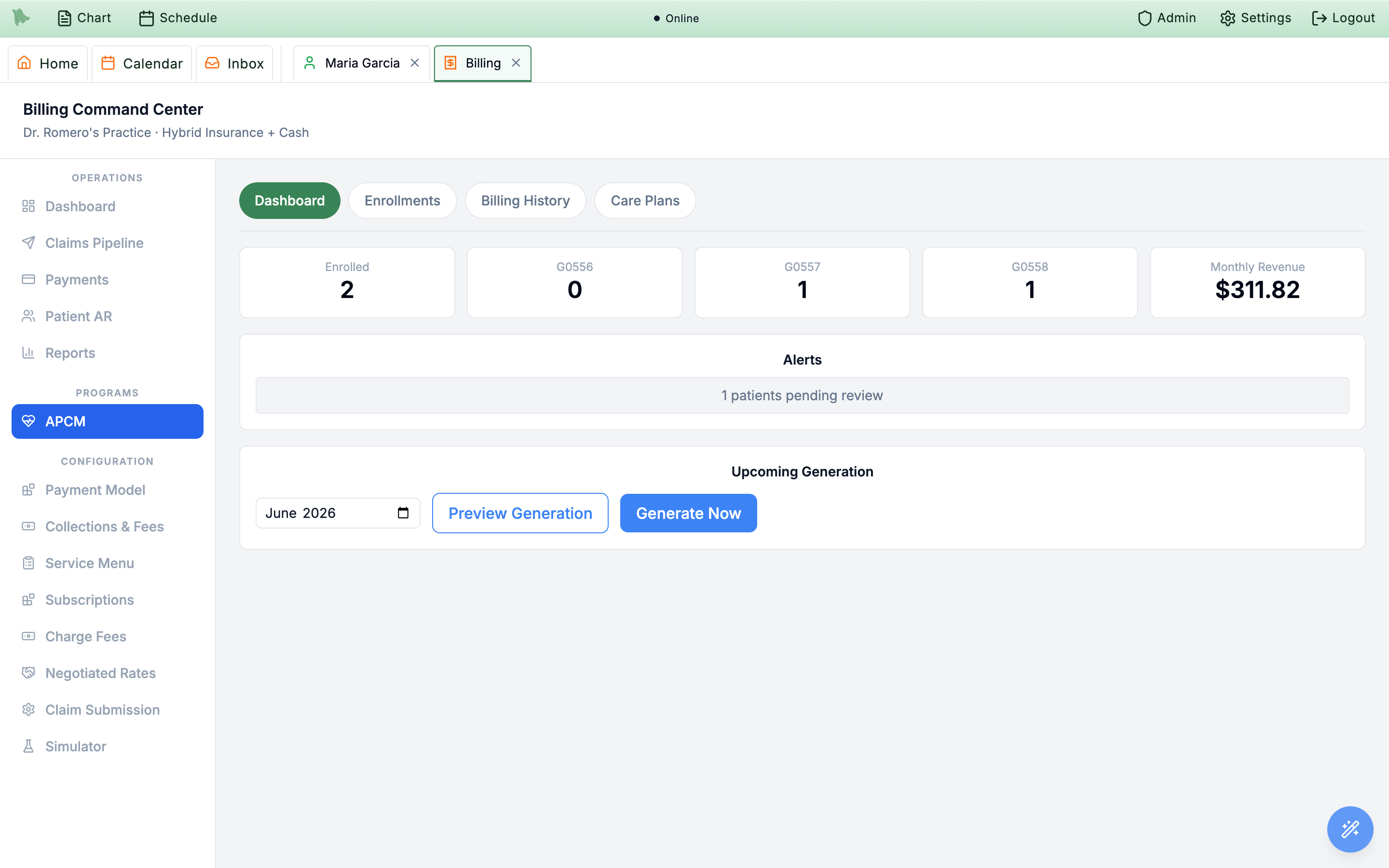
Upcoming Generation card that creates the month’s billing events.Need help? Email support@heroemr.com.