Contacting outside providers
Fax the note, send a secure message, call the office, and see everything that went back and forth — from the visit or the chart. Plus the practice setting that sends the signed note automatically, replies in the Inbox, and the outside doctor's side of the referral portal.
Contacting outside providers
Fax the note, send a secure message, call the office, and see everything that went back and forth — from the visit or the chart. Plus the practice setting that sends the signed note automatically, replies in the Inbox, and the outside doctor's side of the referral portal.
Contact the referring provider and PCP from the visit
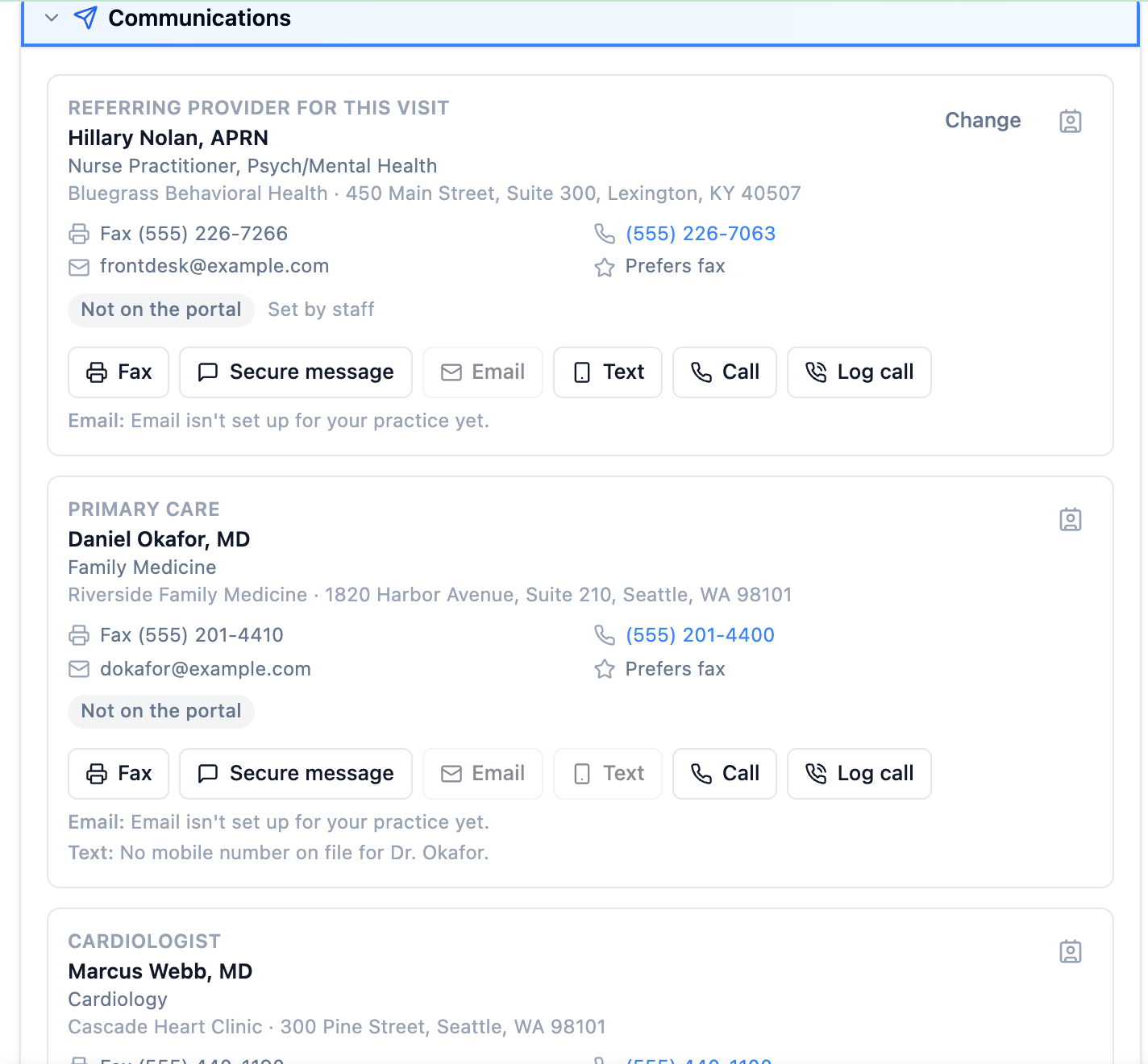
Every visit has a Communications section at the bottom of Encounter Completion, after Forms & Letters. It is where you send the visit note or a document to the patient’s outside doctors, message them securely, call them, and see everything that has gone back and forth. It keeps working after the visit is signed, so you can fax a signed note or answer a question days later.
When the section is closed, its header sums it up, for example “Referred by Hillary Nolan, APRN · PCP Daniel Okafor, MD · 2 sent · 1 reply”, with each recipient’s fax number underneath. Open it to see a card for each recipient:
- Referring provider for this visit (with a
Changebutton, see 13.20), - Primary care, the patient’s primary care provider (shown once if it is the same doctor),
- any other outside doctors on the patient’s Care team.
Each card shows the doctor’s practice and address, fax, phone (click to call), email, how they prefer to be reached, and whether they are on your referral portal (On the referral portal, Invited, or Not on the portal).
Sent and received timeline (13.29).The contact buttons
| Button | What it does |
|---|---|
Fax | Faxes the visit note, a signed letter, or a document from the chart (13.25). |
Secure message | Sends a message, with chart attachments if you like, that the doctor reads on your referral portal (13.26). |
Email / Text | Sends a short, fixed notice that a secure message is waiting, or an invitation to your portal. Never any patient details (13.27). |
Call | Calls the office phone with the in-app phone when it is set up for you, or opens your computer’s phone link (13.28). |
Log call | Records how a call went. Always available. |
A greyed-out button always says why, in plain words, for example:
- “Your fax account isn’t connected yet.” or “Fax isn’t included in your practice’s plan.”
- “No fax number on file for Dr. Okafor.” (add it on the Referring providers page)
- “Email isn’t set up for your practice yet.” or “Texting isn’t turned on for your practice yet.”
- “No email address on file for …” or “No mobile number on file for …”
- “The referral portal isn’t turned on for your practice.”
- “… is blocked from receiving updates from your practice.”
The same buttons appear under each doctor on the chart’s Care team (13.18), so you can reach a doctor without opening a visit.
Fax the note, a letter, or a chart document
-
Press
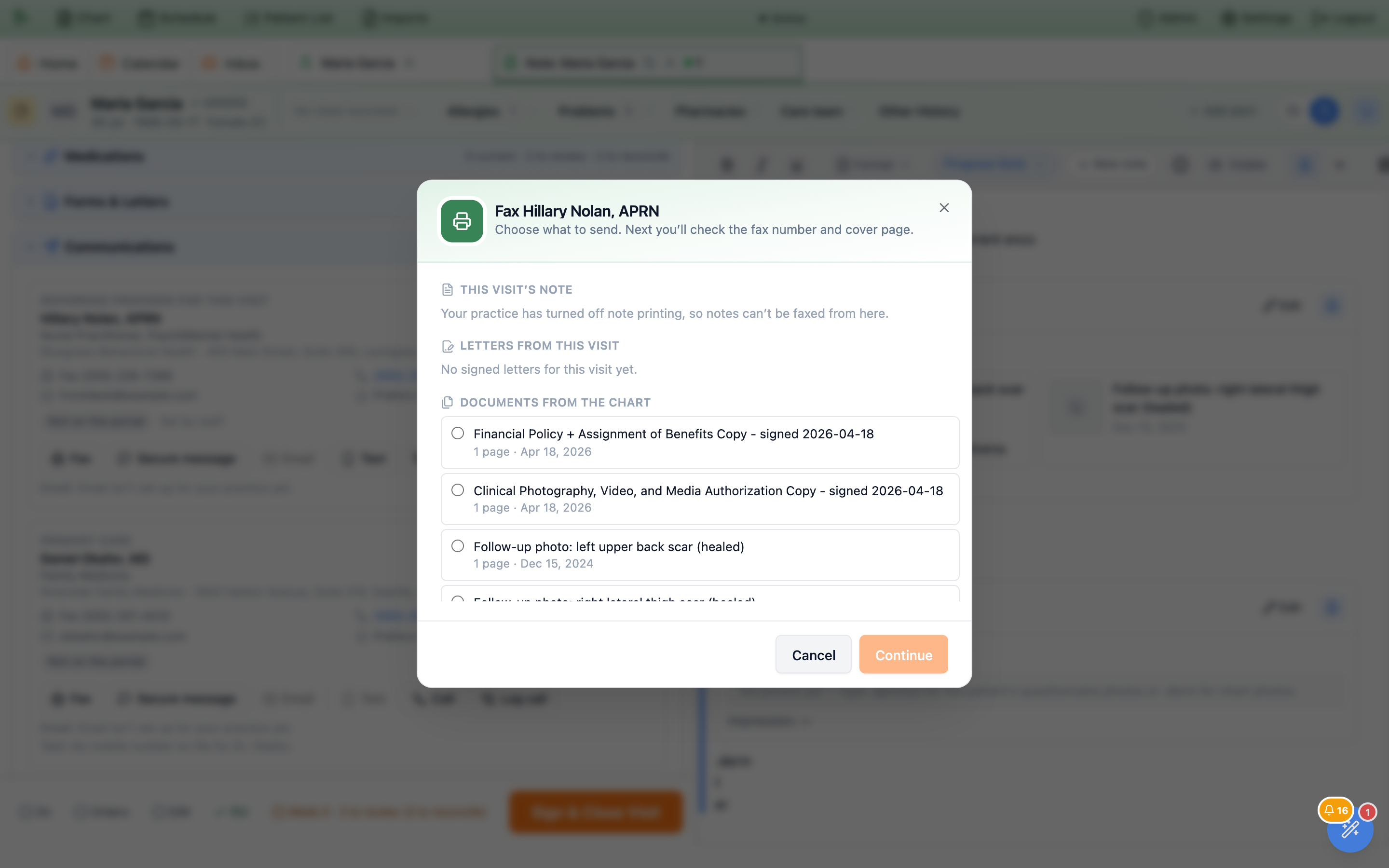
Faxon the doctor’s card and choose what to send. The list has three groups:This visit’s note(once the visit is signed),Letters from this visit(signed letters only), andDocuments from the chart(the 25 most recent). From the chart’s Care team the first group isSigned visit notesinstead. Psychotherapy notes are never offered. If your practice has turned off note printing, notes can’t be faxed from here. PressContinue. -
Check the fax number and cover page.
The
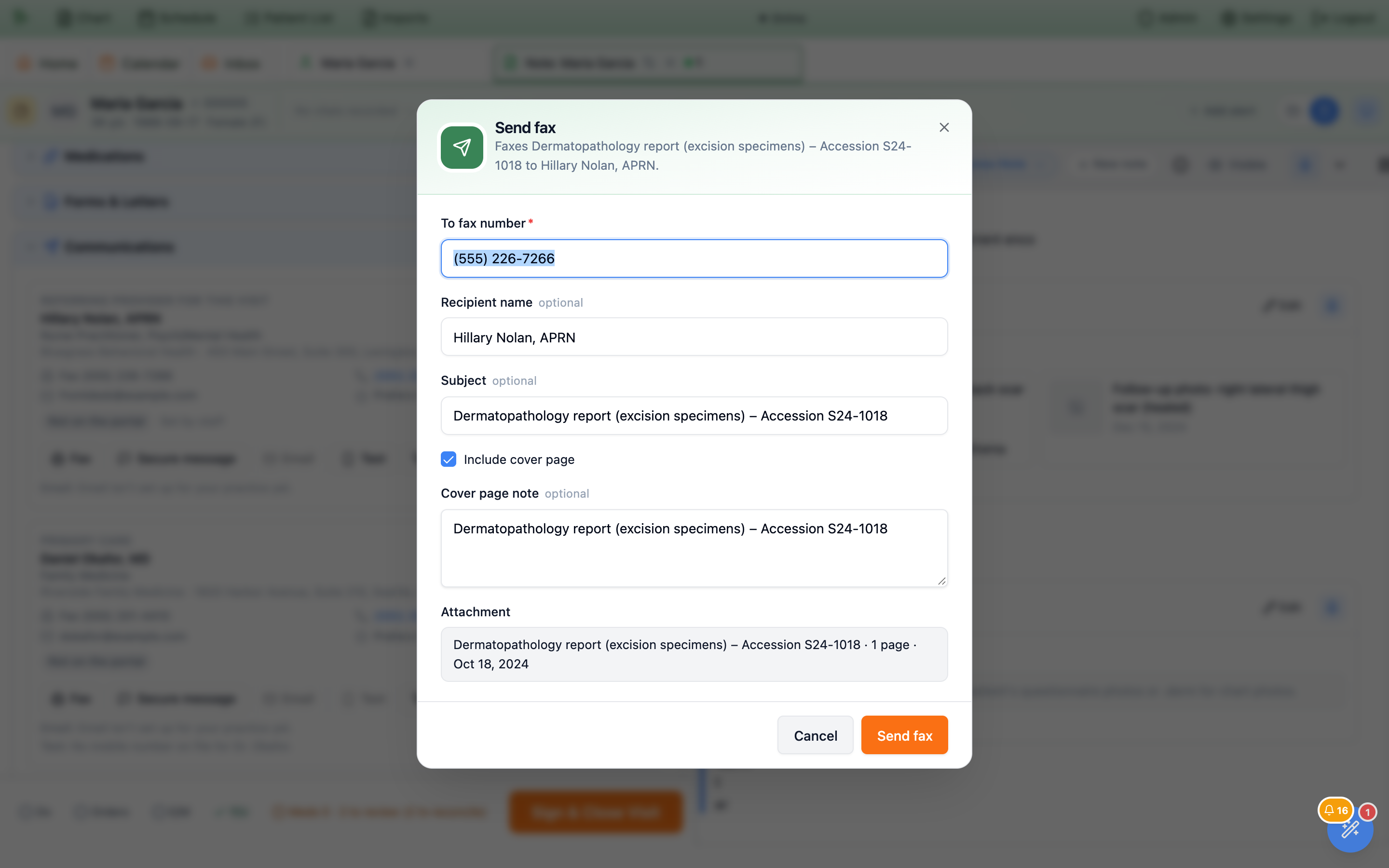
To fax numberis filled in from your practice’s list, theRecipient nameis the doctor’s name, and the subject is the document’s name. WithInclude cover pageticked, the cover page is addressed “Attn:” the recipient name and carries your cover page note. -
Press
Send fax. Hero confirms “Fax queued to …” and the fax appears in the timeline asSending.
The fax goes out on your own fax account, the same one you use to send faxes elsewhere in Hero, so each person who faxes needs their fax account connected. Hero checks on the fax every few minutes and the timeline moves from Sending to Sent, or to Didn’t go through with the reason (for example “The fax didn’t go through. Check the fax number and send it again.”).
Forms & Letters (address it with Letter to, see 13.21), then fax it from here under Letters from this visit.Send a secure message through your referral portal
A secure message is the way to share clinical details with an outside doctor without a fax machine. The doctor reads it, and any attachments, on your practice’s referral portal after signing in, and can reply. Nothing clinical travels by email or text.
- Press
Secure messageon the doctor’s card and write your message (up to 8,000 characters). - Attach from the chart if needed: tick the visit’s signed note, signed letters, or chart documents (up to 10). Psychotherapy notes are never offered. Only the current signed version of a note can be shared, and letters that show billing amounts can’t be attached. What you tick stays attached even if you hide the list again with
Hide chart items. - Decide whether to let them know. Under
Let them know it’s there, tickAlso let them know by emailorby textto send a short notice that a message is waiting (13.27). For a doctor on your portal, the boxes start the way the doctor asked to be notified. - Press
Send message. Hero confirms “Secure message sent”.
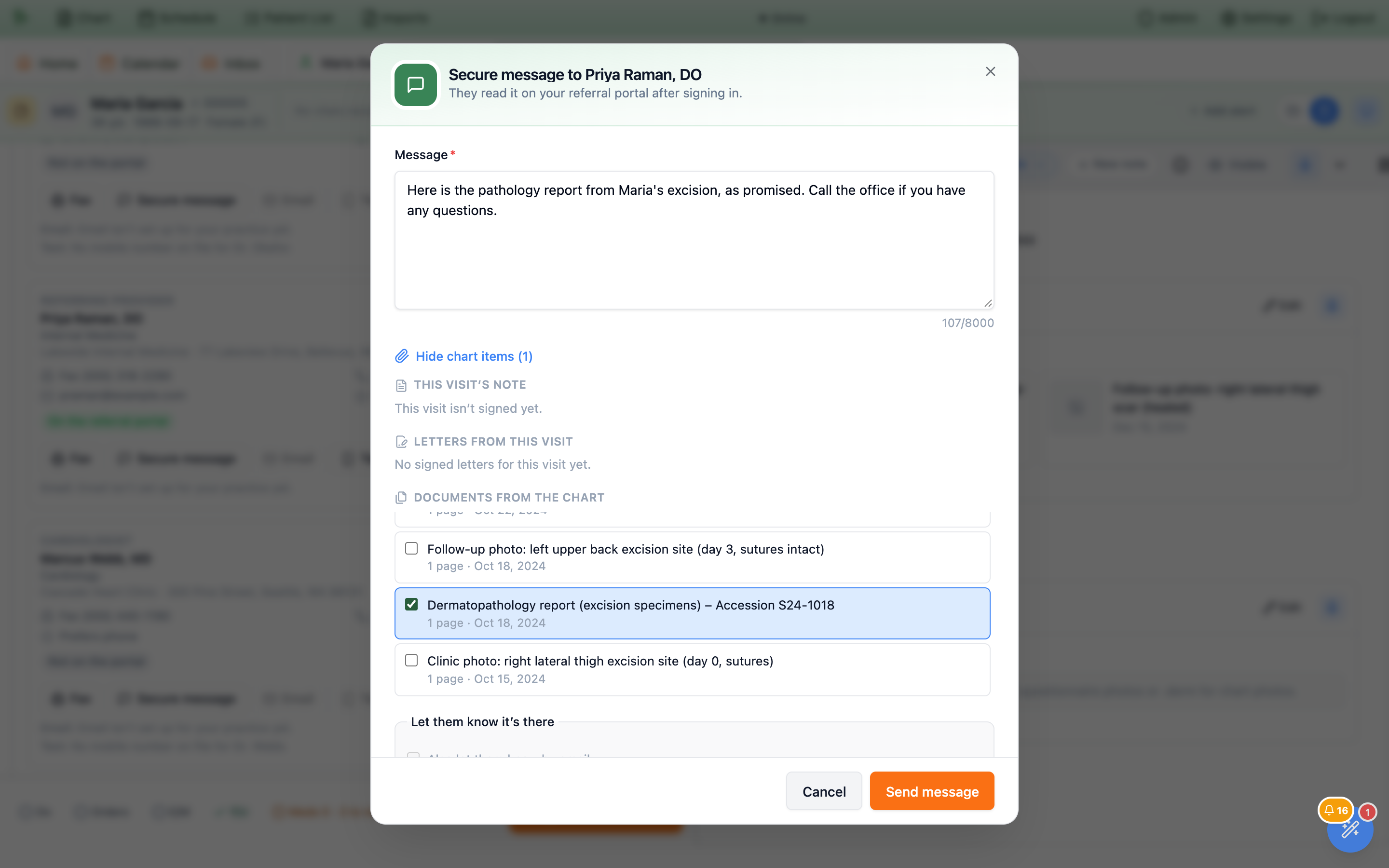
If the doctor isn’t on your portal yet
- The message is saved and waits for them. The window says so, for example “… isn’t on your referral portal yet. We’ll send them an invitation by text; they can read this once they join.”
- Ticking email or text sends an invitation instead of a notice, so it needs invite access (referral coordinators, office managers and administrators). Without it, the message is still saved but no invitation goes out; call the office or ask a colleague to invite them.
- A doctor who signed up on their own but isn’t verified yet sees the message once your practice verifies their account (“They’ll see it once your practice confirms their account.”).
- A blocked doctor can’t receive secure messages. Lift the block first on the Referring providers page:
Verifyif they still have a portal account, otherwiseUnblock(13.17).
Email and text notices never carry patient details
The Email and Text buttons don’t send free text. They send one of two fixed messages, and you see the exact wording before anything goes out:
To a doctor on your portal
“Your practice sent you a secure message. Sign in to read it: [secure link]”
The link opens the portal’s sign-in and then their messages.
To a doctor not on your portal
“Your practice invited you to its secure referral portal, where you can read messages about patients you share. Join here: [secure link]”
This is an invitation, so it needs invite access.
![The Text Priya Raman, DO window reading Tells them a secure message is waiting on your referral portal, We'll send this exact text to +1 *** *** 2299, a preview box with Dr. Romero's Practice sent you a secure message. Sign in to read it: [secure link], the note It has no patient details — no name, date of birth or anything from the chart. The link asks them to sign in first, and a required field Priya Raman, DO asked not to get text notices. Why send one anyway? with Cancel and Send text buttons](assets/screenshots/care-team/16-text-notice.png)
- No patient details, ever: no name, date of birth, or anything from the chart, in the message or its subject. The link asks the doctor to sign in first.
- The doctor’s own choices count. Doctors on your portal choose whether they want email or text notices. If they turned one off, Hero asks you to say briefly why this one is needed (up to 200 characters); the reason is kept in the timeline.
- Email notices need your practice’s email to be set up, and text notices need texting turned on for your practice.
Call the office and log how it went
Call dials the doctor’s office phone. If your practice uses the in-app phone (Soaper Phone) and it is set up for you, the call starts there; otherwise the button opens your computer’s or phone’s own calling app. After you click it, Log call is highlighted with the reminder “After the call, use Log call to note how it went.”
Log call asks How did it go? (Reached them, Left a voicemail, No answer, Wrong number, or Other) and takes an optional note, for example who you spoke with and what was agreed. The call appears in the timeline as Logged, for example “Call: left a voicemail”. If you called from the in-app phone in the last few hours, Hero links the log to that call.
Everything sent and received, in one place
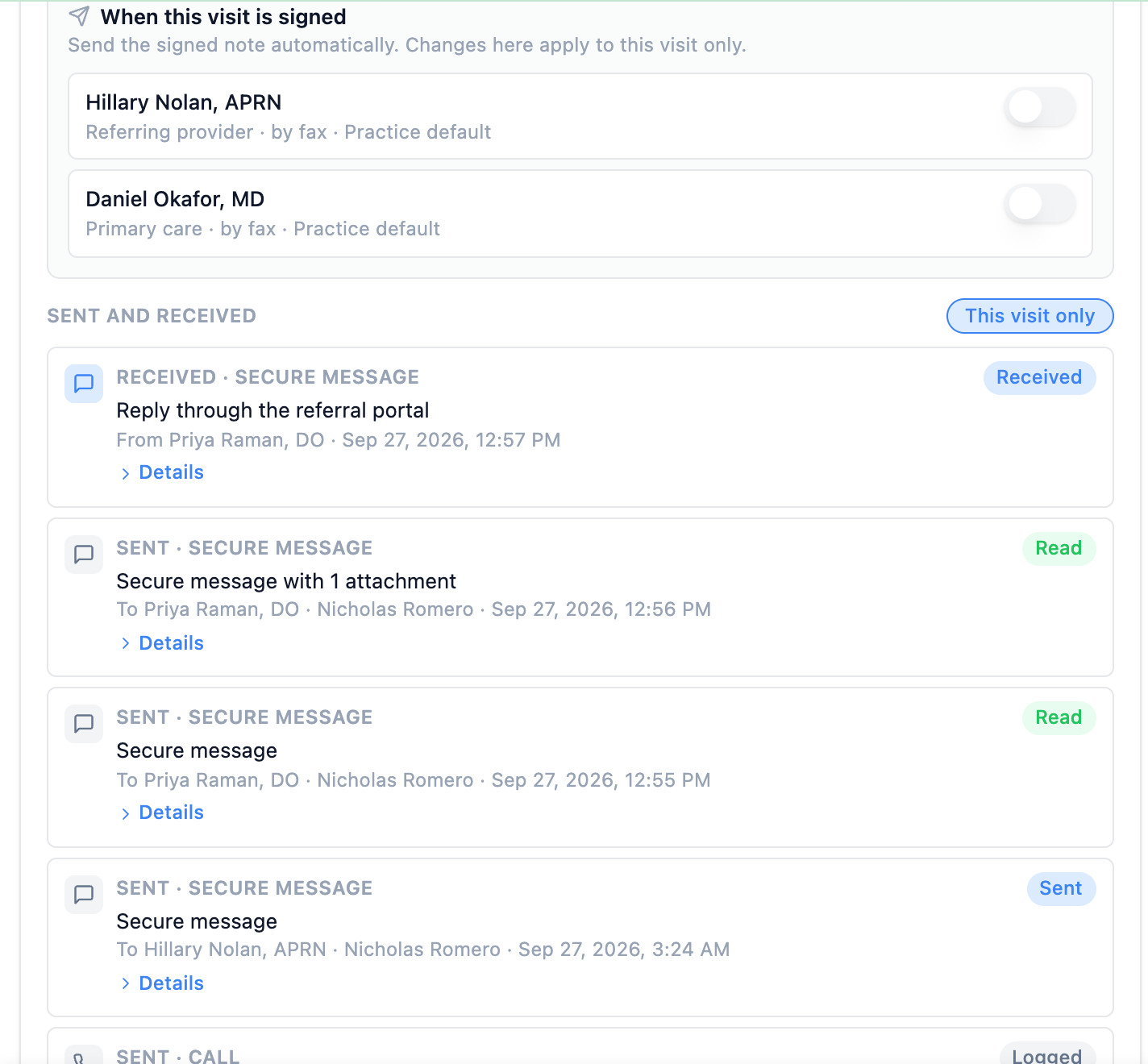
Below the recipients, Sent and received lists every fax, secure message, notice, reply, and call for this patient’s outside doctors, newest first. Inside a visit the This visit only filter is on; turn it off to see the whole history. Press Details on a row to see the message, attachments, call note, where it was sent, or the reason it didn’t go through. Times are in your practice’s time zone.
| Status | Meaning |
|---|---|
Sending | Still going out. The row updates by itself. |
Sent | Handed off. For a fax, this means it went through. |
Delivered | The email or text was confirmed delivered. |
Read | The doctor opened your secure message on the portal. |
Received | A reply from the doctor. |
Logged | A call you logged. |
Didn’t go through | It failed. Details gives the reason; fix it (usually the number or address on file) and send again. |
In the picture in 13.24, Dr. Raman has read both secure messages (Read) and replied (Received). On the chart’s Care team, Communications under each doctor shows their last five items and Show all opens the full history with that doctor. If something to a doctor didn’t go through, a warning appears under their name there too.
Send the signed note to the referring provider and PCP
Hero can send the visit note to the referring provider and primary care provider as soon as the visit is signed, so nobody has to remember to fax it. It is off until your practice turns it on.
Turn it on for the practice
An administrator opens Admin → Referral Portal and, under When a visit is signed, ticks Fax or portal-send the signed note to the referring provider, … to the primary care provider, or both, then presses Save Changes.
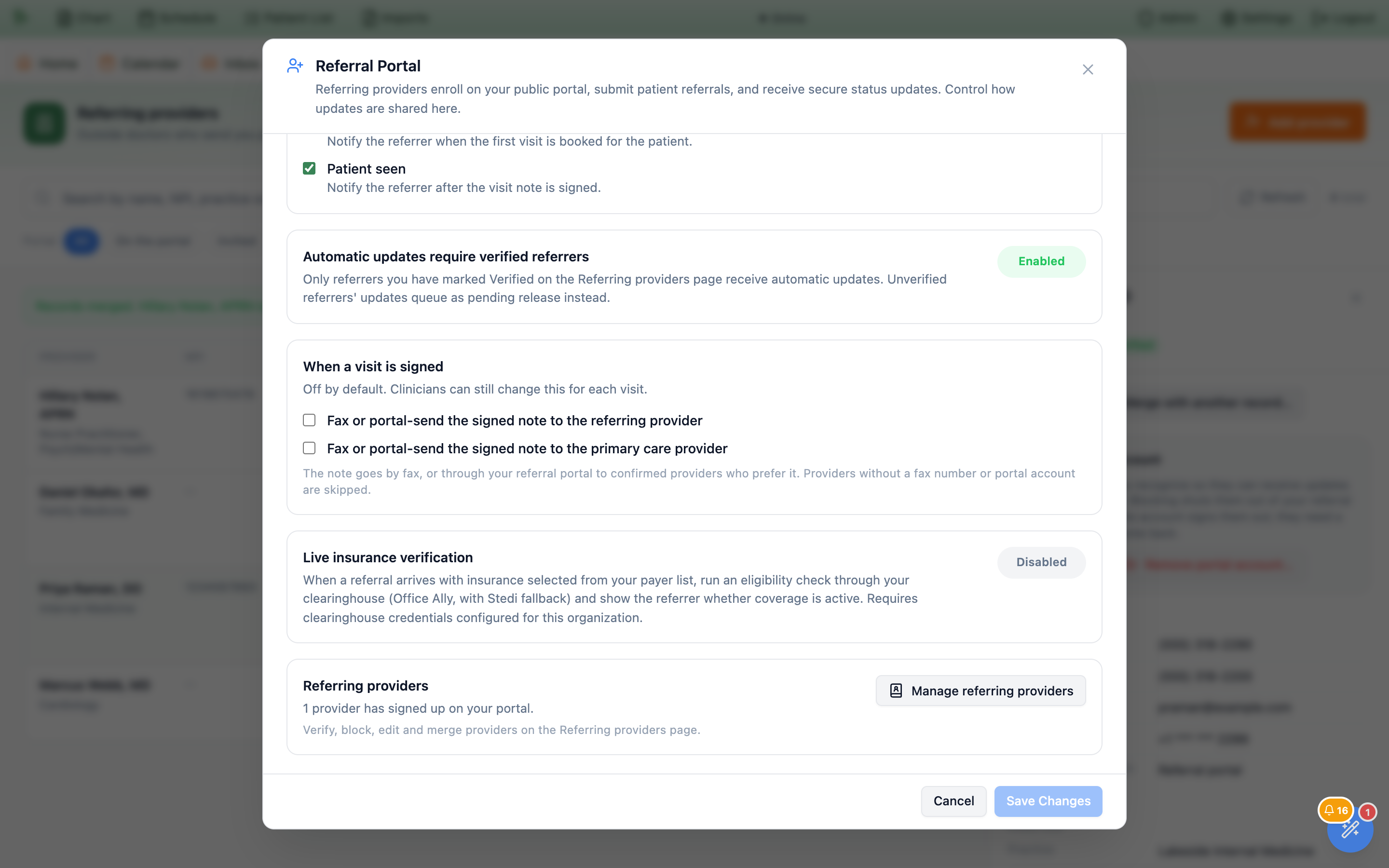
Admin → Referral Portal, next to the link to the Referring providers page.Change it for one visit
In the visit’s Communications section, When this visit is signed lists the referring provider and PCP with a switch each, how the note would go (by fax or through the portal), and Practice default while you haven’t changed it. Flip a switch to send or skip for this visit only. After a send, the row shows Last sent with its status.
How it works
- Who gets it: only the visit’s referring provider and the patient’s primary care provider (once, if it is the same doctor).
- How it goes: through the referral portal when the doctor prefers the portal and has a verified account; otherwise by fax, using the signing clinician’s fax account (or that of the person who turned the switch on).
- Only to doctors you trust: automatic sends go only to doctors your staff added to the list themselves or whose portal account is verified, and never to a blocked doctor. A doctor added automatically, for example from an imported note, is skipped until someone confirms them.
- What is sent: the current signed version of your practice’s own notes for the visit. Psychotherapy notes, older versions, voided notes, and imported outside documents are never sent automatically.
- When: once each time the visit is signed. An addendum that is signed again sends the updated note. Switching it on after the visit is already signed applies the next time the note is signed.
- It never holds anything up. Signing and billing carry on regardless. If the send fails, the timeline shows
Didn’t go throughwith the reason, a warning appears on the chart’s Care team, and it is listed on theDelivery Problemstab ofAdmin → Scheduling → Patient Notificationsas “Signed note to an outside provider”.
Replies from outside doctors: Inbox → Referrals → Messages
When a doctor replies through the portal, the conversation appears in Inbox → Referrals under Messages (“Secure messages with outside providers”), next to Inbound and Sent. Unread replies count toward the Referrals badge. Each conversation is one doctor and one patient; the list shows who wrote last and how many replies are new, unread first.
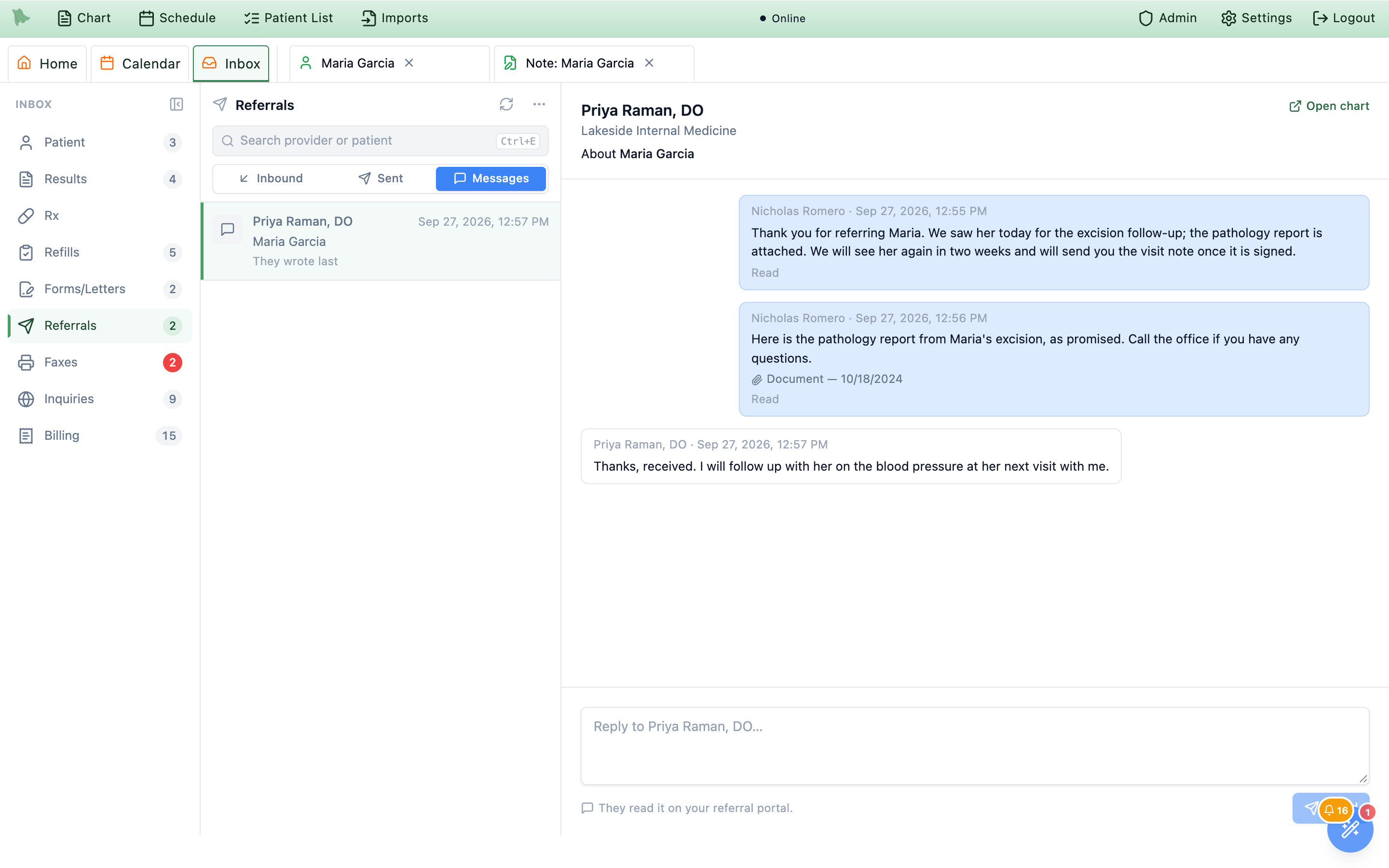
Inbox → Referrals → Messages. Read under your messages shows the doctor has opened them.- Opening a conversation marks the replies read.
Open chartjumps to the patient. - Type in
Reply to …and pressSend. The doctor reads your reply on the portal and is notified the way they chose. To attach chart documents, useSecure messagein the visit or on the chart instead. - Only conversations the doctor has replied to are listed here. Messages you sent that haven’t been answered yet are in the chart’s timeline.
Invite a doctor to your referral portal
Doctors on your portal can read secure messages and attachments, reply, and send you referrals online. The easiest way to get a doctor there is an invitation from your practice, because an invitation also verifies their account automatically.
- Open the doctor on the Referring providers page and press
Invite to the portal(Send the invitation againif they were invited before, including when the invitation has expired). A blocked doctor can’t be invited until you pressUnblock. - Choose how to send it:
Emailand/orText. A choice is greyed out with the reason if the doctor has no email or mobile on file, or if your practice’s email or texting isn’t set up. - Check the message and press
Send invitation. The invitation has no patient details. The link works once and expires after 7 days. Sending a new invitation replaces the old link.
![The Invite to the portal window: Hillary Nolan, APRN gets a link to join your referral portal. It works once and expires in 7 days. Under Send it by, Email frontdesk@example.com is greyed out with Email isn't set up for your practice yet, and Text +1 *** *** 7299 is ticked. They'll get this message: Dr. Romero's Practice invited you to its secure referral portal, where you can read messages about patients you share. Join here: [secure link]. Below: It has no patient details. Joining through this link confirms their account, so they can read the secure messages your practice sends. Cancel and Send invitation buttons](assets/screenshots/care-team/20-invite-to-portal.png)
The Portal column then shows Invited until the doctor joins, and On the portal with Verified once they have. If 7 days pass without them joining, it shows Invitation expired; send the invitation again. Inviting needs referral coordinator, office manager or administrator access. An email or text to a doctor who isn’t on the portal yet, from a visit or the chart, is an invitation too.
The outside doctor’s side of the referral portal
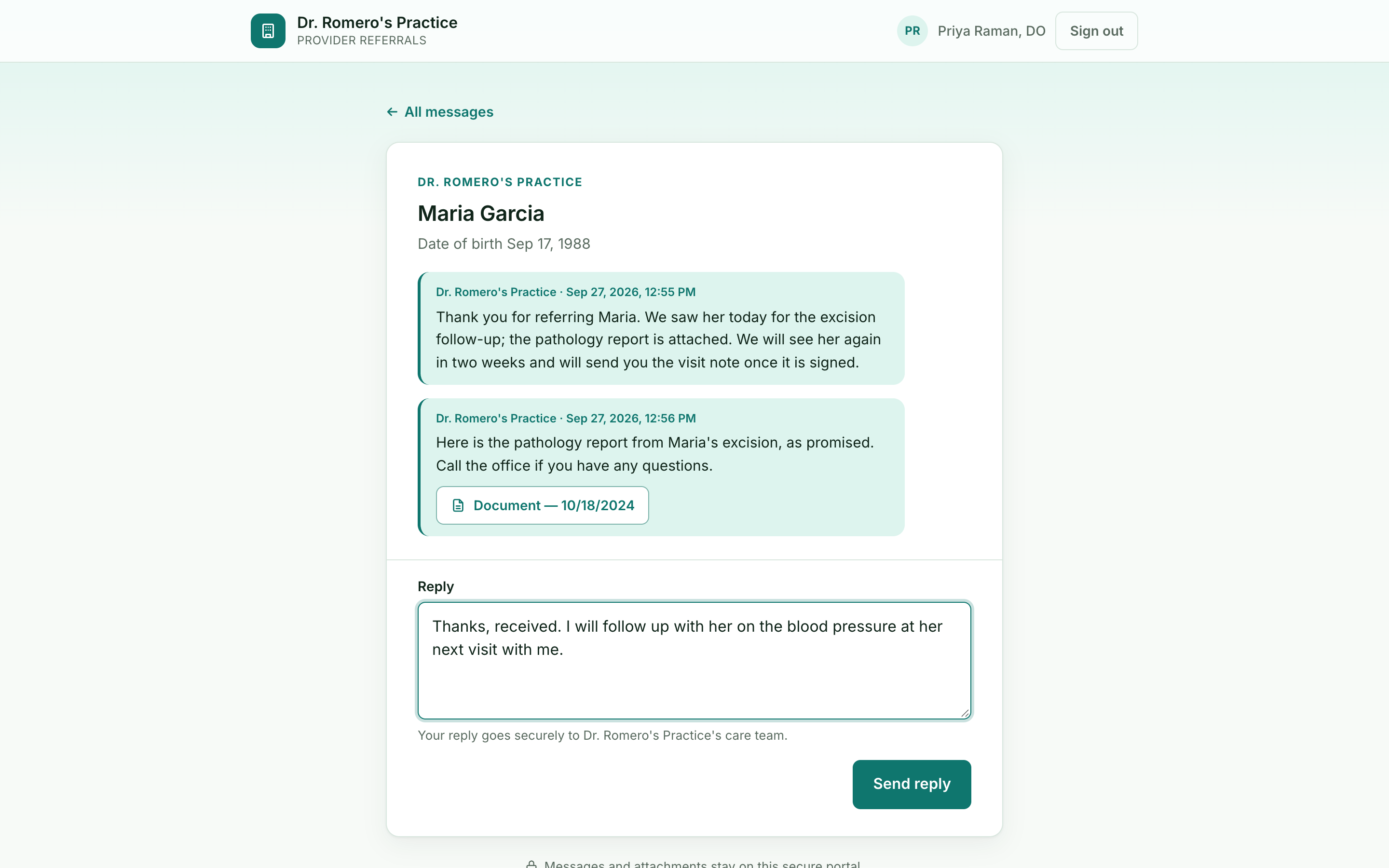
The referral portal is the same clinic-branded site outside doctors use to send you referrals (13.7). With this feature it also carries your secure messages.
- The invitation. The invitation link opens a page from your practice: “Dr. name, your practice has invited you to their referral portal.” It explains that setup takes about two minutes with no password, that they can send referrals and read and reply to secure messages, and that patient details stay on the portal, never in email or text.
-
Setting up.
Set up my accountruns the usual four enrollment steps (find yourself on the national list, confirm details, contact details, text code) with the details your practice shared already filled in. Because they came through your invitation, the account is confirmed straight away. -
Secure messages.
Their portal home has a Secure messages entry with an unread count. Conversations are one per patient. Opening one shows your practice’s messages with attachments as buttons that open the document, and a
Replybox (“Your reply goes securely to your practice’s care team.”). Replies are text only.
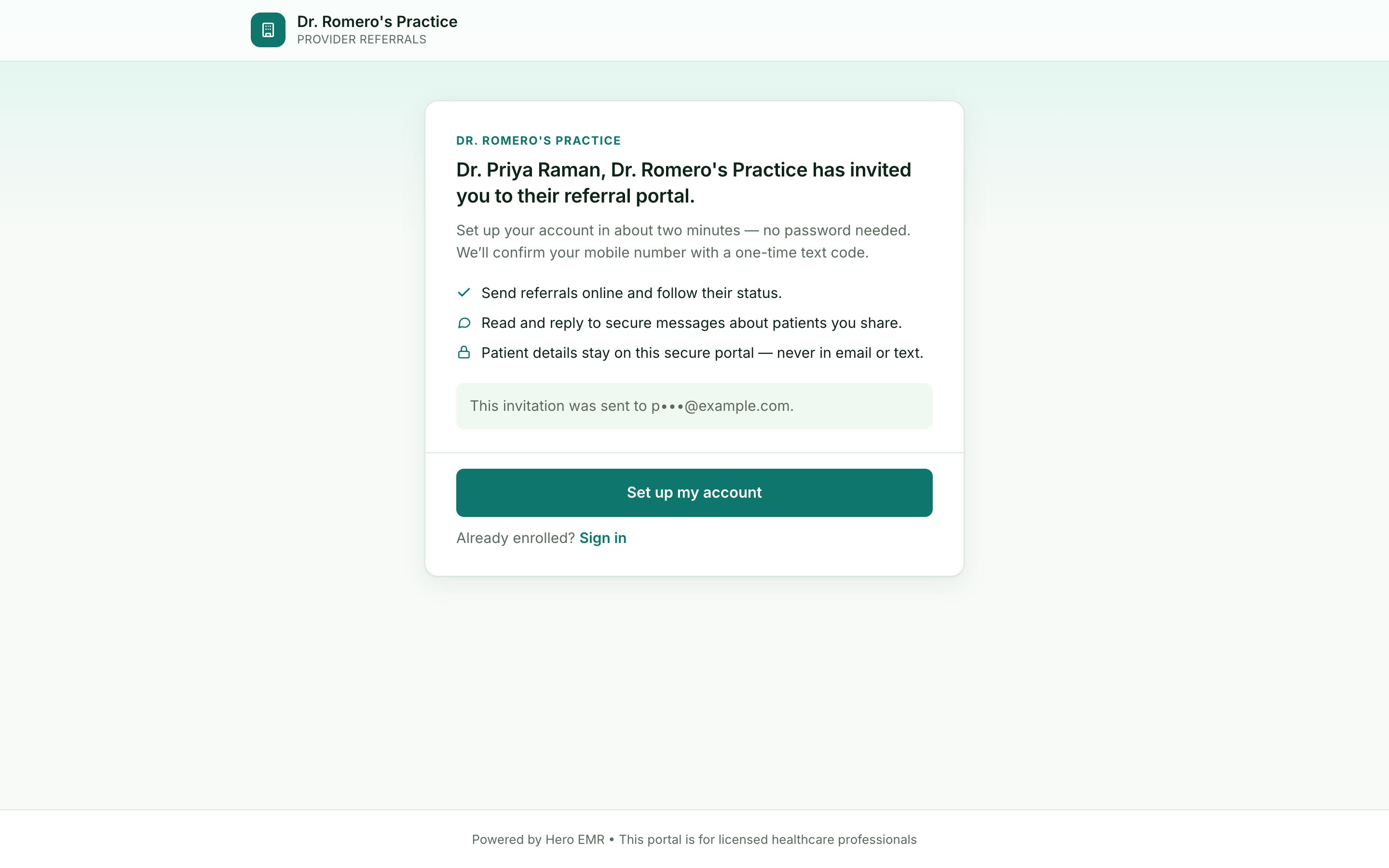
Doctors who sign up on their own
- A doctor who enrolls without an invitation starts as
Pending. Until your practice verifies them on the Referring providers page, their Secure messages screen reads “Messages aren’t available yet — Your account is waiting for your practice to confirm it.” - If your practice already has that doctor on its list, signing up without an invitation (and without the mobile number your practice has on file for them) is refused with “Your practice already has you in its provider list. Ask them to send you an invitation to join.” This stops someone else from claiming a doctor’s identity and reading messages meant for them. Send them an invitation.
Troubleshooting & FAQ
| Situation | What’s going on / what to do |
|---|---|
| “The Fax button is greyed out.” | Read the reason under the button. “Your fax account isn’t connected yet” means your own fax account needs connecting; “No fax number on file” means the doctor’s record needs a fax number (Referring providers page → Edit). |
| “The fax still says Sending.” | Hero checks every few minutes, for up to three days. If it stays at Sending after that, confirm with the doctor’s office and send it again if needed. |
| “The doctor says they can’t see our message.” | Check their Portal status on the Referring providers page. Not on the portal, Invited or Invitation expired: they need to join (send the invitation again). On the portal but Pending: press Verify if you recognize them. Blocked: they can’t read messages until you lift the block (Verify for a portal member, Unblock for anyone else). |
| “The invitation link doesn’t work.” | Invitations work once and expire after 7 days (the provider list then shows Invitation expired), and a newer invitation replaces an older one. Changing the doctor’s email or mobile also cancels it. Press Send the invitation again. |
| “The signed note didn’t go out automatically.” | Check that it is turned on (practice setting, or the visit’s own switch), that the doctor has a fax number or a verified portal account, and that they were added by staff or confirmed. The timeline row gives the exact reason. A switch turned on after signing applies the next time the note is signed. |
| “I can’t change the visit’s referring provider.” | A claim for the visit has already gone to the payer, so it is locked (13.20). |
| “Email and Text say an invitation will be sent, but I only wanted a notice.” | The doctor isn’t on your portal yet, so the only thing an email or text can do is invite them. Once they join, the same buttons send “you have a secure message” notices. |
| “Why can’t I type my own text message to the doctor?” | Emails and texts can be read by anyone with access to the doctor’s inbox or phone, so they never carry patient details. Write the details in a secure message; the notice only points the doctor to it. |
Still stuck? Email support@heroemr.com with the doctor’s name and the time you tried, and we’ll trace it.
Need help? Email support@heroemr.com.