The Psychiatry Workflow That General EMRs Ignore
Psychiatry runs on things a general-purpose EMR was never designed to hold. A fifteen-year-old needs a confidential visit while a parent still manages the portal account. Every medication-management visit leans on rating scales (PHQ-9, GAD-7, PCL-5, the Vanderbilt) that have to be scored correctly, compared with last month, and watched for a positive suicidality item. Therapy produces a second kind of record, a process note that is supposed to stay out of the shared chart. Treatment arrives as courses (36 sessions of TMS, a Spravato induction, twelve weekly therapy visits) and each missed session matters. And there are controlled substances to prescribe, with a PDMP check and two-factor signing every time.
Hero EMR handles each of these as a first-class workflow instead of a template someone has to build. This page walks through what is in the product today, with screenshots from the live EMR. Where a feature is a practice decision rather than a default (teen visibility rules, split notes, the panic button), we say so, because the practice, not the software, should make that call.
.phq9, .gad7 and .questtrend put the latest score, or the whole trend chart, in the note.Every screenshot on this page comes from a Hero EMR demonstration practice with synthetic patients. Click any screenshot to open it full size.
Teen and Guardian Privacy, Set by the Practice
Adolescent care sits between two legitimate needs. Parents and guardians are entitled to see much of a minor’s chart, and a teenager is often only willing to talk if some of what they say stays private. The rules differ by state and by situation, so an EMR that hard-codes one answer is wrong somewhere. Hero EMR builds the privacy model in layers and lets the practice set every layer.
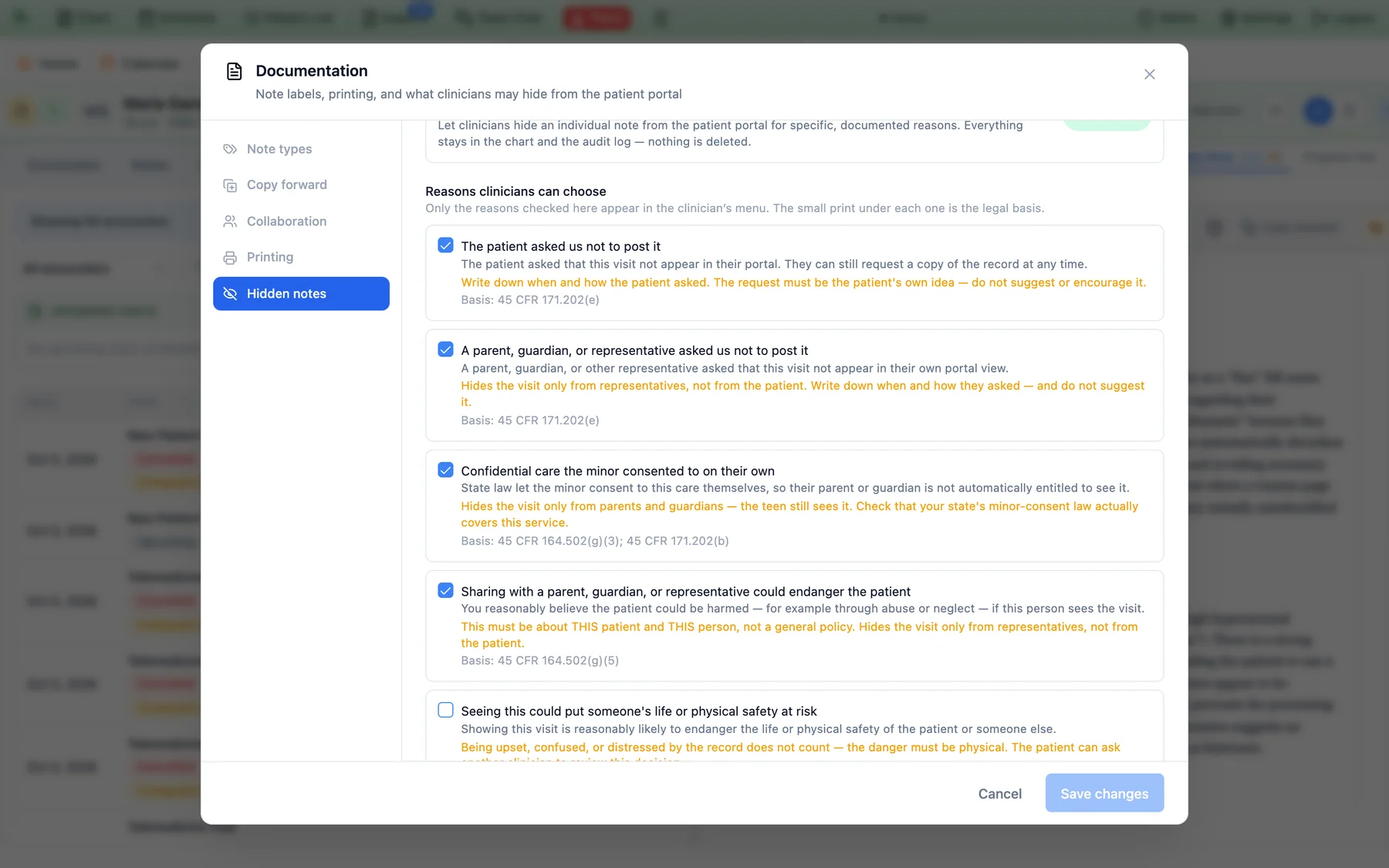
Layer one is the clinician. In the note’s Patient portal visibility dialog, a clinician can hide a visit from parents and guardians. A hidden visit always keeps its notes, summary, forms, documents, handouts, homework, and follow-up details away from them. The clinician picks a documented reason, and each reason carries its legal basis in small print: confidential care the minor consented to on their own, a parent who asked that the visit not be posted, or a situation where sharing could endanger the patient. The practice decides which reasons appear in the menu at all.
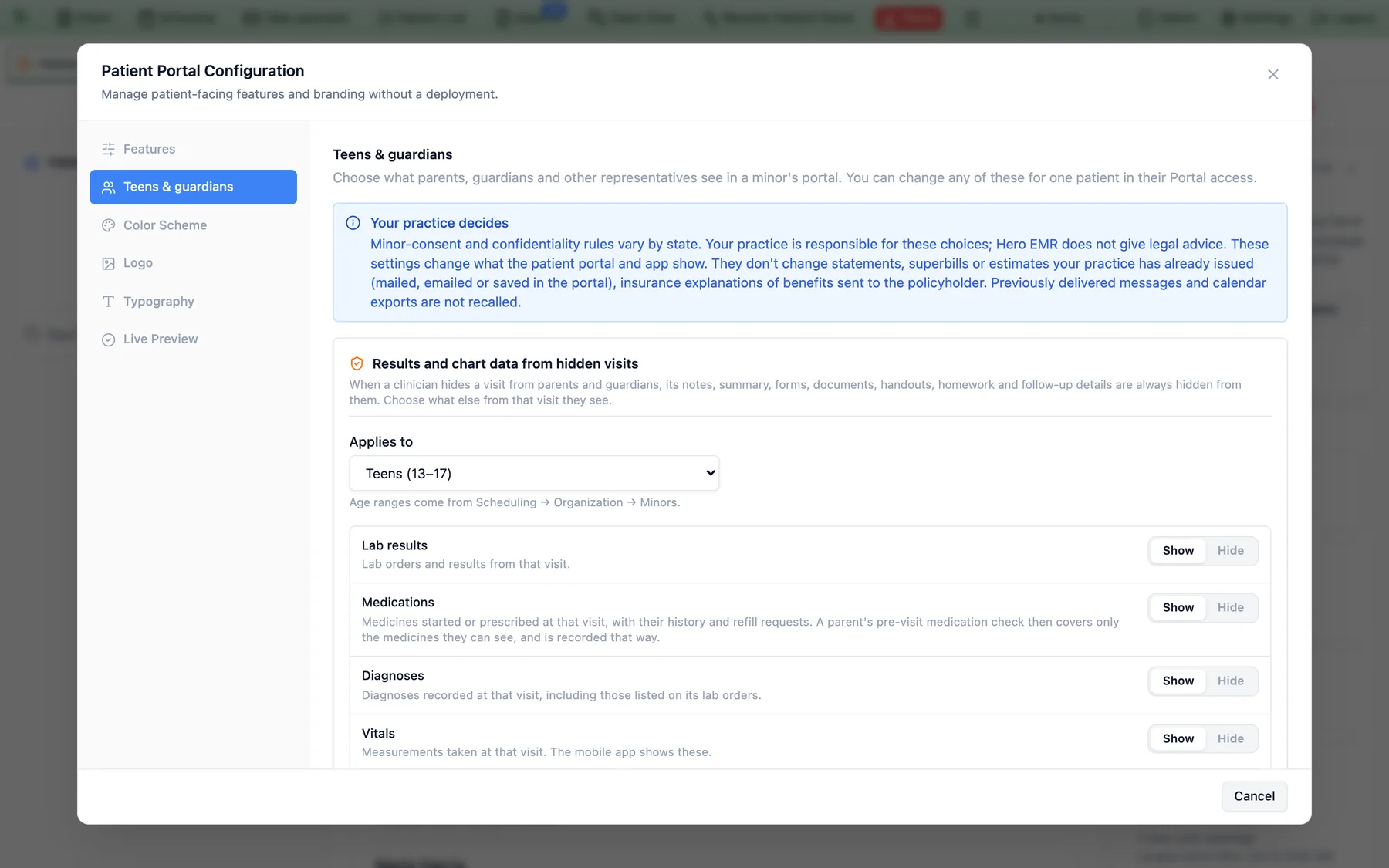
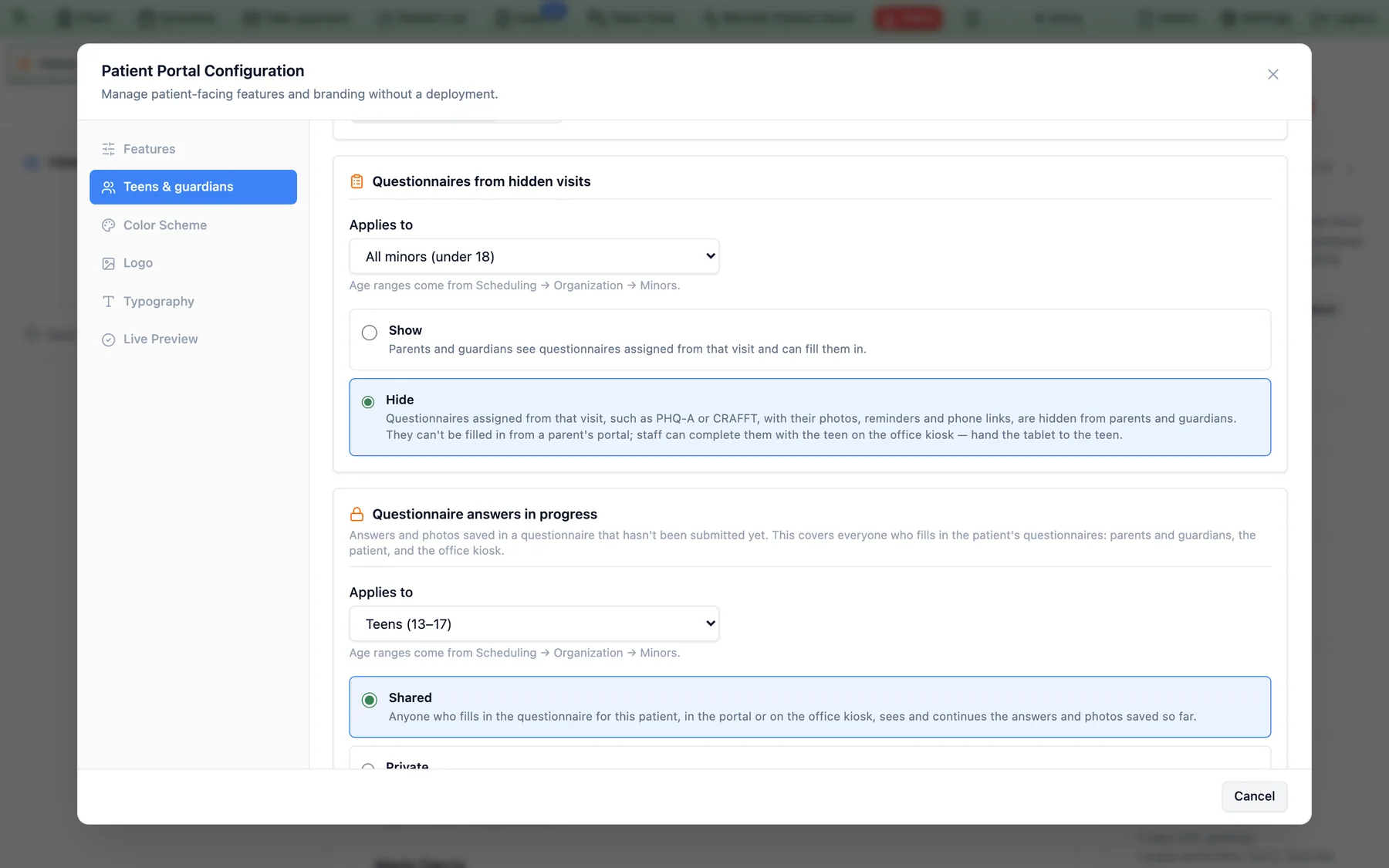
Layer two is the practice-wide default. Everything else about a minor’s portal is a setting under Admin → Patient Portal Configuration → Teens & guardians. For visits a clinician hid, the practice chooses whether parents and guardians still see lab results, medications, diagnoses, vitals, and billing details, one switch each. It chooses whether questionnaires assigned from a hidden visit stay visible, whether in-progress answers are shared or private to whoever typed them, and whether a teen’s homework check-ins are shown in full, as status only, or hidden. Each setting applies to teens (13–17) or to all minors, using the age bands your practice already defined.
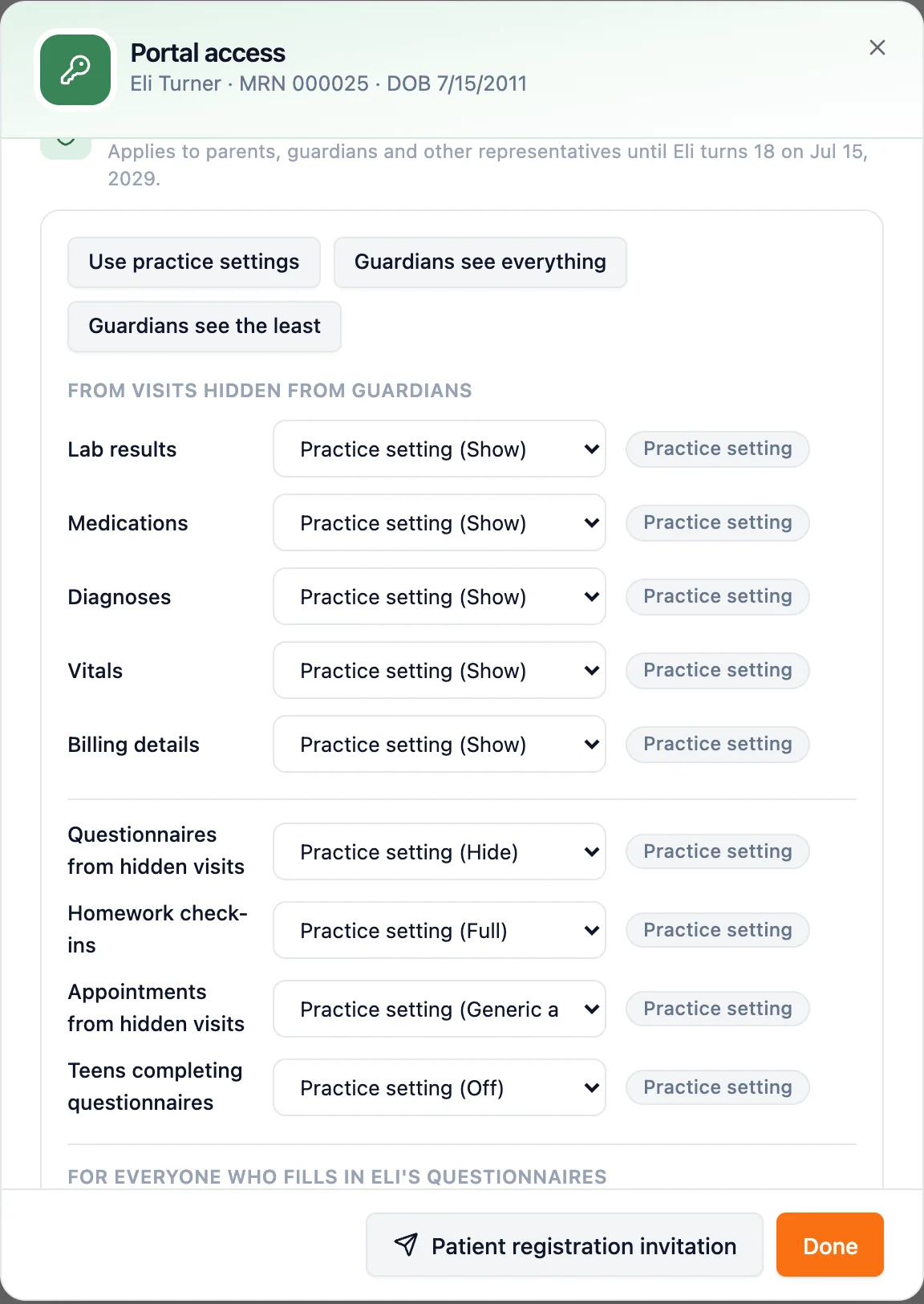
Layer three is the individual patient. Any of those settings can be overridden for one teen from Admin → Patient Registration → Portal access, with presets for “Use practice settings,” “Guardians see everything,” and “Guardians see the least.” Each row shows whether its value comes from the practice or was set for this patient. Letting guardians see more than the practice setting requires a written reason, and every change lands in a history with who made it, when, and why. The override ends on its own when the patient reaches the practice’s adult age.
The account itself is a choice too. At invitation the practice picks a parent-managed account, where the parent signs in and signs forms, or a teen-private account, where the teen signs in and a guardian email is collected separately for consent paperwork. Questionnaires for a minor are delivered to the parent or guardian on file. A practice can also let teens complete their own questionnaires, a setting that ships off.
Your practice decides. Minor-consent and confidentiality rules vary by state, and Hero EMR does not give legal advice. These settings change what the patient portal and mobile app show. They do not change statements, superbills or estimates already issued, insurance explanations of benefits sent to a policyholder, or messages already delivered. The product says so on the settings screen itself.
Prebuilt Questionnaires, Scored for You, Including Subscores
Measurement-based care only works if the scale takes less effort than skipping it. Hero EMR ships a library of standardized instruments that are already built, already scored, and already wired to the chart. Totals are computed, severity bands are labeled, items that matter clinically raise flags, and instruments that report more than one number show every subscore against its own cutoff.
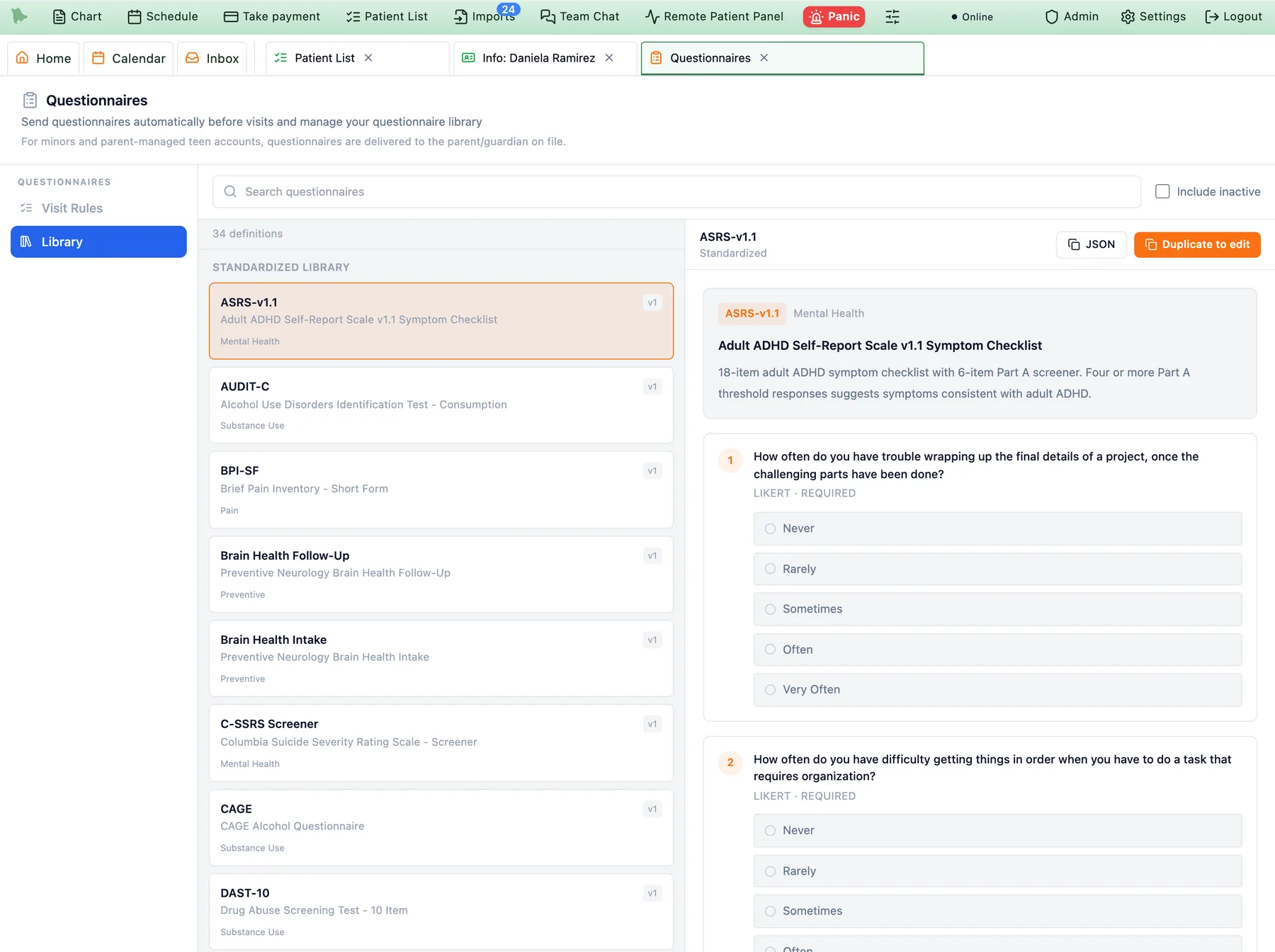
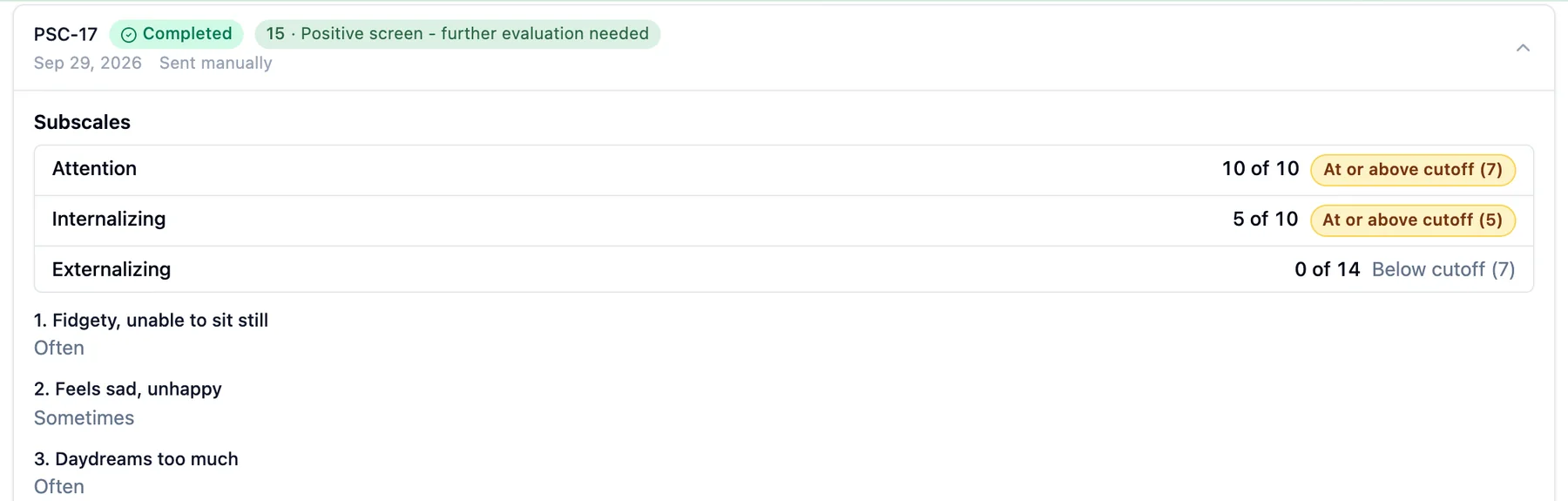
Subscoring is built into the scoring engine. The PCL-5 reports intrusion, avoidance, negative alterations in cognition and mood, and arousal and reactivity alongside the total. The PSC-17 reports attention, internalizing, and externalizing, each against its own cutoff. The Vanderbilt parent and teacher scales report inattentive, hyperactive-impulsive, oppositional-defiant, conduct, anxiety-depression, and performance scores using the instrument’s own item-count criteria. A subscore shows up in the chart, in the note, and in dictation context, so a result like “Attention 10 of 10, at or above cutoff (7)” never has to be recomputed by hand.
Safety items do not wait for someone to open the chart. A positive answer on PHQ-9 item 9, or on the ideation, intent, or plan items of the C-SSRS, raises a critical safety alert on the patient’s chart and sends a high-priority to-do to the treating physician, the physician on the next scheduled visit, and the clinician who ordered the screener. If none of them can be identified, it goes to the practice administrators. A repeat positive refreshes the existing alert instead of stacking a second one.
Getting the questionnaires to patients is rule-based. A rule can send a screener when a visit is booked (narrowed by age, sex, telehealth or in-person, problem-list ICD-10 code, language, or how soon the visit is), on a schedule (monthly, every three months, every six, yearly, or every N days), or the moment a patient registers for the portal. A rule set on an individual patient always overrides the practice rules, including a rule that suppresses a screener. Answers arrive before the visit, and in the note screen they sit in a Questionnaires pane beside the note.
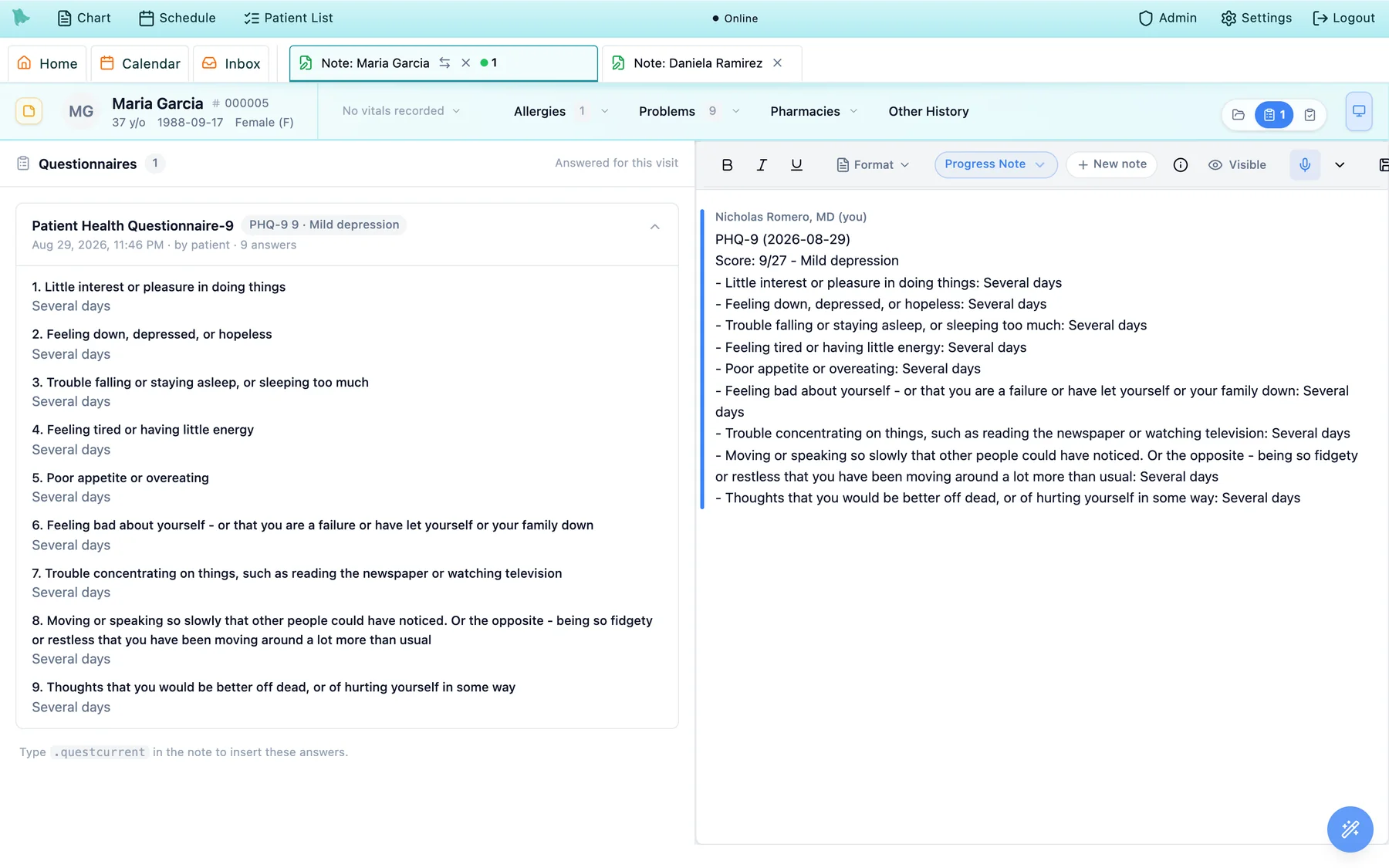
.questcurrent writes them into the note on the right.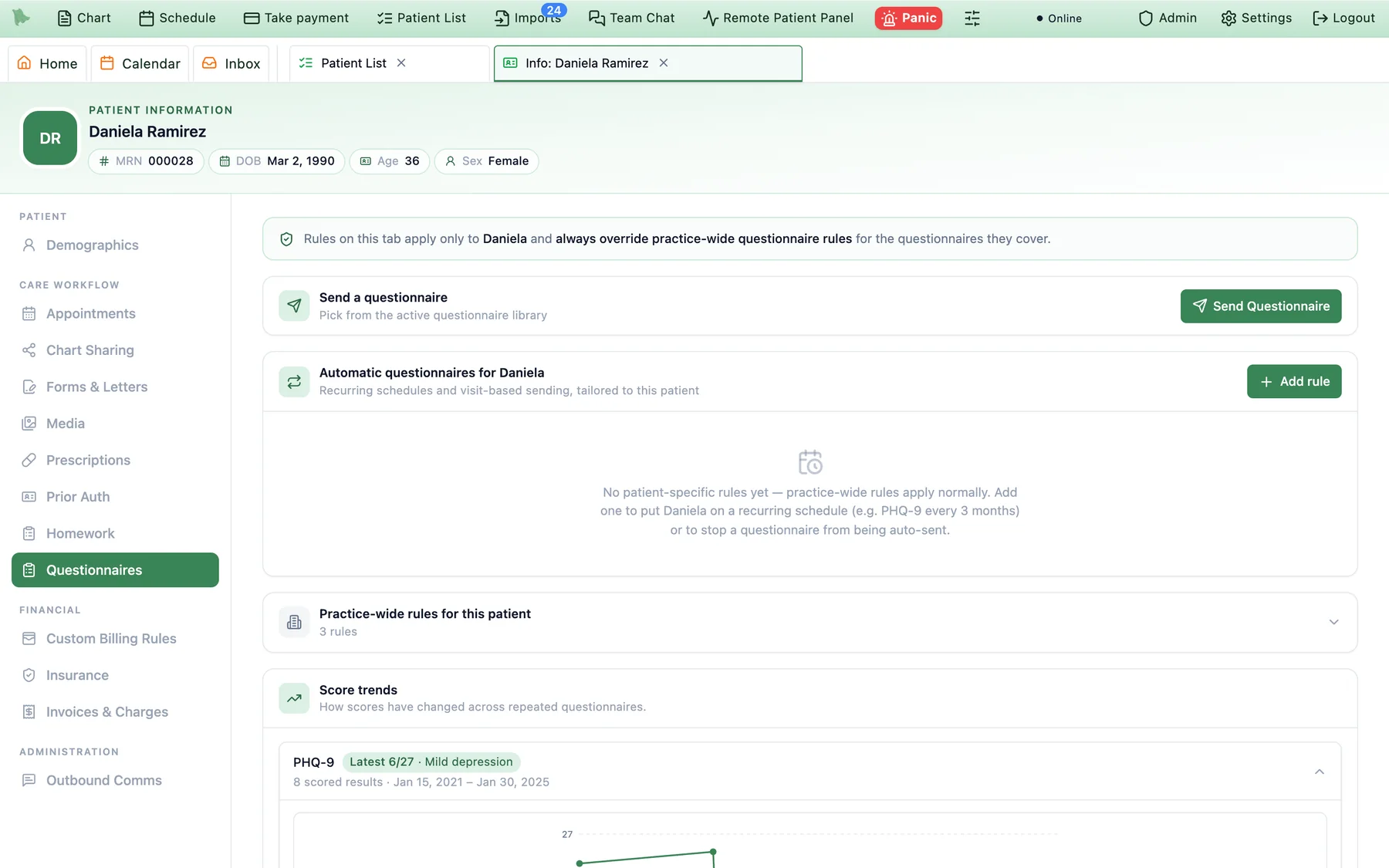
Trending Dotphrases: PHQ-9 and GAD-7 Over Time, Inside the Note
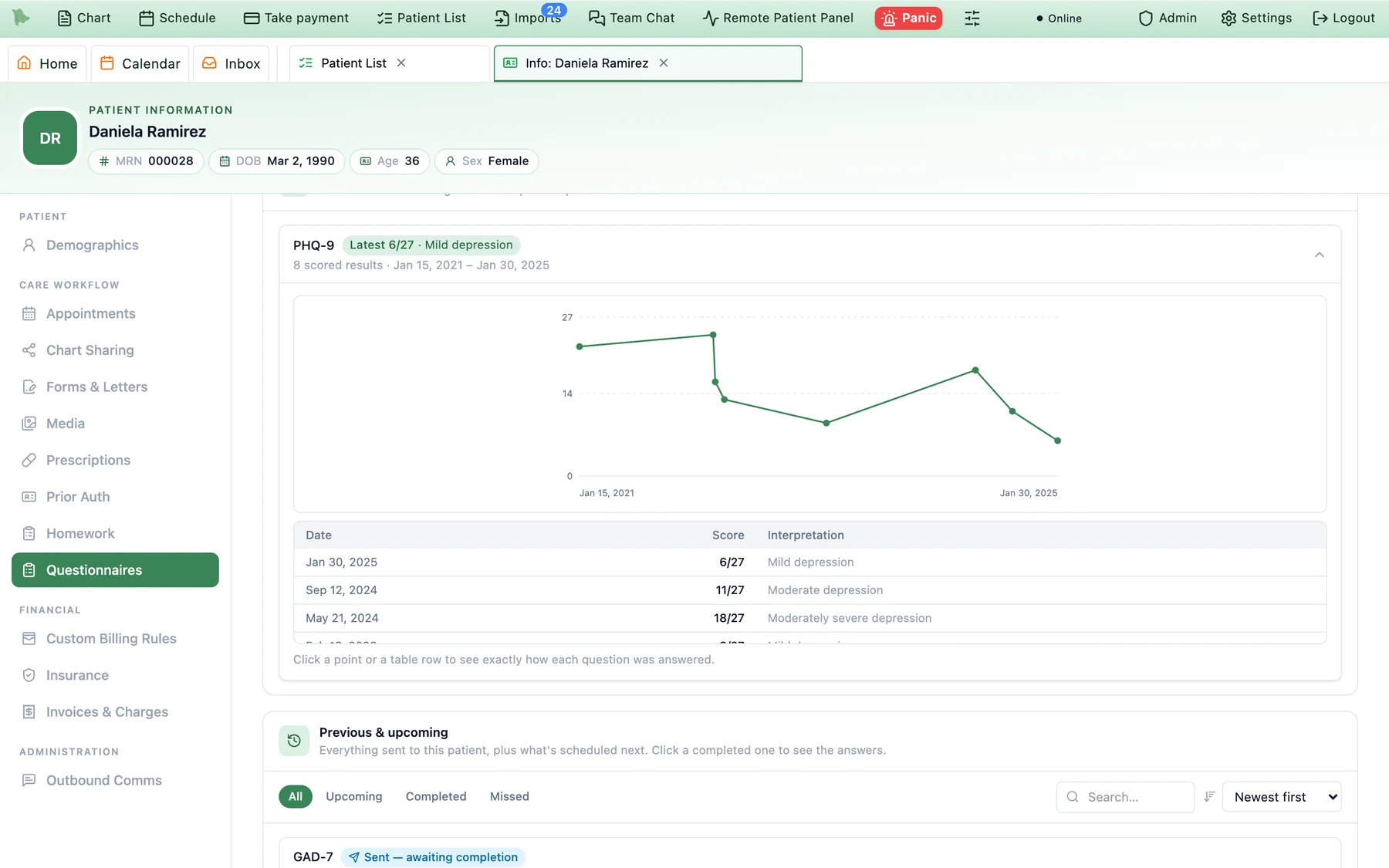
The score is rarely the interesting part. The change since last month is. Hero EMR’s dotphrases pull questionnaire results straight into the note you are already writing, so the trend is in the documentation instead of in someone’s memory.
Inserted content is an ordinary part of the note from the moment it lands, so it is signed with the note and does not change if the patient later amends a form. The same trend lives in the chart. The patient’s Questionnaires tab groups repeated instruments, charts every scored result, and lets you click any point to see exactly how each question was answered that day.
Persistent Dotphrases: Write It Once, Pull It Up at Every Visit
Most dotphrases insert text and are done. A persistent dotphrase remembers. It stores a value for each patient behind a shortcut, so the next time you type it for that patient the saved content comes back, ready to update. It suits the parts of a psychiatric chart that are meant to carry forward: the treatment plan, the therapy objectives, the running summary of medication trials.
Hero EMR ships one built for outpatient psychotherapy. .psychtxplan is a Medicare-style psychotherapy treatment plan. The first time you type it for a patient it fills in the patient, provider, date, and primary diagnosis and leaves clearly marked blanks for the individualized clinical narrative. You complete it once. From then on it is pulled into each visit’s note with the narrative intact and the review dates refreshed, which is how a 90-day plan review stops being a scramble. A companion dotphrase, .dxpick, lets you choose the primary diagnosis from the patient’s own problem list.
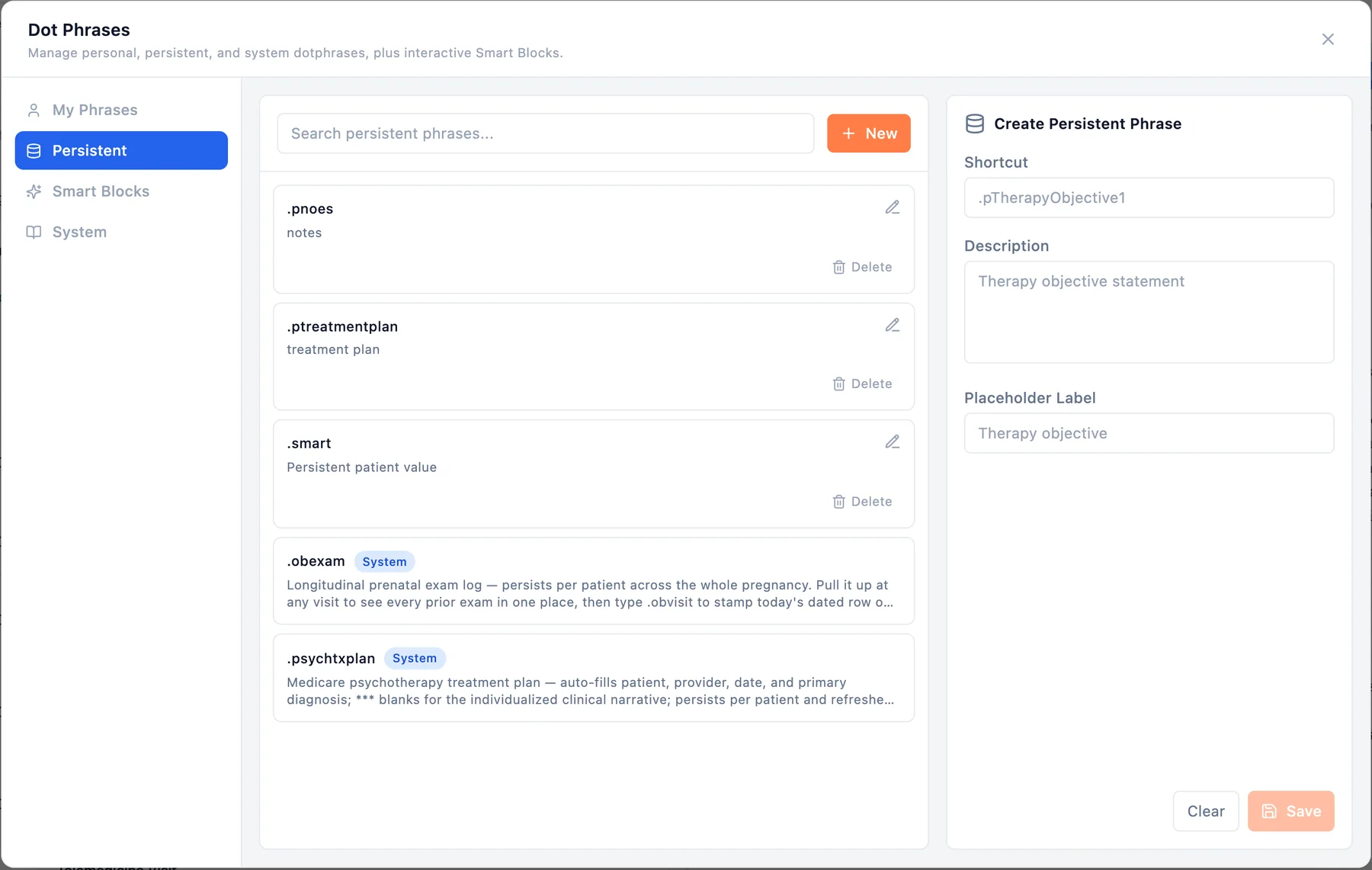
.psychtxplan sits beside your own. Create one with a shortcut, a description, and the label the blank will show.You are not limited to the one we ship. In Settings → Dotphrase → Persistent you create your own with a shortcut, a description, and a placeholder label (a therapy objective, a safety plan, a medication-trial history, whatever your practice keeps current for each patient), and it is available in your own note editor the same way.
Psychiatry Note and Psychotherapy Note, Split Automatically
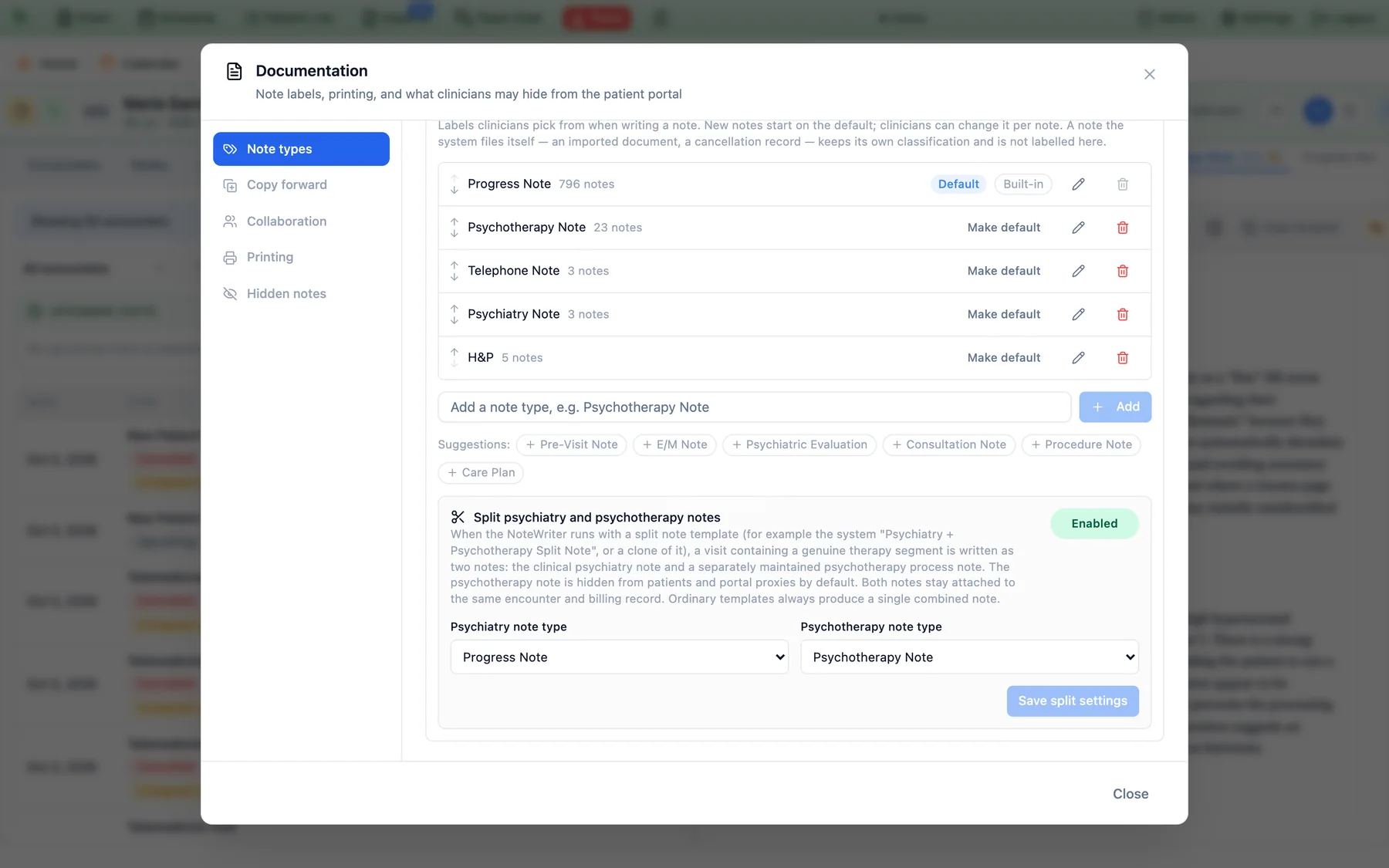
A combined medication-management and psychotherapy visit produces two different kinds of documentation. One is the clinical note: history, mental status, diagnoses, medication decisions, risk assessment, the plan. The other is a psychotherapy process note, the clinician’s own record of themes, observations, and what happened in the session, which is meant to be kept apart from the shared chart. Writing both by hand, in the right place, after a full day of patients is where a lot of notes go wrong.
Hero EMR splits them for you. When a practice turns the split on and the visit is written with the Psychiatry + Psychotherapy Split Note template (a system template, or a clone of it), a visit that contains a genuine therapy segment is written as two notes on the same encounter: the clinical psychiatry note, and a separately maintained psychotherapy note. A visit with no real therapy segment, such as a straightforward medication check, stays a single note. Ordinary templates always produce one combined note.
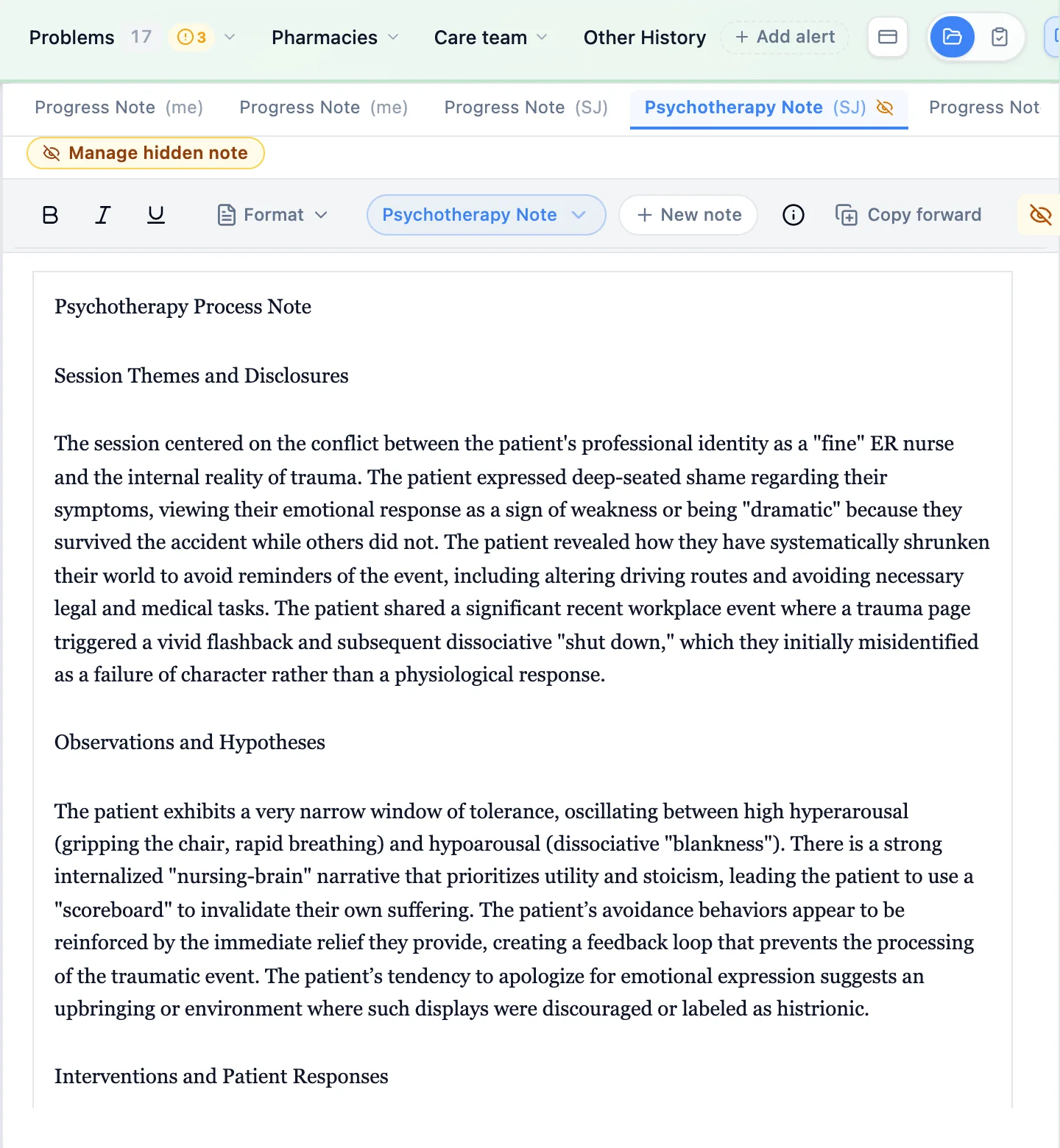
The two notes are not treated alike. The psychotherapy note is hidden from patients and from portal proxies by default, stays visible to the practice’s staff, and is marked in the note tab strip with a crossed-out eye and a Manage hidden note badge. It is written as a psychological record: diagnoses, medication names and doses, labs, billing codes, and safety or risk findings belong to the clinical note, and the process note refers to treatment in neutral terms. When the visit is completed, Hero EMR reads every note on the encounter, so diagnoses, orders, and charges come from the whole visit, and therapy homework or behavioral plans from the process note can flow into the patient’s after-visit instructions while the note itself stays hidden. Both notes stay attached to the same encounter and billing record.
A note on HIPAA’s “psychotherapy notes.” Under HIPAA, only therapy notes kept separate from the rest of the record qualify for special protection, and ordinary mental-health progress notes do not. Hero EMR keeps the process note out of the portal, and its Hidden notes policy for psychotherapy notes says plainly that it cannot check whether a note meets the definition. That determination stays with the clinician.
Billing the add-on from documented time
The split also removes the usual billing question. When a psychotherapy note and an E/M visit sit on the same encounter, Hero EMR reads the psychotherapy time written in the note and selects the add-on code from it. It uses only time that is explicitly documented. If the minutes are not written down, or are under 16, no code is suggested. An add-on is never offered without an E/M primary code to attach it to, and it is paired only with an E/M service by the same clinician.
A Panic Button for the Whole Practice
When a patient escalates in an exam room or a stranger will not leave the waiting room, a phone call and a text thread are too slow. The panic button is a red button in the Hero EMR top bar. Pressing it alerts everyone on your team who is signed in to Hero on a computer: an alarm sounds, and a large red alert names the person who needs help.

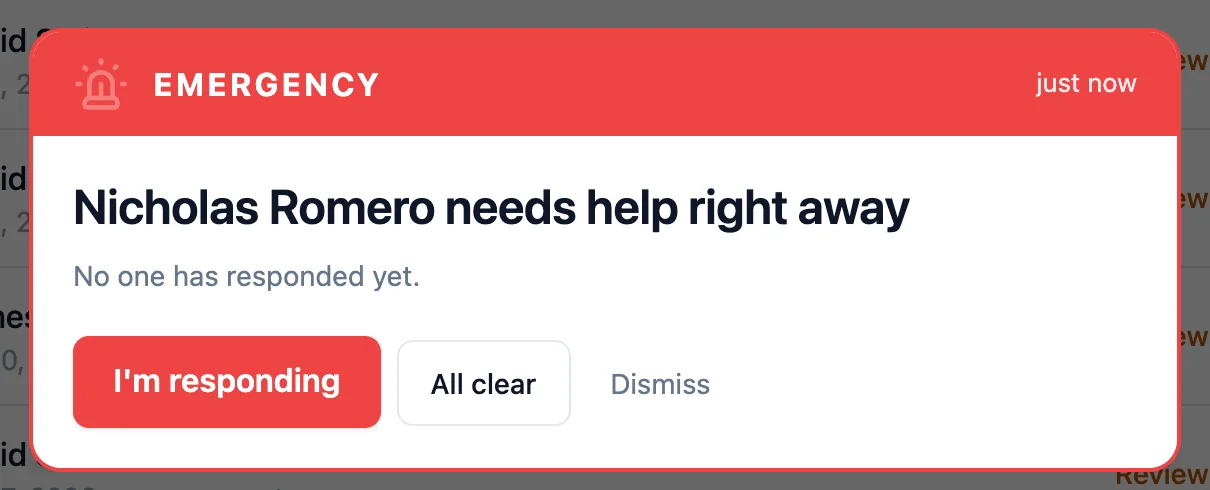
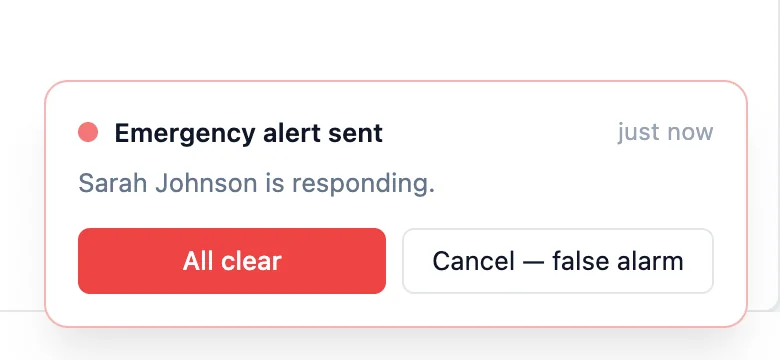
Teammates can answer “I’m responding,” mark it all clear, or dismiss the alert for themselves, and the sender sees who is on the way. It is a practice-level feature that ships off, so you turn it on under Admin → Additional Features when you want it. It is for practice staff, not patients, and it does not replace calling 911. It is the fastest way to get the person next door moving.
Series Appointment Booking: TMS, Spravato, Ketamine, and Weekly Therapy
Psychiatry increasingly runs on courses of treatment. A TMS acute course is thirty daily sessions followed by a taper. Spravato is twice weekly for four weeks and then weekly for four more. A ketamine protocol is six infusions. Booking those one visit at a time is slow, and noticing that session fourteen never happened is slower. A treatment series books the whole course in one step and keeps watching it afterwards.
Staff start from the scheduler: pick the provider, visit type, first day, and start time, then choose Book as a series. The dialog applies a template or a custom pattern and previews every session against the schedule, flagging overlaps, time off, and hours the practice is closed. Each flagged row can be moved to the suggested time, booked anyway with a reason, or skipped (which adds one at the end). When the plan is right, one click books it and sends the patient a single message with the whole schedule.
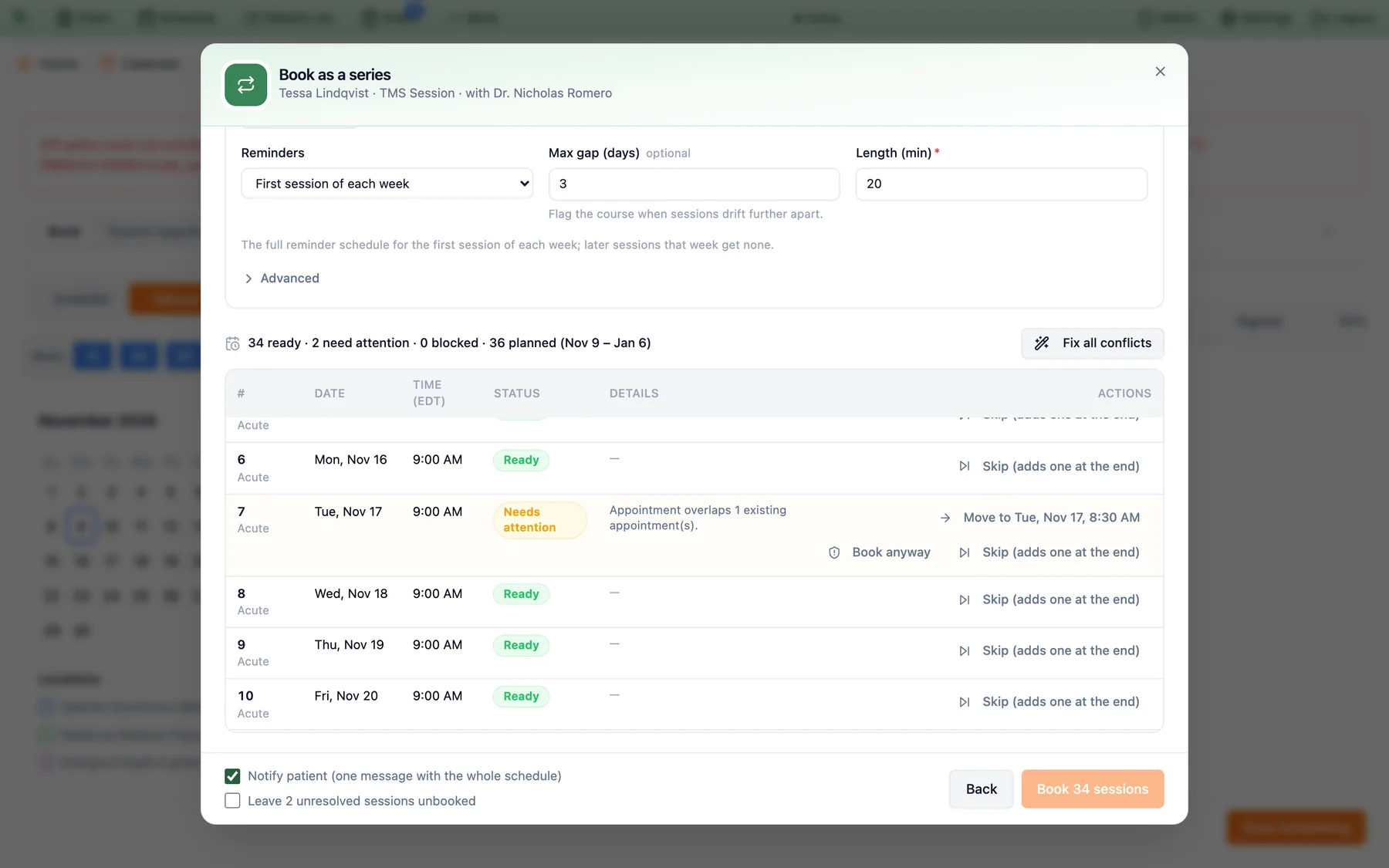
Each session is an ordinary appointment on the calendar, numbered as part of its course (3/36). Move or cancel one and the rest renumber. A no-show or a cancellation shows as missed and does not count, and a make-up session takes its place. Patients just see appointments, not series.
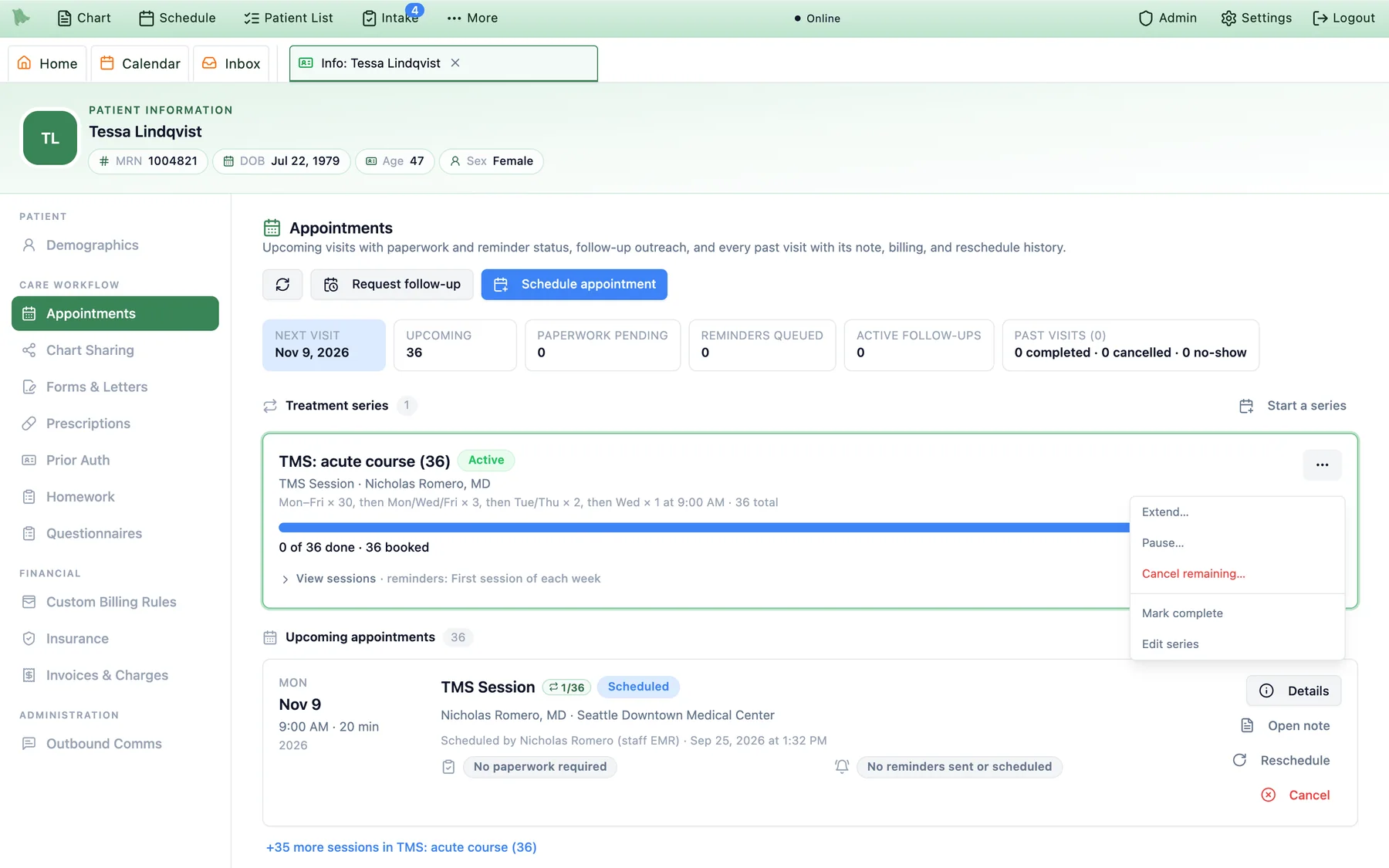
Series Watch checks every active course hourly and puts drifting ones on a worklist. It can flag a no-show, a late cancellation, sessions due in the next 14 days that are not booked, a gap longer than the course allows, a course with no next session, or a past session nobody resolved. Each practice chooses which flags are on and who gets the to-do. When a problem is found outside business hours, the to-do appears at 8:00 AM practice time, and it completes itself when the problem is fixed.
Nothing is created automatically. Your practice adds the templates it wants, and the presets include TMS: acute course (36), SPRAVATO: induction + maintenance, Ketamine infusions × 6, and Weekly psychotherapy × 12. The reminder pattern is a template choice too: standard, day before only, or first session of each week, so a daily TMS patient is not texted thirty times.
Authorizations track alongside. Courses like these usually need payer approval. The Prior Auth tab records the authorization against a specific insurance policy, draws approved units down automatically as linked visits are completed and billed, and alerts staff before it expires.
EPCS and PDMP, Without Leaving the Visit
Psychiatrists prescribe stimulants, benzodiazepines, and buprenorphine every day, and every one of those needs DEA-compliant two-factor signing. In Hero EMR, e-prescribing is part of the platform, not a per-prescriber add-on. Controlled prescriptions go through one dialog that restates the full prescription, the schedule, the prescriber, and the DEA registration it will be signed under.
The PDMP query runs from the same dialog, and where a check is required, approval stays locked until a usable report comes back (a stale or expired one counts as unusable). Each prescriber enrolls once: identity proofing, two registered devices, and the Surescripts attestation. Nurse practitioners and physician assistants can route a controlled prescription to a supervising physician to sign instead. In the refill inbox, approving a controlled renewal requires the same verification, and a Schedule II renewal cannot be approved at all. The request is denied so a new prescription can be written.
The Rest of the Behavioral Health Toolkit
Several smaller features round out a psychiatric practice. Each is something your practice turns on or sets up, not something that changes your workflow on its own.
Psychiatric History
Medication trials, suicidality history, and hospitalization history in the chart, versioned, with a “mark reviewed today” step. It records history only, and the current risk assessment still belongs in today’s note. Turn it on under Additional Features.
Homework between sessions
Assign guided practices from the chart (CBT thought records, one-small-step planning, paced breathing, meditation) with a target number of sessions, a weekly pace, and a due date. Patients complete them in the My Hero app, and their check-ins come back to the chart.
Copy forward and co-signing
Bring a patient’s earlier note forward into today’s, and designate co-signers so a supervising clinician can review and co-sign a supervised clinician’s note from the Inbox. Both are off until your practice enables them.
Care management programs
Enroll patients in care programs including BHI and CoCM, track the time, and review month-end billing alongside quality measures in the Value-Based Care hub, an optional feature your practice turns on.
Ambient dictation and templates
Dictate the visit and Hero EMR writes it into your template. System psychiatric templates include the split note and the DIVA-5 adult ADHD diagnostic interview, and you can build and customize your own.
Labs in the chart
Orders go out and results return to the chart and Inbox through your lab integrations, so metabolic monitoring, drug levels, and urine drug screens sit with the rest of the record.
The Visit, Before and After
The difference shows up in the middle of an ordinary day, in the steps nobody has to remember.
.questtrend puts the trend chart in the noteBuilt for how a psychiatric practice actually runs. The teen settings, the split notes, the panic button, and the care-management programs are choices your practice makes during setup. Nothing here is forced on a practice that does not want it, and none of it needs a separate system.
See the psychiatry tools in action
Schedule a demo to see teen and guardian privacy, prebuilt questionnaires with subscores, split psychotherapy notes, series booking, and the panic button in a practice like yours.
Request a Demo